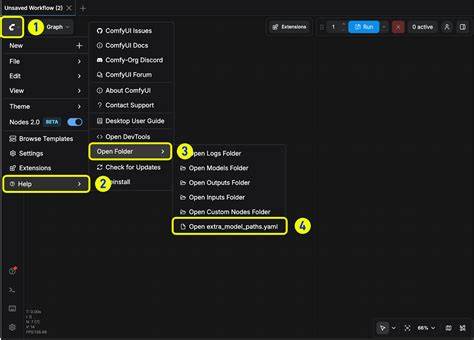
ComfyUI does not simply scan every model file on your drive. It uses folder keys to decide where each loader should look. A checkpoint loader checks checkpoints. A LoRA loader checks loras. A latent upscaler may check latent_upscale_models. That detail is what trips people up. A model can be on the right disk, inside the right general model library, and still be invisible to the node that needs it. The file has to sit in a path registered under the folder key that the loader actually uses.
The current ComfyUI path loader reads the YAML file, loops through each top-level config section, pulls settings such as base_path and is_default, then registers the mapped folders through folder_paths.add_model_folder_path inside utils/extra_config.py. If the YAML shape is wrong, ComfyUI can fail at startup, ignore the path you expected, or leave a node unable to find the model. The most common causes are:
- The file is still named extra_model_paths.yaml.example.
- The file is in the wrong folder.
- ComfyUI Desktop is using extra_models_config.yaml from an app data directory instead of the file you edited.
- The YAML is missing a top-level profile name.
- The indentation is wrong.
- You mapped a model folder under the wrong key.
- You used upscale_models when the node wants latent_upscale_models.
- The model download UI saved the file to your browser downloads folder instead of your configured server path.
- A custom node or workflow is using a folder key that your config does not define.
For the Windows portable or manual install, the normal path is: ComfyUI/extra_model_paths.yaml. The official ComfyUI README says that, in the standalone Windows build, users can find the config file in the ComfyUI directory, rename it to extra_model_paths.yaml, and edit it to set model search paths for sharing models between UIs. For ComfyUI Desktop, do not assume it is reading the same file. In one Desktop issue report, the launch arguments showed ComfyUI being started with an explicit --extra-model-paths-config value pointing to: C:\Users\[name]\AppData\Roaming\ComfyUI\extra_models_config.yaml. That path was visible in the user’s startup arguments in ComfyUI issue #11242. The same report involved a latent upscale loader error where ComfyUI was looking for a model in latent_upscale_models, which is a useful reminder that Desktop path issues and folder-key issues can overlap.
- Look in your startup log for something like: --extra-model-paths-config C:\Users\...\extra_models_config.yaml. If that appears, edit that file instead of guessing.
- va e: models/vae/. That looks reasonable, but it is wrong for ComfyUI’s expected config shape.
- The top-level name can be comfyui, a1111, my_models, or another label. The important part is that base_path and the folder keys sit under that label. That nesting is what lets ComfyUI treat the first level as a profile, then read the folder mappings inside it.
- Without that profile layer, values like base_path can be treated like sections, which leads to confusing startup errors.
ComfyUI has added and renamed folder conventions over time. The official example currently includes text_encoders, while still noting the legacy models/clip/ location. Do not rely on old folder names alone when a newer workflow expects the newer key. Keeping both the current and legacy folder paths under the same key can make older workflows and newer workflows easier to run from one shared model library. This also helps when a workflow was downloaded from someone else’s setup. Their node may expect a newer folder key even if your existing model library still uses an older folder name.
This is easy to miss. A user reported that the LTX-2 latent upscaler was not being found even though their logs showed ComfyUI adding model paths. That may register both folders as regular upscale model paths, but a node that calls latent_upscale_models still will not find what it needs. The key lesson is simple: a folder path can be valid and still be registered under the wrong category. When a loader says a model is missing, check the exact folder name in the error message. That folder name is usually the key you need in extra_model_paths.yaml.
On Windows, use forward slashes in YAML paths. They work in Python paths and avoid accidental escape problems. Use this: base_path: D:/AI/; Avoid this unless you know exactly how YAML is parsing it: base_path: "D:\AI\". Also check: Use spaces, not tabs. Keep indentation consistent. Add trailing slashes for readability. Do not put comments after paths inside multi-line blocks. Make sure every mapped folder exists. Make sure the model file extension is supported by that loader. YAML is strict about indentation, and path typos are easy to miss. If a folder is supposed to be relative to base_path, confirm that the combined path exists exactly as written. For example, base_path: D:/AI/ plus checkpoints: models/checkpoints/ points to D:/AI/models/checkpoints/.
After editing the config, restart ComfyUI completely. Adding extra search path latent_upscale_models D:\AI\models\latent_upscale_models. If those lines do not appear, ComfyUI is not reading your file, the YAML is invalid, or you edited the wrong config. Those startup lines are the most useful test because they prove ComfyUI loaded the config and registered the folder key. A model missing from the dropdown after those lines appear usually points to a category mismatch, unsupported file type, filename issue, or node-specific loader behavior. If the config file is valid and the logs show the right paths, then test without custom nodes. ComfyUI’s official troubleshooting guide recommends starting ComfyUI with: python main.py --disable-all-custom-nodes. For the Windows portable build, the docs show this form: .\python_embeded\python.exe -s ComfyUI\main.py --disable-all-custom-nodes. ComfyUI’s documentation says that if the issue disappears with custom nodes disabled, a custom node is probably involved. If the issue persists, it is likely not a custom node issue according to the troubleshooting guide. This step belongs after the config check, not before it. Otherwise, you can waste time blaming a custom node when the real problem is a missing folder key or the Desktop app reading a different YAML file.
If a workflow says models are missing and offers a download button, check where the file actually went. An open ComfyUI issue reports that the Workflow Overview missing-models panel can trigger a browser download into the OS downloads folder instead of saving the model to the server-side folder configured in extra_model_paths.yaml in issue #13676. The workaround from that issue is simple: copy the URL and download the file directly into the correct model folder. Example: wget -P /mnt/ai/models/diffusion_models "MODEL_URL_HERE". On Windows, download manually into the mapped folder, such as: D:\AI\models\diffusion_models. Then restart ComfyUI or refresh the model list if the node supports it. This matters most for remote setups, network storage, NAS paths, and headless servers. In those cases, a browser download may land on your local machine while ComfyUI is running somewhere else.
ComfyUI Desktop and ComfyUI Core use different version numbers. As of June 6, 2026, ComfyUI Core’s latest GitHub release page showed v0.24.0 dated June 3, 2026 on the core releases page, while ComfyUI Desktop’s releases page showed v0.9.4 dated May 28, 2026 and bundling ComfyUI v0.22.3 on the Desktop releases page. That matters because a Desktop update can change the bundled core, launch arguments, user directory, base directory, or config location. ComfyUI’s frontend team also acknowledged in March 2026 that a number of releases had regressions, with workflows breaking and previously working behavior failing, then announced a stability-focused pause and stricter release gates in issue #10585. That does not prove every extra_model_paths.yaml issue is caused by a regression, but it does make one habit worth keeping: always save a copy of a working config before updating. A backed-up config is especially useful if a Desktop update changes where the app looks for extra_models_config.yaml.
└── model_patches
This layout keeps the model library outside the ComfyUI install folder while still giving ComfyUI a clean map for each loader type. It also makes upgrades less painful because the app can be replaced without moving your checkpoints, LoRAs, VAEs, diffusion models, and upscalers. Your setup is fixed when all three are true: ComfyUI starts without a YAML traceback. The startup log shows Adding extra search path for the folders you mapped. The relevant loader node can see the model in its dropdown. If the log shows the path but the model still does not appear, check whether the model is in the right folder key for that exact node. A Load Checkpoint node will not care about a model stored only under diffusion_models. A latent upscaler will not care about a model stored only under upscale_models. The folder key has to match the node. When in doubt, read the error message literally. If it says the model is missing from latent_upscale_models, add or fix the latent_upscale_models mapping. If it says a checkpoint is missing, check checkpoints. The log and the loader name usually tell you where to look next. Solve ComfyUI model path problems with the right YAML format, exact folder keys, Desktop config checks, and startup log validation.
The ComfyUI README says the core can work fully offline and will not download anything unless the user chooses to, while optional API nodes can access paid external providers and can be disabled with --disable-api-nodes in the ComfyUI README. For production or client work: Keep a backup of extra_model_paths.yaml. Keep a copy outside the ComfyUI install folder. Avoid editing folder_paths.py unless you are debugging or developing. Prefer config files over source patches. Save a known-good ComfyUI version before updating. Keep your models in a dedicated folder outside app-managed directories. Disable API nodes if you want to avoid accidental hosted-model calls. A clean model path setup is also easier to audit. If every model type has a clear folder, it is much simpler to back up configs, sync model libraries between machines, and recover after a failed app update. For portable and manual installs, put it in the main ComfyUI folder. For ComfyUI Desktop, check the startup log for --extra-model-paths-config, because Desktop may point to a different config file. The most likely cause is invalid YAML structure. Put base_path and the folder keys under a top-level profile name like comfyui:. Different nodes search different folder keys. A regular upscaler and a latent upscaler can look in different registered folders. Put latent upscalers under latent_upscale_models. Yes, symlinks can work, but they add another failure point. Use extra_model_paths.yaml first if you want a cleaner setup that survives moving or sharing model folders. Usually no. Use extra_model_paths.yaml unless you are debugging ComfyUI itself. Source edits can be overwritten by updates and make future troubleshooting harder. Desktop releases can change bundled ComfyUI versions and launch arguments. Check the Desktop release notes, check which config file is being passed at startup, and compare your current config with your last working copy. Final recommendation: Fix extra_model_paths.yaml at the config level first. Do not move your whole model library and do not patch ComfyUI source unless you have confirmed a real core bug. The safest working setup is a dedicated model folder, a backed-up YAML file, exact folder keys, and a startup-log check after every update.