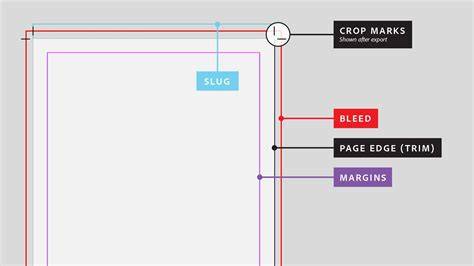
Below is a tutorial on how to add crop marks to your pages when you print from within Photoshop. Crop marks tell the print house where to cut, ensuring clean edges and accurate final size. A bleed is an extension of your artwork beyond the final trim size, which helps prevent white edges after trimming.
Understanding bleed, crop marks, and color modes
Bleed is an extension of your artwork beyond the lines where the paper will be cut. In other terms, printers will overprint your artwork by 3mm on all sides. The reason this is important is because a design in RGB colour mode might look different to the same design in CMYK colour mode, i.e. on screen vs. printed out. Fortunately, Photoshop has a handy feature where you can preview design in CMYK colour mode. Modern design programs work in 'layers', which can be tricky to print with, so flattening your design first is really important. The only important thing is that the design has the same (or similar) proportions to the size you are trying to print at. This is very important. The final design will look distorted and stretched otherwise.
To create bleed in Photoshop, you need to add extra canvas size to your document. First, you need to know the final trim size of your document, and the amount of bleed you need. Then, you need to calculate the total width and height of your document with bleed. For example, if your document is 8.5 x 11 inches, and you need 0.125 inches of bleed on each side, your total width and height with bleed will be 8.75 x 11.25 inches. Next, go to Image > Canvas Size and enter the new dimensions. The Relative option should be unchecked, and the Anchor set to the center. Photoshop can also do the math for you by adding + corresponding bleed values to the current dimensions.
Setting up crop marks and bleed in Photoshop
To create crop marks in Photoshop, you need to use guides and the stroke tool. Make sure rulers are visible (View > Rulers). Drag guides from the rulers to the edges of your document, excluding the bleed area. If your final trim size is 8.5 x 11 inches with 0.125 inch bleed, place guides at 0.125 inches from each edge. Then, create a new layer and name it Crop Marks. Use the Rectangular Marquee Tool to draw small squares at each corner of the guides intersection. Hold Shift to constrain proportions. Next, go to Edit > Stroke, choose a thin width (such as 0.25 pt), a solid color (such as black), and a location (inside). This creates small corner lines that indicate trimming points.
For a more automated workflow, you can use downloadable Photoshop action files that prepare for different page sizes and orientations. Each action aims to add a 3mm bleed, crop marks, and a suitable white slug around the marks. After installing the action, run it to get your artwork print-ready. Remember to review the final result on screen and keep your original artwork safe; do not overwrite it.
Practical workflow with print-ready considerations
Very simply, crop marks tell the print house's trimmers where to cut. The issue with crop marks is that they are pretty difficult to add in a lot of design programs. The final design should be designed with bleed and crop marks in mind from the start. If you have an A4 design but print at a larger size, or if elements run to the edge, the crop marks help ensure a clean trim.
When exporting for print, save as PDF and ensure the document is in CMYK mode with the correct resolution. In Photoshop, you can export with standard print settings by using the PDF preset that includes Crop Marks and Use Document Bleed Settings under the Marks and Bleeds tab. Some printers may request only bleed, only crop marks, or both; always communicate with the printer to confirm their preferred setup.
In practice, the bleed should extend past the trim line by about 0.125 inches (1/8 inch). Crop marks should start at least 0.125 inches away from the trim edge so they do not encroach on the bleed area. This ensures a neat trim without compromising the bleed area or edge-to-edge visuals.
As a quick reminder, Photoshop actions work well for designs with flat color backgrounds. They may look odd if the design includes complex edge-to-edge elements, but they can still provide a reliable estimate of the final printed appearance. If you design all the way to the edge, ensure you account for slight paper movement during printing and cutting to avoid white gaps or misalignment.
Common considerations and tips
- Bleed: add extra canvas size to your document before designing; compute total dimensions with bleed (e.g., 8.5 x 11 with 0.125 bleed becomes 8.75 x 11.25).
- Crop marks: place guides at the intended trim edges, then create corner marks using strokes on a dedicated layer.
- Color mode: preview in CMYK and ensure export is suitable for print (PDF with crop marks and bleed).
- Resolution: maintain 300 dpi for print-ready results; flatten layers to avoid unexpected movement during printing.
- Communication: confirm with the printer whether they want crop marks, bleed, or both; vary by service provider.
- Automation: use Photoshop actions to streamline preparation for different page sizes and orientations, but verify results manually.
Optional: quick-reference workflow outline
- Determine final trim size and desired bleed (e.g., 0.125 inches).
- Increase canvas size accordingly to include bleed (e.g., 8.75 x 11.25 inches).
- Set up guides at the trim lines plus bleed distance (e.g., 0.125 inches from edges).
- Create crop marks on a separate layer and apply a thin stroke at corners.
- Convert to CMYK, verify 300 dpi, and flatten the image.
- Export as a PDF with Crop Marks and Use Document Bleed Settings if available.
- Send to printer and confirm preferred setup (bleed, crop marks, or both).
As printers, we strive to deliver designs that look crisp and accurate after trimming, and understanding bleed, crop marks, and color workflows helps ensure a smooth journey from screen to print.