DaVinci Resolve may display a GPU Configuration Warning when the installed NVIDIA driver is incompatible or outdated. This article synthesizes the provided notes to explain the causes, recommended actions, and practical steps to ensure Resolve runs with optimal CUDA performance.
What triggers the GPU Configuration Warning?
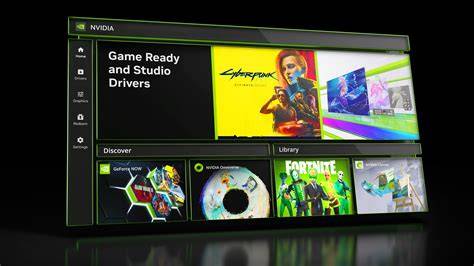
The warning appears in environments with NVIDIA GPUs when the current GPU driver version is older than a threshold. Starting from version 20.0, driver management becomes stricter, and environments using drivers older than 570.65 may see this warning. While Game Ready drivers can work, Studio drivers are officially supported for DaVinci Resolve. If you install a newer Game Ready driver (570.65 or later), the warning may not appear even if it’s labeled NG, but this does not guarantee compatibility of driver type itself.
Official guidance for resolving the warning
- Download and install the NVIDIA Studio driver from the NVIDIA website. Studio drivers are the officially supported option for DaVinci Resolve.
- If you are using Game Ready drivers and still encounter issues, consider switching to the Studio driver, as Resolve’s optimal performance is tied to Studio driver compatibility.
- After updating, relaunch DaVinci Resolve to verify that the GPU Configuration Warning no longer appears.
Additional considerations and related steps
Even if the warning disappears, it’s important to ensure that driver type and version are truly appropriate for Resolve. The presence of the warning does not automatically guarantee that the current driver type is acceptable.
If you still encounter GPU-related errors after updating to a Studio driver, consider performing a clean driver installation. This can be done using a Display Driver Uninstaller (DDU) tool to remove existing drivers before reinstalling the Studio driver.
For Intel GPUs, the above NVIDIA-focused steps may not apply. There is a separate guide for addressing Intel hardware acceleration errors if you use an Intel GPU.
In case you face ongoing issues with opening, rendering, or exporting projects, a manual configuration workflow for DaVinci Resolve, alongside Windows 10/11 optimization, can help resolve persistent GPU configuration problems. After applying these adjustments, return to Resolve to confirm that GPU configuration issues are resolved.
Context on driver types and terminology
DaVinci Resolve relies on CUDA-capable NVIDIA GPUs, and Studio drivers are the recommended choice for stability and performance. The distinction between Game Ready and Studio drivers matters: Resolve’s reliability is generally aligned with Studio driver support, even if some setups with Game Ready drivers appear to function.
| Driver Type | Recommended For | Notes |
|---|---|---|
| Studio Driver | DaVinci Resolve | Officially supported; best stability and CUDA compatibility |
| Game Ready | General gaming and some workloads | Not officially required for Resolve; may cause issues |
tags: #davinci #gpu #configuration #warning