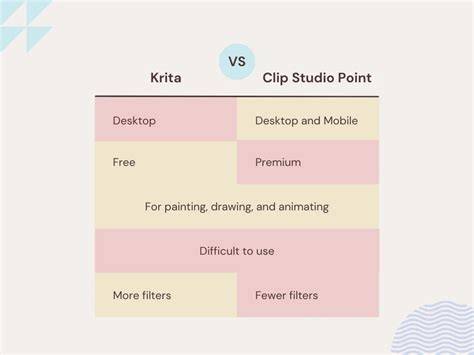
Liz Staley’s perspective as a long-time Clip Studio Paint user provides a thoughtful starting point for comparing Krita and Clip Studio Paint (CSP). This article synthesizes her experiences, focusing on workflow, features, learning curves, and practical takeaways for new users weighing Krita’s free, open-source model against CSP’s commercial ecosystem.
Initial impressions and onboarding
Upon opening Krita, I was pleased to see quite a few templates for new canvases, including ones for comics and animation. I wasn’t expecting that when I downloaded the program because sometimes free software is pretty light on features like this.
There are templates and presets that help with starting projects without needing to configure every setting from scratch. This can reduce the initial overwhelm for new users who are trying to understand where tools live and how to begin a project quickly.
Animation: If you’re a budding animator, both CSP and Krita allow for creating animations. There are even animation templates in each program so you can just choose them and start animating!
Interface and tool layout
When I first explored Krita, aside from the brushes, colors, and layers on the right side of the user interface, I found the tools on the left side perplexing. You can turn any drawing tool into an eraser, but Krita handles this by selecting the Erase option in the top toolbar rather than choosing transparent in the color picker.
One feature I really liked was discovering the pop-up of different tools, color selection, and brush size selection. The Pencil and Eraser tools felt intuitive, and the basic sketching experience was familiar to me as a Clip Studio user.
In contrast, Clip Studio Paint provides a more cohesive “materials” workflow and a UI that many users find more intuitive for comics production. The CSP Materials Library offers quick access to brushes, 3D models, poses, patterns, workspaces, and images, with many assets synchronized to the Clip Studio account for easy retrieval across devices.
Drawing, inking, and vector tools
I found the pencil and eraser tools in Krita to be easy to use and comparable to Clip Studio’s pencil tools. However, inking in Krita seems better when using the vector tools. The vector capabilities differ: Clip Studio can easily draw a line with a pen tool, simplify it, and move control points while adjusting line thickness. This dynamic vector workflow is less apparent in Krita, where vector layers are more limited and pen tools on vector layers are not as flexible.
Fewer Vector Layer tools in Krita: When working on vector layers in Clip Studio Paint it is very easy to draw a line with a pen tool, simplify it, then move the control points around and change the line width. Vector lines in Clip Studio can even have line thickness variation!
3D support and texture integration
No 3D support in Krita: Other than a plugin that allows you to “stream” a Blender window into Krita, there is no 3D model support in Krita. However, Clip Studio Paint natively supports 3D models and objects that can be used to create complex poses and easy backgrounds.
Templates, assets, and workflow efficiency
Clip Studio Paint’s Materials Library stands out as one of its strongest features. It’s not just about brushes; it’s a gateway to 3D models, poses, patterns, and ready-made assets that streamline comic creation and illustration workflows. Your CSP account also saves downloads, so you can recover assets quickly if you switch devices.
Critically, Krita offers solid templates and a flexible brush engine that supports heavy customization. You can create brushes from scratch or modify existing ones to fit your working style. For many users, Krita’s open-source model invites experimentation with custom brushes and pipelines, though it may require more self-guided exploration to unlock its full potential.
Performance, learning curve, and community support
User interfaces: I found the Krita interface to be less intuitive than Clip Studio Paint, personally. CSP’s UI tends to guide new users toward a more streamlined comics-centric workflow, while Krita emphasizes flexibility and extensibility through a plugin-friendly environment.
Learning resources: Krita’s tutorials cover basics and advanced features, but users often supplement learning with YouTube videos and community forums. CSP has a robust ecosystem of official and community-made resources, including books and video courses, which can accelerate onboarding for new users transitioning from other programs.
Pricing and licensing
Krita is free and open-source. Clip Studio Paint requires either a subscription or a one-time license for desktop use. One‑time licenses can be pricey, but there are frequent sales on both versions, making CSP more affordable during promotional periods.
Bottom line: Before choosing any program, look up tutorials and do Google searches to ensure the program aligns with your needs. Most paid programs offer free trials, so test them before committing. Also check for support options or active communities to help when you encounter issues.
- Evaluate your project type: comics, illustration, or animation, and whether 3D assets or vector precision are essential.
- Assess the learning curve in relation to your prior experience with similar tools.
- Consider cost of ownership, including potential sales and ongoing updates.
- Check asset libraries and cross-device workflow if collaboration or mobility is important.
In conclusion, Krita and Clip Studio Paint each offer distinct advantages. Krita excels as a powerful, free, open-source option with strong brush customization and animation features, while Clip Studio Paint provides a mature ecosystem with a rich Materials Library, robust 3D support, and a workflow tailored for comics and illustration-often at a cost, but with strong training resources and comprehensive asset management.