DaVinci Resolve has a reputation for excellence in color correction, making it one of the top choices for hobbyists and industry veterans alike. In this DaVinci Resolve color grading tutorial, we’ll cover all you need to know about color grading in DaVinci Resolve, starting with the basics and moving through some advanced techniques. Note: Screenshots in this article are from DaVinci Resolve Version 19.0B Build 59. Color grading is an essential process that helps you set the atmosphere, evoke specific emotions, and enhance the narrative of a video by making intentional stylistic choices through your color palette. For example, you might use warm, golden hues to produce feelings of nostalgia and warmth during a sentimental scene.
Note that color correction and grading are video editing terms. Color correction focuses on making the colors as accurate or balanced as possible, and it takes place before grading. Color grading enhances the visual appeal and storytelling of your footage, setting the mood, tone, and style. Set a tone or mood for a footage clip or film. Create a visual aesthetic for your videos. Directors like Wes Anderson are well-known for their signature visual aesthetic, partly due to consistent color grading. Indicate a specific time or era in history. Specific color grading can give your videos a feeling of time and place.
In DaVinci Resolve, the color page is a workspace specifically designed for color correction and grading. The Primaries - Color Wheels include the Lift, Gamma, Gain, and Offset wheels. Offset is the broadest tool that can be used to move the entire image in a certain direction. The HDR color wheels in DaVinci Resolve are advanced tools specifically for high dynamic range (HDR) grading. Curves allow for more nuanced adjustments of the image. They include Custom Curves for RGB and luma adjustments, as well as specific curves for Hue vs. Hue, Hue vs. Saturation, Hue vs. Luma, Luma vs. Saturation, and Saturation vs. Essential for accurate color grading, the Scopes provide visual representations of color data within the image. Color grading in DaVinci Resolve is done using nodes. Each node is a layer and should represent an individual color effect. Combined, they’ll result in the final look of your footage.
Getting started: basic workflow and settings
In this section, we’ll guide you through a basic color grading workflow and explain the main grading tools in DaVinci. If you find yourself struggling at any point, check out our guide on the basics of how to use DaVinci Resolve to learn more. The first step is to configure your video’s color space settings to ensure consistent color, contrast, and gamma across different devices. Rec.709 is the standard color space and it simplifies further grading and enhances color accuracy. Press File > Project Settings and select the Color Management tab.
DaVinci uses a node-based system for color grading. When it comes to node trees, there’s no one-size-fits-all solution. However, you can apply a basic node tree format to every scene, adding more as required to make it more complex. Here, we start with color correction (balance and exposure) and then create a specific look with contrast, saturation, temperature, and curves. To create your node tree, press the Nodes button in the top-right, then press the Alt + S keyboard shortcut to add serial nodes. If you’re going to add a finishing LUT to change the look of your footage (like a film emulation LUT) you’re going to want to add it before grading.
Next, you need to ensure that you have the correct exposure. Select your Exposure node, then open Primaries - Color Wheels. Start with global exposure by moving the slider below the Offset wheel. While you change the exposure, pay attention to the histogram. Now it’s time to correct your footage and get an accurate white balance. There are many ways to correct your white balance, including primary color wheels, curves, qualifiers, and log controls. Select the Balance node and open the Primaries - Color Wheels tab. Just like for exposure, each wheel affects the colors in different parts of the image. Select the circle in the center of the Offset wheel and move it in any direction. You’ll notice that the overall hue of your image shifts. If your image has a pink tint, moving it toward the green side will balance the colors.
With that out of the way, you need to increase the contrast and saturation to bring life to your footage. For targeted adjustments, you can use the Hue vs. Saturation curve. At this stage, you should have a solid starting point to grade your video and try to achieve the look you want. Teal and orange is a high-contrast complementary color scheme that emphasizes skin tones and is used in movies like Transformers and Mad Max: Fury Road. You can use the Hue vs. Lower the Saturation slider in the Color Wheels tab to reduce the color intensity. This nostalgic, warm-toned aesthetic has the feeling of old film stock.
In the Color page, if you’ve already graded a clip, you can apply that same grade to other clips. Select the range of clips you want to apply the grade to, then hover your cursor over the original clip and press your scroll wheel down. A pop-up might appear asking if you want to replace the existing grades. To save a color grade as a DaVinci Resolve color grading preset, select Gallery and open Stills Album. Select your color-graded clip, then right-click the video and select Grab Still. This will save a still of your clip with all of the color grading nodes still applied.
Mastering DaVinci Resolve color grading can help you transform raw footage into cinematic masterpieces. If you practice color grading with Resolve’s extensive toolset, you’ll achieve professional-quality results in no time. To help you work even faster, Storyblocks offers thousands of customizable templates for DaVinci Resolve, providing pre-made effects, transitions, motion graphics, LUTs, and more.
Color grading concepts: what to aim for
There are many different ways to adjust the footage you have shot and make it communicate with your audience. Different tools allow video editors to do just about anything with their footage to achieve a particular look or style. Color grading makes a big difference in the way an audience interprets what is being watched. And with software such as DaVinci Resolve, color grading has become a powerful, effective tool that can be used by anyone. What is Color Grading in DaVinci Resolve? Color grading is a method whereby you adjust the color of your footage to try and convey a particular mood, tone, or feeling. It stylizes the footage and allows editors to emphasize certain elements or tones within the footage to help clue the audience in what to feel depending on the scene. Color grading will emphasize or adjust the color palette of footage that has already been shot. In scenes that are passionate or angry, you might want to increase reds or contrast to give a visual emphasis to the emotion of the characters. Or if it’s a gentle scene you might want to emphasize grays or pastels to give a softer edge to the footage. Color grading can make a big difference in the way an audience interprets a scene. However, color grading is separate from color correction. This is an important difference to understand. Normally, you would color correct your footage before you undertake color grading. That’s because color correction is more about fixing or resolving any potential issues with your footage whereas color grading is more about artistic expression and interpretation. Color correction might fix the lighting in a scene if something doesn’t look quite right. Or it could correct the exposure if something hasn’t quite been shot in the way it was intended. Color correcting will help you optimize your footage so it looks as natural and technically composed as possible. Once the footage is in this “ideal” state, you can then begin the process of color grading to give it the emphasis you want.
Tools and techniques: keys, curves, and scopes
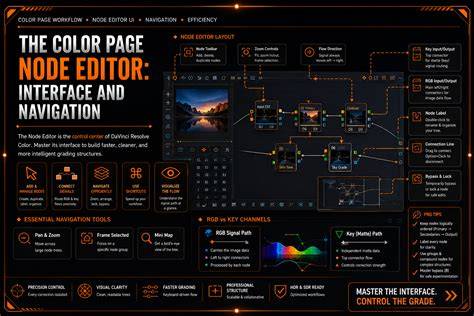
DaVinci Resolve uses a node-based system for all effects and color changes, a system that can be incredibly daunting to master but very effective once it’s mastered. Nodes let you create unique looks without compromising image quality as you would grading with layers. The Node Editor is at the top right and acts as a flow chart where the image starts on the left and is passed through each color correction or effect node until it reaches the output on the right. There are many tools: Curves, Color Wheels, Qualifiers, Power Windows, Tracker, and more. Curves give you much more control over a lot of basic coloring features. There are individual channels for red, green, and blue, as well as Y, which adjusts the luminance of your footage. The Hue vs Hue, Hue vs Sat, Hue vs Lum, Lum vs Sat, and Sat vs Sat curves let you sculpt color and contrast based on hue, luminance, and saturation.
Primary wheels are the main way to color in Resolve. Lift, Gamma, Gain, and Offset adjust shadows, midtones, highlights, and the overall color values, respectively. White Balance, Contrast, Pivot, Highlights, Shadows, MD (Mid/Detail), Saturation, and Hue are all accessible within the primaries area. Scopes are essential for objective color data: Parade shows RGB values and saturation; Waveform represents brightness with an IRE scale; Vectorscope shows hue and saturation; Histogram measures brightness distribution. Using scopes helps ensure consistency across devices and lighting conditions.
To organize your workflow, you can save grades as stills in the Gallery, copy grades between clips with Apply Grade, and group clips for consistent looks. The Studio version adds additional capabilities like HDR tools, advanced noise reduction, face refinement, and AI-based object removal with the DaVinci Neural Engine. If you’re aiming for a cinema-grade aesthetic, you can explore the HDR palette, color warper, and LUTs to push creative boundaries while maintaining technical accuracy.
Practical tips and common looks
Teal and orange is a high-contrast complementary color scheme that emphasizes skin tones and is used in films like Transformers and Mad Max: Fury Road. A nostalgic, warm-toned look can be achieved by carefully controlling saturation and the balance between warmth and cooler shadows. For consistent color across shots from different cameras, use auto balance tools or shot match to align color, contrast, and brightness between clips. Finishing LUTs can be added before grading to establish a base look, but remember that a finishing LUT is not the same as a technical LUT, which changes color space.
To speed up workflow, you can apply a grade to multiple clips, reuse grades via the gallery, and leverage built-in or third-party LUTs and templates. When you want to refine faces or remove distractions, you can use the face refinement tool, patch replacer, or object removal plug-ins available in DaVinci Resolve Studio. The patch replacer helps clone pixels to hide blemishes or small distractions, while the neural engine-based tools handle more complex removals with scene analysis.
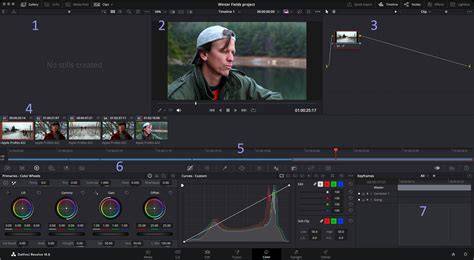
The color page’s layout includes: Viewer to preview clips, Gallery for saved grades, LUTs panel for look-up tables, Media Pool for timeline assets, Node Editor for color node flow, and Curves/Primaries wheels for grading. The color page also offers advanced options such as HDR grading, color warper, and Resolve FX plug-ins to stylize footage or correct nuanced issues with skin tones, foliage, or skies.
HDR and RAW workflows
DaVinci Resolve Studio features HDR grading with 32-bit image processing and supports Dolby Vision, HDR10+, and ST.2084/HDR10+ tone mapping. Modern cameras capture wide dynamic range, and Resolve’s HDR tools let you grade across extended tonal ranges, including shadows, highlights, and specular regions. Resolve also works with RAW formats, providing non-destructive RAW processing that reinterprets the sensor data before node-based grading. The RAW palette gives control over highlight recovery, white balance, gamma, exposure, color temperature, tint, and more.
Видео и дополнительные возможности
DaVinci Resolve is divided into multiple workspaces: Media, Cut, Edit, Fusion, Color, Fairlight, and Deliver. To start grading, click Color at the bottom, then use the Gallery, LUTs, Media Pool, Timeline, and Node Editor to build your look. The color page’s library of over 90 Resolve FX plug-ins expands your creative toolkit with blurs, glows, vignettes, sharpening, and stylization effects. Advanced tools like face tracking, tracker-powered Power Windows, and neural engine features help you streamline complex tasks and maintain consistency across scenes.
For reference, you can use a shot-matching technique to align color with a reference image. Add a reference photo to your timeline, select the clip to color grade, hold Shift, click the reference, then right-click and choose Shot Match to This Clip for quick alignment. This is a practical workflow tip to maintain visual coherence when grading large projects with multiple cameras or scenes.
Краткий обзор рабочих понятий
Color correction vs. color grading: correction fixes issues and unifies exposure and white balance; grading adds mood, tone, and artistic look. The node-based workflow divides work into independent steps, enabling non-destructive editing and flexible experimentation. Primary wheels, curves, hues, and qualifiers provide a broad set of controls, while scopes ensure that your grading remains consistent across devices and viewing conditions.
Whether you’re a student, online creator, or professional colorist, Resolve offers a powerful, extensible toolkit with a user-friendly, node-based interface that supports wide color gamut and HDR workflows. By balancing color first and then shaping mood with grading, you can craft cinematic looks that enhance storytelling and audience engagement.
Color grading is an art and a science, combining technical accuracy with creative expression. With dedicated practice, you can achieve professional-quality results and bring your footage to life with atmosphere, emotion, and narrative clarity.