In this article, we'll learn a few different ways to resize elements and groups in Figma (in addition to the default method). In Figma, there are other ways to resize elements apart from the default method. The default method for resizing something in Figma is to just click and drag. Sometimes, the default approach might not work on some elements. Click and drag in those cases might lead to the object being distorted. To resize an object really precisely, go to the properties inspector located at the top right part of your file. Find the height and width fields and input the values of your choice. You could also drag the values with your mouse cursor. Remember, whatever values you input in the properties fields will be reflected in your frame so, it's important to choose proportions that wouldn't distort your frame. You can always experiment with values until you resize the element to your satisfaction.
Using the Scale Tool for Non-Destructive Downscaling
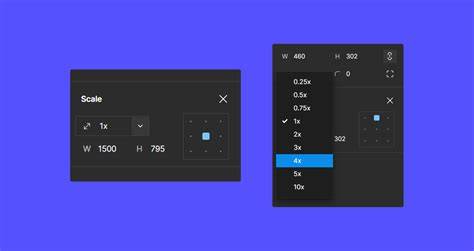
The Figma scale tool is located at the top left corner of your screen. To use the scale tool, select your frame, click on the scale tool, and drag using the scale controls. This tool is especially useful when you're dealing with resizing icons. Some icons get out of shape when you're trying to resize them. The scale tool helps make sure your element or the elements of your frame are not distorted. Scaling works for text objects, frames, components, and so on.
Keyboard Shortcuts for Fine-Grained Resizing
To resize an object with the keyboard shortcut, select the object, hold down CTRL, and use the arrow keys to resize your object. You can increase or decrease the width or height by 1px at a time. This method is ideal for precise adjustments without drifting your layout.
Managing Constraints During Resize
Sometimes, while trying to resize frames containing input fields, you'd find that some objects move along with the frame because of constraints. Of course, that isn't the desired result. To ignore an element's constraints while resizing, hold CTRL while you drag. This allows independent resizing without propagating movements to constrained children.
Practical Tips for Consistent Downscaling
- Combine the property inspector values with proportional checks to avoid distortion of frames.
- Use the scale tool for icons to maintain uniform stroke and weight.
- Leverage keyboard nudges for pixel-precise adjustments.
- Be mindful of constraints when resizing groups containing inputs or text fields.
Learn to code for free. freeCodeCamp's open source curriculum has helped more than 40,000 people get jobs as developers.