Many digital artists seek the ability to record their painting process for personal critique, technique sharing, and later playback. Procreate on iPad popularized this with built‑in time-lapse recording, and creators naturally wonder whether Krita offers a similar feature. This article synthesizes user experiences and known workflow details to explain what Krita can do regarding time‑lapse recording, common issues, and practical paths to create timelapse videos using Krita and other tools.
Understanding Krita's timelapse capabilities
Users report that Krita introduced a timelapse recorder in recent updates, expanding beyond traditional frame-by-frame editing. The feature is designed to capture the drawing process, including brush changes and color selections, while avoiding repeated captures during periods of inactivity. This aligns with the goal of producing concise, informative timelapse videos rather than bloated files of unchanged frames. When the recorder is enabled, it can export playback from within Krita, assuming the environment has the proper supporting components (such as an up‑to‑date ffmpeg installation).
In practice, a typical workflow involves updating Krita to a version that includes the timelapse recorder, opening the target .kra file, and activating the timelapse docker or panel. After ensuring ffmpeg is available and correctly linked, exporting a timelapse video becomes possible. The process is described as straightforward by users who have successfully completed it, highlighting that the feature benefits painters who switch tools or colors frequently during a session.
Common issues and practical workarounds
Several hurdles commonly appear in real-world use. One frequent problem is an export failure or playback hang when attempting to open a saved timelapse. Users report saving actions to a KRAREC file, then encountering a non-responsive “Open and Play” operation, or encountering errors when choosing different image types. These issues often point to mismatches between Krita versions and the ffmpeg library, or incorrect configuration paths for ffmpeg.
A practical workaround is ensuring Krita is updated to a version that includes the timelapse recorder, and verifying that ffmpeg is installed in a current, compatible build. After updating both Krita and ffmpeg, re-linking Krita to the correct ffmpeg executable often resolves playback and export problems. This is especially important if the timelapse was created on one system (e.g., Android or Windows) and needs to be exported or viewed on another. In some cases, users report that restarting Krita and re-exporting with the correct ffmpeg path fixes the issue.
Another tip is to remember that the timelapse recorder records only when changes occur in the artwork. If you pause to pick colors or move between files, Krita may skip frames during these moments. This behavior keeps the final video lean and focused on actual drawing actions, but it also means timing and pacing in the finished timelapse may differ from the live session. Knowing this helps set expectations and plan the recording accordingly.
Working across platforms and devices
The timelapse workflow has been described across different platforms, including Android and Windows. The transition between operating systems, when needed, is generally smooth for Krita's timelapse feature, provided that the underlying dependencies (like ffmpeg) are correctly installed and configured. For artists who migrate from iPad Pro’s Procreate timelapse concept, Krita’s approach offers a similar end goal-capturing changes and producing a shareable video-but depends on desktop ecosystems and library support.
What to use if Krita’s built-in solution isn’t enough
Some creators prefer alternate open source or screen recording routes when Krita’s timelapse tooling doesn’t meet their needs. Screen recording software on Windows, Android, or other platforms can capture the painting process in real time and export to widely supported formats like MP4 for YouTube. While this approach records everything shown on screen, it can be combined with Krita’s own timelapse exports to produce a polished video that includes more context, such as narration or overlays.
From the user’s perspective, a practical path is to use Krita’s timelapse recorder when available and stable, and, if necessary, complement with external screen recording for additional footage or to circumvent any lingering export problems. This hybrid approach can help ensure a timelapse video is produced efficiently and uploaded to platforms like YouTube in a widely compatible format.
Takeaways for artists exploring time-lapse with Krita
- Krita has introduced a timelapse recorder in recent updates, enabling playback of drawing progress within Krita given proper dependencies.
- Ensure Krita is fully up to date and ffmpeg is installed and correctly linked to Krita to avoid playback or export errors.
- The recorder captures changes only, which reduces duplicate frames and yields a concise timelapse, but may affect perceived timing during color changes or tool switches.
- If Krita’s built‑in solution has issues, consider using a screen recorder for the overall session or combine both approaches for best results.
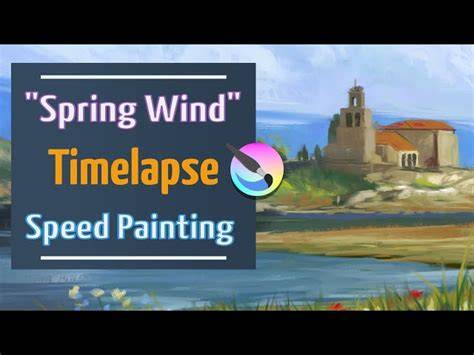
For readers who want a quick start, the recommended sequence is: update Krita, verify ffmpeg, enable the timelapse recorder, perform the artwork process with deliberate tool and color changes, export the timelapse, and ensure the output plays correctly before uploading to YouTube.