If the keyboard that comes with your laptop promises standardization and consistency, the mechanical keyboard offers the thrill of tactility, sound, and personal expression. Mechanical keyboards allow you to customize colors, keycaps, layouts, and even lighting. They invite you to adjust, rearrange, and settle into your own personal workflow.
“I can be intentional about buying a keyboard, not just for efficiency, but for other reasons. I like that,” says Figma Design Director and resident keyboard expert, Marcin Wichary. But most keyboards on the market aren’t really designed for creative work, where keyboard shortcuts have been invented to streamline complex, discipline-specific workflows that tend to stretch the fingers into Twister-like configurations. That’s largely because standard keyboards are still distant descendants of the early typewriters, originally put together for precise and mundane 9 to 5 office writing work. “In a way, the QWERTY keyboard is boring because it has to be boring,” says Marcin. “Throughout the decades it’s been asked to do so many more things, in so many settings, that it lost a lot of its personality to become versatile, and a lot of its quality to become ubiquitous.”
We wanted to build a tactile tool that brought back the personality and the quality, helping our most passionate Figma users get where they need to go faster and allow for a bit of play along the way.
Figma x Work Louder
So before you ask yourself, is Figma getting into hardware now? Rest assured, we never want access to expensive hardware to limit how people brainstorm, design, and collaborate together. But over the years, we’ve heard members of the community talk about their own mechanical keyboards, and how much they love and rely on their favorite Figma shortcuts. We paired up with Work Louder, a Montréal-based tech company that makes modular keyboards, to bring more joy to those Figma workflows.
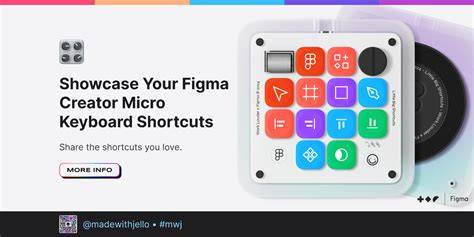
You may have already seen a sneak peak of what we built together: a customized version of Work Louder’s Creator Micro keyboard that allows you to navigate the Figma canvas in a more tactile way. Figma Product Manager Rob Bye, who developed the keyboard with the Work Louder team, notes that “most people [using Figma] aren't typing; they're using their mouse, they're needing to navigate a file.” That's why the keyboard works less like a keyboard and more like an alternative trackpad: It comes with 12 keys and two rotary encoders that make designing feel so much more tactile. In total, it allows for 48 different shortcuts (fun fact: There are over 150 possible shortcuts in Figma.) “With the Micro all the keys are in a grid, making it super easy to mentally map your custom shortcut placement,” says Michael di Genova, Co-founder at Work Louder. “Plus, the tactile buttons and dials give physical feedback so you know your command was sent without having to look down. This helps you build that muscle memory fast, and once it kicks in you won’t even need to think, you’ll just ‘do.’”
“People don’t want to spend hours learning keyboard shortcuts they’re going to forget,” says Rob. “It genuinely should be more fun.” Such tactile ingenuity is rare these days. But at Figma, we believe that delighting in the details is core to being a maker, and that design should offer solutions to real problems and needs. That trial-and-error refinement is, after all, how the keyboard came to be.
A (brief) history of keyboards
Figma Design Director and keyboard expert Marcin Wichary wrote Shift Happens, a look back at the history of keyboards, told in two 600-page volumes. For some of us, keyboards are a way to get work done. For others, keyboards get in the way. We have a couple hundred years of keyboard history to thank for that, a long and winding evolution that can-and has-filled 600-page books. Their history is, of course, closely tied to the evolution of the computer, but it starts even earlier: Before keyboards and computers, there were typewriters.
The early prototypes of what later became the QWERTY typewriter, from the late 1860s, looked less like an electronic accessory and more like a hacked piano keyboard. At the time, it made sense. The only keyboards then were piano keyboards-the word “key” itself has origins in music-and reusing the keys from playing notes and chords to letters and symbols felt like a natural first step. The “production” version of the keyboard, by Scholes & Glidden, launched almost exactly 150 years ago. It became the first commercially successful typewriter. It was more of a “button board” than a keyboard, but the name stuck. While it only printed capital letters, the layout of those letters closely resembles what’s probably sitting on your desk today. “There are a lot of labels on keyboards today like shift, backspace, or return that don’t make sense when you think about them,” says Marcin. “[But] they have roots that go all the way back to the 19th century, when shift was actually about shifting things [on a typewriter].” Shift itself was among the first key inventions that didn’t output anything, but was asked to perform another function.
Read our interview with Marcin for more about the history of keyboards.
The first of what we would consider mechanical keyboards today came attached to the old mainframe computers in the 1960s, following the Underwood №5 and IBM Selectric typewriter models, and a full century after the Sholes & Glidden typewriter debuted. Even early on, people who built those keyboards understood that the keys needed to do many more computer-specific tasks: data transmission codes, cursor control, program operation. Function keys and keyboard shortcuts followed soon after to accommodate even more actions. Just as typewriters became faster and easier to use, computers were going through their own evolution from large mainframes to PCs, taking them from being synonymous with data processing to the default for word processing, and effectively supplanting typewriters as the go-to for offices. As the pace of innovation accelerated, computers went from being out of reach for most consumers to a must-have-at work and at home-especially as they became the key to personal computing, and, therefore, the internet. Computers, and the standard keyboards they came with, were ubiquitous.
A pivotal moment arrived with the IBM Model M, which established how future keyboards would look and feel. Launched in 1985, it came with a distinctive click-clack sound, swappable keycaps, and a unique spring technology that used springs not just for tactility and sound, but also to detect when a key touch became a key press. This was, perhaps, the first truly beloved mechanical keyboard. But as computers became cheaper and cheaper throughout the next decade, keyboards did, too. A very early patent prototype for what ended up as the QWERTY keyboard we all know and love.
Even in the 1970s, specialized and sophisticated keypads for functions started appearing in the market. A classic rendition of the Model M keyboard, in a German keyboard layout. (License: CC BY-SA 4.0, Dmitry Nosachev)
Just two weeks before the launch of the iPhone in 2007, “The New York Times” wrote: “If there is a billion dollar gamble underlying Apple’s iPhones, it lies in what this smart cellphone does not have: a mechanical keyboard.” And in the 2000s, everything changed again. When the iPhone debuted in 2007, there was only one button on the screen. By introducing a touch screen keyboard, the iPhone blew up the tactile keyboard industry (and eclipsed BlackBerry’s once-innovative QWERTY keypad). Even though the default iPhone keyboard came with typewriter-inspired sounds, those sounds, like the keys themselves, were illusions, fully digital facsimiles of a once-mechanical reality. The keyboards once again enabled new things. Today, mobile QWERTY keyboards are used to “speak with thumbs” more than “write with fingers”-the tactility is fully gone. “There was no looking back after 2007,” says Marcin.
The rise of keyboard culture
Mechanical keyboards became a sort of reaction to the commoditization of the early PC era, and the digitization of the iPhone era, a means to navigate the digital world in a more personal way. It started in the 2000s, when many in the gaming and programming communities started choosing specific keyboards to not only customize the look and feel of their keyboards, but also use mechanical keyboards as a way of expressing themselves. You can, in fact, still find unboxing videos of the Model M on YouTube; collectors buy and sell those keyboards on eBay.
In an increasingly digital world, where seemingly every interface is giving way to a soulless touchscreen, mechanical keyboards are also beautiful, tangible things that respond to the weight of our fingers. They propel us back to a time when people gathered in offices and filled them with the sounds of typing, ringing phones, and chatting over cubicle walls. “There’s this sort of weird nostalgia around [keyboards],” says Marcin. “Sometimes, we can get a little stuck in the past, but for the most part, it’s about rediscovering the aspects of keyboards that we lost in the 1990s and imagining more modern, beautiful, or powerful versions of them.”
In an increasingly digital world...mechanical keyboards are also beautiful, tangible things that respond to the weight of our fingers. While some in the keyboard community are merely looking for a connection to the more tactile past, many more love the craftsmanship, customization, and agility that a mechanical keyboard offers. “I think ‘mechanical’ has this very interesting connotation. Some people joke that it just means an expensive keyboard, but it’s really a certain category of keyboards where you can swap parts, choose your switches, choose your layout, and do all sorts of (sometimes obscure) things,” says Marcin. “There’s a connotation of intentionality.”
Over the past few decades, mechanical keyboard creators have been known to introduce products with a sense of humor and creativity-think keycaps that look like Scrabble tiles, or ones with a fire icon, a Pac-Man character, or even a pizza slice. But joy and delight is just one part of it. Mechanical keyboards have been proven to be more efficient, more durable, and easier to repair. For those who spend all day in front of a screen, they also provide an unmatched opportunity to customize lighting, change the look and color of keycaps for a touch of personality, or arrange shortcuts for better efficiency. To many, they’re a repudiation of the cheap beige keyboards of the 1990s and the software-thumb keyboards of smartphones, and a celebration of the most ubiquitous-and arguably effective-human-to-machine interface. To us, they’re about bringing joy back into the workplace, and back on our desks, all without losing efficiency.
The piano keys were an outlet for creativity, the typewriter keys a tool for professional work output, the computer keys a vehicle of precise and efficient program control, and the mobile keys an entry point to infinite conversations. A number of my friends, friends who aren’t streamers, have picked up Elgato’s Stream Decks. I can understand the impulse to have shortcuts, automation triggers, and fiddly little knobs within arm’s reach, without expanding the keyboard itself. But the Stream Deck’s customizable icons, upright nature, and streaming-focused app support make it a non-starter for my physical desktop. I hadn’t considered looking further into a secondary keyboard until I noticed that the makers of interface design tool Figma had collaborated with Work Louder on a custom tiny keyboard, the Figma Creator Micro. It’s a version of Work Louder’s standard Creator Micro, done up with a Figma-style color scheme and set up with four layers of shortcuts most useful inside that app, for a total of 48. Figma sent me a sample of its Creator Micro to test it out.
I do not design interfaces, nor use Figma, but for all purposes, you could consider this to also be a test run of the standard Creator Micro. The two are functionally identical, minus the looks, and the pre-programming and custom shortcut keycaps included with the Figma version. I reprogrammed three layers of my Micro with essentially the same 12 shortcuts, remapped with the web-based VIA software to mimic the same functions on Mac, Windows, and Gnome-based Linux (I haven’t gotten around to Chrome OS yet, but logically that’s next). This is a need more common among technology writers than perhaps many other trades, but it’s my favorite thing about the Micro. When I switch systems, I have to both physically switch my full-size keyboard (a NuPhy Air 75) between “Mac” and “Win” and also mentally shift my keyboard shortcuts. That scheme is geared toward my work, which is largely typing, taking screenshots, manipulating windows, and choosing which music is playing when I’m staring at a cursor and doubting myself.
Shortcuts at your fingertip
Moving the joystick opens up a fully customizable on-screen radial menu, putting all your favorite tools right at your fingertip. The Micro will detect which app you are using and change to your designated preset automatically, so you don't have to. The underglow RGB changes based on the app in focus. The Micro has 6 discreet layers, each with 13 keys, a 7 slot radial menu and a dial to map per layer. Can I wait for it to be in-stock to buy, or do I have to preorder? You can wait, but we can’t promise you there will be any available by then as the Framer CM-2 is a limited edition product, and after the first 2 weeks of presales we will need to lock in the quantities for production. Can I use my existing Creator Micro/Creator Board keycaps on the Creator Micro 2? No, the CM-2 uses MX style stems instead of Choc. How many devices can I connect it to wirelessly? The CM-2 can be wirelessly connected up to 3 devices. How long is the battery life? The wireless version of the CM-2 uses a 1900mAh battery. Ships in 1-3 business days PRO model Bluetooth / USB-C CNC Aluminum frame 2100mAh battery BASE model Wired only USB-C CNC PC frame Compatibility Mac / Windows.
Material & Finish: CNC PC & Aluminum; Sandblasted anodized bottom; PBT & PC keycaps; Rubber joystick cap; POM / POK switches. Device 13x Mechanical switches, 1x Touch sensor, 1x Rotary encoder, 1x Planar joystick. Keyset 11x Solid black caps, 1x Frosted PC cap. Software: VIA. Work Louder Input Included. Creator Micro 2 USB-C to USB-C cable sold separately.wrk. In collaboration with Figma, Work Louder, a Montréal-based company that makes products fun and exciting, created the Figma Creator Micro Keyboard. Shout out to Mattia and Michael for doing what they do! They also offer a non-Figma version if you aren’t too jazzed about the color choices in this collaboration.
When the Figma Creator Micro first got announced in December 2023, I was pretty excited. The aesthetics of the product felt like a definition of true beauty. I mean, look at the gorgeous colors of the keycaps against the white board and the LED lights that shine through the translucent outer rim. The smiley face in the corner for switching between layers was also a cute touch! But let’s get into more about this little keyboard and if it’s actually something designers need.
What is the Figma Creator Micro?
The Figma Creator Micro is a macro keyboard that allows you to determine and assign a single or series of keyboard shortcuts to a single key. So basically, it’s a shortcut keyboard. In the product release, Figma goes into depth about the story behind the development of the Figma Creator Micro and how it “makes designing feel so much more tactile”. Figma wanted to bring designers a product that could bring joy into everyday designing and support building a muscle memory for your custom shortcuts instead of actively memorizing 150 shortcuts. It’s surprising to think there are that many shortcuts, I don’t even use 20 shortcuts on a daily basis.
Unboxing the package
After almost 6 months of waiting, I got my hands on the package. The bright yellow box brightened up my day upon first sight and it felt perfect. The box was super sturdy and screamed Figma with its branding and fun personality. The keyboard is already set up with the red, “pink”, purple, blue, and green Figma colored keycaps and includes the separate 30 Figma icons and 15 solid colors keycaps. You will only find the Creator Micro keyboard inside the box as it does not include a USB-C cable which is required for using the product. It took me a while to even understand that it needed one. The keyboard weighs a good amount and can be considered heavy if you have to lug it around for travelling. Putting the keyboard next to my regular keyboard and work setup worked perfectly. It fit into my aesthetic of black and purple as the keycaps can be taken off and customized to your liking.
Setting up your keyboard
After admiring the keyboard, it was time to set it all up. Now, here is where I got a little lost. Sounds easy right? Apparently not for me. I only read the words “Open VIA” and not “Plug in” so I was pushing all sorts of buttons thinking it had an internal battery and was Bluetooth enabled. It was not until I re-read the instructions 10 times, that I realized it needed a USB-C cable to be powered on. Now that I got it powered on, all I have to do is the mapping! As someone who does not have any experience in mapping, I struggled, but got a hang of it after a while. I’d take a look at Work Louder’s video on creating macros with VIA or Meshtimes unboxing & setting up review. If those are still confusing, here’s my quick “cheat sheet” when you have authorized your device through VIA. Important keys to know for each operating system:| Description | Macbook | Windows || ------------- | ------------ |-------------|| CMD | G(KC_#) | || Windows | | G(KC_#) || CTR | C(KC_#) | C(KC_#) || Shift | S(KC_#) | S(KC_#) || OPT | A(KC_#) | || ALT | | A(KC_#) || CMD + OPT | LAG(KC_#) | || CTR + ALT | | LCA(KC_#) |
You can feel free to experiment on what keys should go where, but I always like to plan it out. Ted Kulakevich, recreated the Creator Micro in Figma so you can use it as a reference or planning tool. The image below shows how I planned out two different layers with the same shortcuts, but one on Macbook and the other on Windows.
Personal setup of Figma shortcuts on the Creator Micro
Shortcuts I use
LAG(KC_LEFT)/C(KC_PGUP) = Switch tabs or pages to the left; LAG(KC_RIGHT)/C(KC_PGDN) = Switch tabs or pages to the right; G(KC_R)/C(KC_R) = Rename selected layer; M1/M0 = CTR + ALT + A + ENTER = Multi-edit; G(KC_F5)/C(G(KC_PENT) = Turning on/off system screen reader; G(KC_F)/C(KC_F) = Find and search your entire file; V = Change cursor back to move; LAG(KC_B)/LCA(KC_B) = Break component instance; LAG(KC_K)/LCA(KC_K) = Create component; G(KC_BSLS)/C(KC_BSLS) = Show/hide UI; LAG(KC_C)/LCA(KC_C) = Copy style; LAG(KC_V)/LCA(KC_V) = Paste style.
You might have noticed that I used a macro key for the multi-editing shortcut. When you use a sequence of keys, you’ll need to setup a macro and record or type out the keys you’ll be using. A quick sequence example shows how macros can be arranged per OS.
Customization and colors!
With a translucent shell, white board (with Figma’s logo and cute smiley face), silver and black knob, Figma keys, and a handful of black keys, the customization is endless. As you are provided with 45 different keycaps, you can have more than millions of options on how you want to show off your style. I styled mine with black and purple keycaps because those are the colors across all my tech products. Look how sleek it looks!
Why you should or shouldn’t own a Creator Micro
The Creator Micro is definitely a fun product to have on your desk setup but not one you necessarily need. After a couple weeks of using the keyboard, I didn’t find it life changing to my workflow. It also didn’t speed up my design process all that much. The Creator Micro did become my reminder to use shortcuts more often and surprisingly enough, it encouraged me to rename my layers more just because it became easier to do that action. If you’re just starting out as a designer, you probably do not need a Creator Micro. But if you’re still adamant and interested in one, why not invest in one before they sell out? It looks like the next batch of Figma Creator Micros will ship out in October 2024. Technology is always fun to play with. Just don’t have the expectation that your workflow process is going to speed up significantly. I do believe that the Figma Creator Micro was overhyped, but it is a well-made product which it deserves all the recognition for.
Notes for readers: The article compiles the core ideas from the draft to present a cohesive overview of the Figma Creator Micro, its context in keyboard history, and practical use cases for designers seeking tactile shortcuts.