Dot brushes for Photoshop are an invaluable asset for designers, artists, and small business owners who need to add texture, pattern, or a playful aesthetic to their projects. This article will guide you through understanding these brushes, their uses, and provide a free, high-quality downloadable set of dotted brush Photoshop tools. We'll cover everything from basic Photoshop brushes dots to more specialized polka dot brush Photoshop options, ensuring you have the resources to elevate your designs.
What are Photoshop dot brushes and why they matter
A Photoshop brush is a digital tool that mimics the effect of a traditional brush, pencil, or other painting instrument. Dot brushes are a specific category of these tools, designed to create patterns of dots-from subtle speckles to bold, repeating dots brush Photoshop designs. Dot brushes are a powerful and versatile tool for graphic designers of all skill levels. Not all photoshop brushes dots are created equal; they vary significantly in size, density, shape, and overall style. Selecting the appropriate dotted brush Photoshop depends entirely on the desired outcome.
Getting started with a free dotted brush set
- Download the free brush set provided above and start experimenting today.
- Unzip the Downloaded File: The downloaded file will be a .zip archive.
- Install the brushes in Photoshop by loading the .abr files through the Brush Preset Picker.
- Test different sizes and densities to match the texture or pattern you envision.
Practical uses of dot brushes
Dot brushes can be used to add texture to backgrounds, create polka-dot patterns for fashion or product mockups, generate decorative elements for invitations, or create subtle speckle textures for photographic retouching. The versatility of these brushes makes them suitable for both bold, graphic designs and soft, tactile effects.
Tips for choosing and applying dot brushes
- Consider size and density relative to the project scale; smaller canvases benefit from finer speckles, while larger designs can handle bigger dots.
- Experiment with brush tip shapes and spacing to achieve unique patterns beyond a simple grid.
- Combine multiple dot brushes with various blending modes (e.g., Multiply, Overlay) to integrate texture naturally.
- Save custom brush presets for recurring projects to streamline workflows.
Legal and practical considerations for designers
As a legal writer, it’s important to address copyright and licensing when using downloadable brushes. Ensure you have the right to use any dot brushes you download or purchase. Free brushes often come with specific licensing terms that you must honor. Self-Employment Taxes: As a freelance designer, you’ll likely be responsible for paying self-employment taxes. The IRS provides resources to help you understand your obligations. This article is for informational purposes and does not constitute legal or tax advice. Consult with a qualified legal or tax professional for advice tailored to your specific situation.
Sample workflow: from download to design
1) Download and unzip the brush set. 2) Install the brushes in Photoshop. 3) Create a new document at the desired resolution. 4) Select a dot brush and adjust size, spacing, and scattering. 5) Apply color and layer effects to integrate dots with your composition. 6) Save presets for future projects.
Visual aids to boost understanding
Below are recommended visual assets to help you grasp dot brush usage and outcomes. They can be inserted in appropriate sections of your project to illustrate brush variations and application techniques.
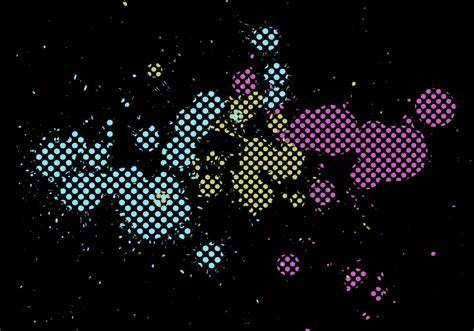
Introduction to Sumi-e Painting: 5 Basic Ink Techniques - Tutorial by Koshu | Domestika English
Notes on licensing and usage
Always verify licensing terms for any brush collection. Some free brushes are offered with permissive licenses, while others may require attribution or prohibit commercial use. When in doubt, contact the creator or vendor for clarification to avoid potential copyright issues.
Table: quick reference for dot brush settings
| Setting | Recommended Range | Impact on Result |
|---|---|---|
| Size | 5-500 px | Affects dot diameter and perceived texture |
| Spacing | 0%-100% | Controls the gap between dots |
| Scatter | 0%-100% | Randomizes dot placement for natural look |
| Opacity | 20%-100% | Depth and subtlety of texture |
| Blend mode | Normal, Multiply, Overlay | How dots interact with underlying layers |