Select the Rectangle (F), Ellipse or Polygon Frame Tool from the Tools Panel (Window > Tools) and drag to create a frame on the page. Select the Rectangle (M), Ellipse (L) or Polygon Tool from the Tools Panel (Window > Tools) and drag to create a shape on the page. Select your shape or frame with the Selection Tool (V, Escape) and then go to the top menu. Gradient Feather applies an easy to adjust Linear or Radial gradient to your shape or frame. Adjust the gradient to Radial from the Type drop-down menu. Once you’re happy with the result, click OK.
On the left-hand side of the Effects window you will notice a list of possible effects you can apply to your shape or frame. Two places above the Gradient Feather effect is Basic Feather. Basic Feather applies a uniform, more subtle gradient around the edges of your shape or frame, with a defined boundary. There is a third gradient effect you can apply to your shape or frame from the Effects window. This is the Directional Feather effect, which sits between the Basic Feather and Gradient Feather options. Directional Feather gives a uniform gradient effect with a sharper appearance.
Can’t wait to learn more? One of my favorite tools in InDesign is the transparent gradient feature that allows you to fade an image or a colored shape. This technique helps blend your design better and allows the objects to work together without being too bold or distracting against other objects and text. Here I will show you how to use the Gradient Feather Tool on your images and shapes. The Gradient Feather Tool is a creative way to blend objects together in InDesign and create a more flowing design. The tool can be used on photos and shapes to fade the element.
Before you add the gradient, you need an object to add the gradient to. Open a new document in InDesign and add your image or object to the page. You can add an image by pressing Control + D on Windows or Command + D on Mac and placing the photo. You can now click on a spot on the image or object and drag it out to create the gradient. The point you click on and everything before it will remain opaque, and everything along the line you draw will start to fade into transparency. In many cases, you will need to attempt the gradient again to get the fade exactly how you want it. You can repeat the above step by drawing the gradient line again, and a new gradient will appear. You can then add other objects to the canvas and repeat the steps above to add the feathering effect to the other objects. For instance, I have added a rectangle with a blue color similar to the image’s background.

Imagine applying a gradient feather to a photo or shape so that the edges softly dissolve into the background. This technique is especially useful for creating layered composites where hard edges would clash with text or other graphics.
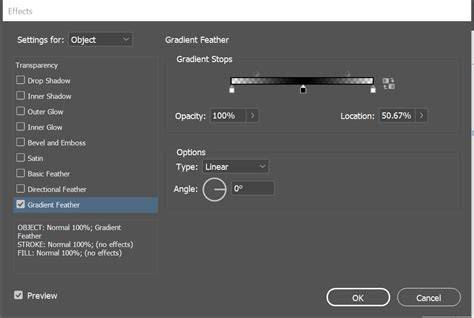
The Gradient Feather Tool offers control over the direction and type of the fade, enabling you to tailor how much of the object remains opaque and how gradually transparency expands. Use the Type dropdown to switch between Linear and Radial gradients, and adjust the feathering amount to achieve the desired softness. When you’re happy, confirm your settings to lock in the effect and continue refining your layout.
In addition to feathering, remember that you can combine Gradient Feather with Basic Feather and Directional Feather to achieve layered, nuanced fades. This layered approach lets you craft subtle transitions between objects, helping text, images, and shapes coexist harmoniously within a design.
- Create a frame or shape on the page using the appropriate tool.
- Apply a gradient via Gradient Feather and choose Linear or Radial from the Type menu.
- Experiment with Basic Feather or Directional Feather for additional edge control.
- Fine-tune the gradient by adjusting opacity and direction to blend with surrounding elements.
- Combine multiple objects with feathered edges to compose a cohesive composition.