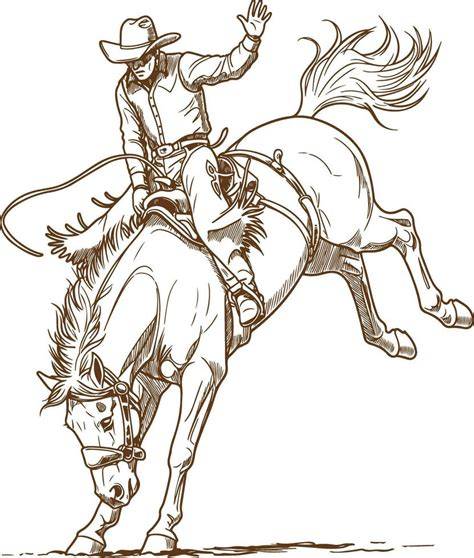
Yeehaw, get ready for your first rodeo because this guide dives into creating bold rodeo-themed artwork using Clip Studio Paint. This piece aggregates practical steps, from building the horse form to color, shading, and finishing touches, all rooted in the described approaches and common CSP workflows.
Foundations: planning, anatomy, and sketching
When defining the subject, start with a simple skeletal guide to capture form and dynamics. Horses and equines, in general, tend to have very soft or muscular bodies, and we can start to represent this by dividing the skeleton into simple circles-the head, the chest, and the back (which make up the body) followed by the legs. Now that we have our general shapes, we just need to follow them. Remember to keep in mind that we want to keep the softness to better define the muscles and shapes.
To define the joints even better, you can try and use gem-shaped structures in the skeleton. This will help you get the right shape pretty much instantly. When defining the details of the face of our animal, you have to keep in mind if the creature in question is a herbivore or a carnivore. In this specific case: the horse's eyes are super soft and gentle, so don't use sharp shapes to create them. Keep them round and add a lot of lashes if you want to make them more realistic. Now moving onto the ears, if you look at the ears closely, they look like a flower that's blooming.
Linework, refinement, and the mane
You can create separate line art for your piece or simply clean up your sketch; it's not important which method you choose. For the mane of the horse, think of a line that goes straight in the middle of their neck, starting from between the ears. From there, create gentle strokes of hair that fall into the length of the neck and face of the animal. You can choose whichever hairstyle you like best, and then proceed. From fantasy or reference, select a palette of colors that you would like to use for the coat of the horse. I choose some warm browns with white dots to add a bit of personality and a more interesting coat color.
Base color, shading, and depth
Simply apply the base color to your piece and create soft shadows (in a multiply layer clipped to the base color, or on the same layer by changing the opacity) following the lines of the body. Don't worry about being too rough in this process, for this is only to get the general shading. While selecting darker and darker shades, start to follow the lines more accurately to create depth in your piece. Now use a lighter shade to create a highlight effect and add even more depth to the piece. I usually use an Add (Glow) layer to make this process very easy.
Layer management and finishing
I usually merge all the layers and use a blending tool to blend the line art (or sketch) with the coloring layer that I created. To do this, right-click on the layers one-by-one and select "Merge with layer below" until your drawing is on a single layer. You can flatten the drawing by holding Shift and clicking the layers you want to merge, then using “Merge selected layers” from the right-click menu. For the final step, I usually create an "Overlay" layer and let myself have some fun with different colors on my piece. Brush strokes feel smooth and precise.
Rodeo ambiance and texture
In order to convey rodeo energy, you can add dynamic poses and subtle motion cues. Create professional-grade quality and commercial-use file formats in an accessible app. New to drawing? No problem. There are a ton of features for achieving a polished finish no matter your pace. All the brushes you need at your fingertips, from watercolors, to oil paints, crayons, colored pencils, and more. Sketch and ink right on your phone. Draw smooth and natural lines with a stylus or your finger. Color in areas easily even with gaps in your lines. Apply filters to blur and extract lines with one tap.
Clip Studio Paint: features, compatibility, and access
Clip Studio Paint comes with specialized features not only for illustrations but also for comics and animation. It is available on Windows, macOS, iPad, iPhone, and Android. You can try it free for up to 6 months. After that, you can choose from affordable monthly or annual plans, or purchase a one-time perpetual license for Windows and macOS. With its natural pens and brushes and rich support features, beginners can create with confidence. Plenty of official tutorial articles and instructional videos are available.
Workspace setup and modes
After launching Clip Studio Paint, set the pen pressure and interface to match the project you want to draw. Try drawing a simple illustration with a traditional feel with Clip Studio Paint. Find out the differences between the two UI modes. Easy controls for drawing with more of your screen. Use all features for creating illustrations, comics, and animations. Try drawing a simple illustration first by using the pencil and brush tools.
Modes for beginners and experts
Simple Mode is an easy-to-use interface to start drawing right away, even for beginners. Studio Mode has all tools Clip Studio Paint has to offer. Learn how to take your digital drawing to the next level with workspaces, vector tools, and more. Challenge yourself by drawing an illustration on smartphone. Use materials to decorate your illustrations on smartphone. Level up your illustration backgrounds by using Clip Studio Asset materials.
Practical techniques and demonstrations
Tips for better dynamic poses help give more dynamism to your characters by learning how to make expressive poses with Simzart. Artist Inma R. shows how to draw a character from scratch from sketching to lineart, to inking. Learn how to render hair in a realistic way. Join samijen in making a complete illustration using various CSP features. Saku's Art Lesson covers drawing a character from scratch, from sketch to color, including background decoration.
Video and tutorial resources
The CSP ecosystem provides numerous tutorial videos on lineart, shading, coloring, and special effects. These resources cover topics from line quality and skin rendering to animation techniques and background creation. Use videos to supplement practice with real-time demonstrations and techniques that align with rodeo-themed artwork.
Practical workflow summary
From the initial roughs to final polish, the process emphasizes soft anatomical constructs, careful linework, layered shading, and color control. Merging and layering strategies help achieve cohesive color and lighting, while overlay and glow techniques add depth and atmosphere. The workflow is designed to be adaptable for varying levels of detail, from quick study sketches to polished, poster-ready pieces.