The red-eye effect is one of the most common problems that we have in photography. No matter what kind of camera you use, it always appears when a flash is used to take photos in low-light conditions. There're many apps and software that can correct this effect. We collected some of the best ways to remove red eye from photos. Here's how.
Eye Color Studio (Android) and Eye Color Studio: versatile red-eye removal with eye color effects
Eye Color Studio is an Android app that can not just magically remove red eye from photo, but also offers tons of cool eye colors and effects. Besides that, this app offers realistic eye effects in different types just like unique contacts, scary eye effects, and some animal eyes, etc. With them, you can create your own eye color as you wish, adjust the opacity, as well as brightness and contrast.
Below we’ve provided a short guide of how to use this red eye remover application. Download and install the app on Google Play. Run the app, tap “New Photo” > “Gallery” > “Images” and import the photo that you need. Adjust the points and the pupil, and then apply the same effect to the other eye. Choose among the colors and effects to apply to your eyes. Finally, tap “Finalize” and the save icon to save the photo on your mobile device.
Facetune (iOS): powerful eye features to fix red eye and beyond
Facetune (iOS) is another red eye remover app that you can use, a perfect app for iOS users that has powerful eye features including emphasizing your eyes, changing your eye color and removing red and white-eye effects. In an instant, you will have a perfect photo without exerting too much effort. Facetune also offers an easy-to-use interface so you will be able to use it like a pro in no time.
Go to your App Store, download and install the app. First, tap the “Gallery” icon to select the photo that you will use on the app. Choose the “Eyes” icon, then “Red eye” and place the black circle on the part of the red-eye effect. Once done, hit the “check” mark icon to save your work.
Fotor (Online): simple, multi-function online red-eye removal
Fotor is an online photo editing tool that can help you remove red eye from photos with just a few clicks. In addition to that, it also has many other useful functions to make your photo the best, such as effects, stickers, text and HDR. The whole process is also very simple when you’d like to remove the red eye effect.
GIMP (Desktop): a robust option for professionals and beginners
GIMP is suitable for even professionals to use, and lots of its features can be difficult to understand if you are just a beginner or not tech savvy. Open the tool, under “File”, click “Open” to import the photo that you want to edit. Choose the “Free Select Tool” icon and select the red eye of the photo. After that, select “Filters” > “Enhance” > “Red-eye removal” and it will be automatically processed.
Another strong contender: CapCut desktop for eye retouching and color changes
Bottom Line: Ever captured what would have been the perfect group photo, only to discover someone blinked at the exact moment you took it? Or maybe you've got a stunning selfie where everything looks great except your eyes are half-closed? These common photo problems can ruin otherwise perfect moments-but they don't have to anymore.
Facetune offers multiple powerful solutions to fix closed eyes and other eye-related issues in your photos. In this guide, we'll walk you through the revolutionary Retake feature and other specialized tools that can save your photos from the dreaded blink.
Retake is Facetune's AI-powered feature that can completely transform a photo where someone blinked or closed their eyes. Unlike basic editing that might look unnatural, Retake uses artificial intelligence to generate a realistic version of your face with open eyes.
Here's how it works: First-time setup: When you first use Retake, you'll need to create your personalized AI model by uploading 10 clear photos of yourself with different expressions (including open eyes, of course!). This one-time process takes about 30-40 minutes as the AI learns your unique facial features. Upload your problem photo: Once your model is trained, simply upload the photo where your eyes are closed. Generate better versions: Tap the Retake button, and Facetune will generate new versions of the photo with your eyes naturally open. The AI ensures the new eyes match your eye color, shape, and expression perfectly. Choose your favorite result: Facetune generates multiple options, so you can select the one that looks most natural and matches the moment.
The Retake feature is revolutionary because it doesn’t just paste open eyes onto your closed ones-it creates a completely new AI-generated version of your face that looks incredibly natural, as if you never blinked at all. When to use Retake vs. other eye-fixing methods: Retake is ideal for photos where the eye closure is significant (completely closed eyes), traditional editing would look obviously fake, you want the most natural-looking result possible, or multiple people blinked in a group photo (coming soon with multi-face support).
Fix lazy eyes in photo with precise eye tools: Open your photo in the Facetune editor, select the Eyes tool from the bottom toolbar. Use the Details option to adjust the shape and positioning of the problematic eye. Make slight adjustments until both eyes appear symmetrical. Use the Reshape tool if needed to fine-tune the eye's position further. The key to natural-looking lazy eye correction is subtlety. Make small, incremental changes rather than dramatic ones, and frequently compare to the original to ensure you're maintaining a natural appearance.
Beyond just opening closed eyes, Facetune offers comprehensive eye editing capabilities that can enhance your photos in multiple ways. The Eyes tool includes: Details, Color, Lens, Reflection, Whiten, Iris, and Red Eye options. For the most natural results, combine these tools thoughtfully. For example, after fixing closed eyes with Retake, you might want to add a subtle reflection or slightly enhance the color to match the lighting in the rest of the photo. Fix red eye in photos quickly and effectively: Red eye is the dreaded flash-induced effect; Facetune’s Red Eye tool intelligently replaces the red pupil with a natural-looking black one while preserving surrounding iris color and reflections.
Preventing red eye in future photos: Use your camera's red-eye reduction setting, avoid direct flash when possible, ask subjects to look slightly away from the camera, and take photos in better lighting conditions.
Practical tips and examples
Before and after examples of eye transformations: complete blink, asymmetrical eyes, and red-eye correction illustrate how Facetune can transform problematic photos into polished memories. Red eye in the photos is usually caused by a camera flash reflecting off the retina in low-light conditions. The red color in the eyes mostly appears due to the blood vessels in the retina. It occurs more frequently when the subject looks directly at the camera and the flash is close to the lens.
Using apps to eliminate red eyes offers several benefits for quick and efficient red eye removal. Mobile apps allow you to edit on the go without complex software, and many come with one-tap AI correction tools that detect and remove the red eyes automatically, providing high-quality results. The top apps for red-eye removal include the iPhone Photos app, Red Eye Corrector, Pixlr, and Visage Lab. These tools also support features like batch processing, color adjustments, and natural-looking corrections.
For a desktop alternative to retouching red eyes and adjusting eye color on a larger screen, CapCut desktop provides an eye retouching feature, AI face detection, and an Eye Color option within Make up to change eye color with an intensity slider. This makes CapCut a strong option for more advanced editing, especially when working with video or a batch of photos.
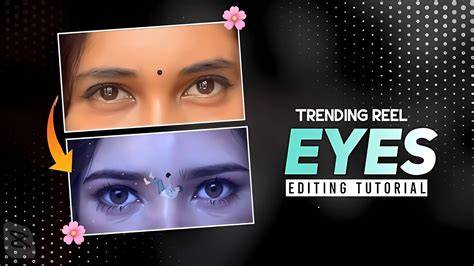
In summary, the best approach to red-eye removal depends on your workflow and device: mobile apps like Eye Color Studio and Facetune provide quick fixes and creative eye edits, online tools like Fotor offer convenient web-based editing, desktop solutions like GIMP offer deeper control, and CapCut opens up cross-platform Retouch and Eye Color features for both photos and videos.
FAQ highlights: Can red eyes occur in pet photos too? Yes, but automatic animal-face recognition for red-eye removal is limited, so manual correction may be required. Which app supports batch processing? Pixlr and BeautyPlus are commonly cited options. How to remove red eyes on desktop? The built-in Photos app on Mac provides a red-eye removal tool for quick edits.
- Eye Color Studio (Android): remove red eye, apply eye color, adjust opacity and contrast
- Facetune (iOS): remove red eyes, improve eye features, preserve natural color
- Fotor (Online): easy red-eye removal with additional editing options
- GIMP (Desktop): precise red-eye removal via Free Select and Red-eye removal filter
Red eye elimination is vital for creating natural-looking and flawless images. This article discussed top tools to remove red eye and how Facetune’s Retake and eye-editing features can save photos from blink moments. Whether you’re a casual shooter or a professional, these tools help you produce polished portraits and group shots with ease.