In this tutorial in our series on making selections in Photoshop, we'll look at a great way to feather, or soften, selection outlines using Photoshop's Quick Mask mode. Photoshop refers to softening the edges of a selection as "feathering" the selection, and there are plenty of times when we need to feather our selection edges since not everything we need to select has edges that are sharp and clearly defined. Many Photoshop users head straight to the Feather command under the Select menu in the Menu Bar (Select > Modify > Feather) when they need to soften a selection, but the Feather command has a serious drawback in that it gives us no way to preview what we're doing.
In my Layers panel, my photo sits on a layer creatively named "Photo," above a white-filled "Background color" layer which will serve as the background for my vignette effect. The Elliptical Marquee Tool, as with most of Photoshop's selection tools, draws hard edge selections, so to create my vignette effect, I'll need to soften the edges quite a bit. Before we look at the better way to soften the edges, let's take a quick look at Photoshop's Feather command. This opens the Feather Selection dialog box where we can enter a Feather Radius value, in pixels, to specify the amount of feathering we want to apply to the selection edges. Problem is, how we know what value to enter? In my case, what's the exact feathering value I need here to create an ideal transition between the selection and the white background behind it? The correct answer is, I have no idea. All I can do is guess at a value. I'll click OK to close out of the Feather Selection dialog box, and now if we look again at my elliptical selection in the document window, we see that it looks...
In truth, the selection edges are now softer, but Photoshop's standard "marching ants" selection outline has no way of indicating that the edge is feathered. It still looks like a solid, hard edge. The reason is that the standard selection outline only appears around pixels that are at least 50% selected. It does not appear around pixels that are less than 50% selected. So basically, Photoshop is looking at us right now and saying "The most I can tell you is that any pixels inside the selection outline are at least 50% selected, and anything outside the selection outline is less than 50% selected. Photoshop shouldn't feel too bad, though, because it actually can be of more help. In fact, it can give us a full preview of what our feathered edges look like. It just can't do it using the Feather command and the standard selection outline. What we need, then, is another way - a better way - to feather selection edges, and that way is with Photoshop's Quick Mask mode.
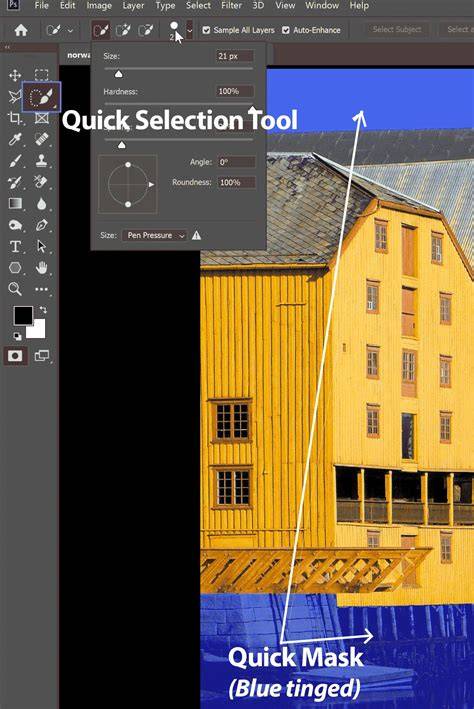
I'll press Ctrl+Z (Win) / Command+Z (Mac) on my keyboard to undo the feathering I applied a moment ago. Then, I'll click on the Quick Mask icon at the very bottom of the Tools panel. Clicking the icon once switches us into Quick Mask mode. Clicking it again switches us back to normal mode. Or, another way to enter Quick Mask mode is by pressing the letter Q on your keyboard. In Quick Mask mode, the standard selection outline is replaced by a red overlay. The overlay represents areas that are currently being protected. In other words, they're not part of the selection. Areas that are fully visible, not covered by the overlay, are selected. We can see this clearly in my document window. The area in the center of the image, which was inside the selection I drew with the Elliptical Marquee Tool, is fully visible which means it's currently selected.
Photoshop's Quick Mask mode doesn't just give us a different way to view selections. It also lets us edit selections in ways that are not possible with the standard selection outline. For example, we can run any of Photoshop's filters on the overlay! At the moment, the transition between the area covered by the overlay and the area not covered by the overlay is very sharp and abrupt, which means my selection still has hard edges. To soften them, I can simply blur them using the Gaussian Blur filter. This opens the Gaussian Blur dialog box. Click on the Radius slider at the bottom of the dialog box, then keep an eye on your document window as you begin dragging the slider towards the right. As you drag the slider, you'll see the edges of the Quick Mask overlay begin to soften. The further you drag the Radius slider, the more blurring you'll apply to the overlay and the softer the edges will appear. Thanks to Quick Mask mode and the Gaussian Blur filter, we now have a live preview of the amount of feathering we're applying to our selection edges!
When you're happy with the way things looks, click OK to close out of the Gaussian Blur dialog box. Here, we can see the effect the Gaussian Blur filter had on my Quick Mask overlay. This brings us back to our standard selection outline, which again gives us no indication that we just feathered the selection in Quick Mask mode. That's okay, though. The only remaining problem is that I currently have the wrong part of the image selected. I want to keep the area I've selected in the center of the image and delete the area around it, which means I'll first need to invert my selection by going up to the Select menu at the top of the screen and choosing Inverse. With the selection now inverted, I'll delete the area around the couple by pressing Backspace (Win) / Delete (Mac) on my keyboard, then I'll press Ctrl+D (Win) / Command+D (Mac) on my keyboard to quickly remove the selection outline from the document since we no longer need it.
Feathering is a way to soften the hard edges of an object in your image. By gradually fading between the colors of the pixels on the edge and the pixels surrounding it, feathering can help you make a newly added element blend in with the rest of your image. Select it: Use a shape-based selection tool, such as the Elliptical tool or Lasso tool, to choose the area that you want to feather. Feathering isn’t the only way to soften up an edge. Photoshop can do so much more than just create soft, feathered edges. Use feathering when you want to blend edges seamlessly, like when compositing objects onto new backgrounds or creating masks. Anti-alias smooths jagged edges but doesn't fade or blur the edge itself. Start with a small radius like 0.5-2px first. Go higher at 5-20px for wide feathery edges. Use larger feather amounts for bigger selections or objects. Yes, feathering makes edges semi-transparent which can increase file size slightly. Use conservatively on low-res web images. Yes, double click the layer style to open the Layer Style dialog. Use Layer > Matting > Defringe to feather just the transparent pixels on the inside. Especially when creating selections in complex scenes, the edges of your selection might have unsightly jagged patterns. In this tutorial, we will show you how to feather edges in Photoshop. Feathering in Photoshop involves blurring the connecting parts inside and outside of a selection, creating a soft, hazy effect to achieve a natural blend. In simpler terms, feathering edges gradually make them more transparent, resembling feathers, getting blurrier towards the edges. Use any selection tool to choose the part of the image you want to feather. After completing a selection, the extracted object might have unwanted fringing (often appearing as white edges). These white edges indicate that the background wasn't completely removed during selection, showing imprecise outlining. A practical approach is to shrink the selection by 1-2 pixels. This action helps eliminate the extra white edges. In the "Feather Selection" dialog box that pops up, enter a feather radius value. For most practical purposes, a feather value of 10 is usually sufficient. If the feathering effect is not very noticeable due to the minimal color contrast between the image and the background, simply increase the "Feather Radius" a bit while feathering. After making feather adjustments to your selection, you can also smooth the selection edge. Drag the "Feather" slider to apply a feathering effect to the mask edge. The keyboard shortcut for feathering edges in Photoshop is "Shift + F6." This shortcut might not be the easiest to remember. You might consider using TourBox, a creative controller highly favored by digital artists. For instance, you can map the keyboard shortcut for feathering edges directly to a button on the TourBox. Of course, the magic of TourBox extends beyond this. In this tutorial, we briefly covered how to feather edges in Photoshop. Therefore, mastering this common tool involves regular practice. Our tutorial comes to an end here.