Shortcuts are the quickest way to transform your Figma workflow from basic to blazing fast. This cheat sheet compiles a comprehensive set of Mac-specific keys that you can use to speed up typography, layout, alignment, prototyping, and more. It’s designed to be searchable and printable, so you can keep it handy while you design.
Key actions that unlock speed and efficiency
Shift+A to add Auto Layout is the most important Figma-specific shortcut. It transforms static designs into responsive layouts instantly. Master this before anything else. Use Quick Actions (Ctrl/⌘+P) to search for any command, plugin, or file-it's like Spotlight for Figma, faster than hunting through menus. Master Deep Select: Ctrl/⌘+Click to select nested layers without double-clicking through groups. Alt+Drag to Duplicate: Hold Alt/⌥ while dragging any element to duplicate it instantly. Combined with Shift to constrain movement, this is the fastest way to create repeated elements.
Copy/Paste Properties: Ctrl/⌘+Shift+C copies all properties (fill, stroke, effects) from one element, and Ctrl/⌘+Alt+V pastes them onto another. This is way faster than manually matching styles. Use Keyboard for Alignment: Alt+A/D/W/S for left/right/top/bottom alignment and Alt+H/V for centering. These shortcuts work on multiple selections and are faster than clicking alignment buttons.
Foundational shortcuts to learn first
- Move: V
- Frame: F
- Rectangle: R
- Text: T
- Duplicate: Ctrl/⌘+D
- Group: Ctrl/⌘+G
- Auto Layout: Shift+A
- Quick Actions: Ctrl/⌘+P
- Duplicate while dragging: Alt+Drag
Platform differences and discovery
Are Figma shortcuts the same on Windows and Mac? Yes-the logic is identical, just swap Ctrl for ⌘, Alt for ⌥, and Shift stays the same. Use the platform toggle at the top of the page to see the correct keys for your system. If you forget a shortcut, press Ctrl/⌘+P to open Quick Actions and type what you want to do; Figma will show the command with its shortcut. You can also press Ctrl/⌘+/ to see a shortcuts cheat sheet overlay directly in Figma.
Pro tips for Auto Layout and complex designs
How do Auto Layout shortcuts work? Shift+A adds Auto Layout to a frame or selection. Once applied, child elements automatically stack and space themselves. Alt+Shift+A removes Auto Layout. You can nest Auto Layouts to create complex responsive designs that behave like CSS flexbox.
Frames vs Groups: What’s the difference? Groups (Ctrl/⌘+G) resize to fit their children and don’t clip content. Frames (Ctrl/⌘+Alt+G) have independent sizing, can clip content, support Auto Layout, constraints, and prototyping interactions. Frames are almost always preferred; they're the building blocks of Figma.
To move faster, leverage the comprehensive set of shortcuts for alignment and text properties. For example, increasing and decreasing font size, line height, and letter spacing can be done quickly with the right keys, making typography adjustments rapid during reviews and iterations.
Comprehensive shortcut references
These are the shortcuts you’ll encounter repeatedly as you design, prototype, and iterate in Figma on a Mac:
- Selection and navigation: Ctrl/⌘+Click to select nested layers; Ctrl/⌘+P to Quick Actions; Ctrl/⌘+D to Duplicate.
- Auto Layout: Shift+A to add, Alt+Shift+A to remove; nested Auto Layouts for responsive behavior.
- Alignment: Alt+A (left), Alt+D (right), Alt/W (top), Alt/S (bottom), Alt+H (center horizontal), Alt+V (center vertical).
- Text and typography: Increase/Decrease Font Size, Increase/Decrease Line Height, Increase/Decrease Letter Spacing, Bold/Italic/Underline (⌘+B, ⌘+I, ⌘+U).
- Copy/Paste properties: Ctrl/⌘+Shift+C to copy properties, Ctrl/⌘+Alt+V to paste onto another element.
Frequently asked questions
What are the most important Figma shortcuts to learn first? Start with: Move (V), Frame (F), Rectangle (R), Text (T), Duplicate (Ctrl/⌘+D), Group (Ctrl/⌘+G), Auto Layout (Shift+A), Quick Actions (Ctrl/⌘+P), and Alt+Drag (Duplicate while dragging). These cover the core of daily Figma work.
Can I customize keyboard shortcuts in Figma? Figma doesn’t natively support custom keyboard shortcuts like Photoshop does. However, you can use OS-level tools like AutoHotkey (Windows) or Karabiner (Mac) to remap keys, or use Figma plugins that add custom shortcut functionality.
What’s the difference between Group and Frame in Figma? Groups resize to fit their children and don’t clip content. Frames have independent sizing, can clip content, support Auto Layout, constraints, and prototyping interactions. Frames are almost always preferred.
Supplementary tools and resources
New to Figma? Start with a free course. Beginner-friendly courses in Blender, Photoshop, Figma, Canva, and Claude-free. Start free →
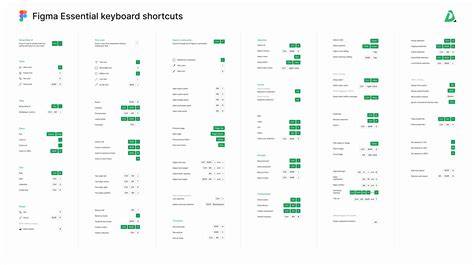
Potential data visualization
Table idea: A quick reference table mapping common actions to their Mac shortcuts, including Move, Duplicate, Auto Layout, Quick Actions, and Alignment. This could be inserted as a compact data table to aid memory, if needed.