Snapseed is a complete and professional photo editor developed by Google. Pro-level tools, authentic film simulations, smart masking and more - all with no strings attached.
Why Green Screen Works in Snapseed
Smart masking and selective editing capabilities in Snapseed allow you to isolate subjects or backgrounds with precision, which is essential for effective green screen work. The app’s non-destructive editing model lets you adjust or revert edits without losing your original image.
In addition to masking, Snapseed offers tools for improving color, exposure, and detail, which help you blend a subject onto a new background convincingly. The combination of film-like looks, grain, halation, and controlled sharpening supports a professional finish even when working on mobile devices.
Foundational Tools for Green Screen Edits
Key tools you’ll rely on include Tune Image for color and exposure adjustments, White Balance to correct color casts, and Details to enhance texture where needed. Healing and selective editing tools let you clean up edges and remove artifacts after composite work.
- Tune Image helps you set accurate color and exposure before compositing. Adjust brightness, contrast, and saturation to match your new background. Warmth can mimic indoor vs. outdoor lighting conditions for better realism.
- White Balance corrects color casts from different light sources so the subject sits naturally on the new background. Temperature and Tint settings let you fine-tune skin tones and overall mood.
- Details enhances texture with structure and sharpening. Use sparingly to avoid amplifying noise or halos around edges.
- Healing removes small distractions from the subject or edge areas to facilitate a cleaner composite.
Masking, Selective Editing, and Edge Cleanup
Masking and selective editing are at the heart of a convincing green screen edit in Snapseed. The Brush tool (Dodge & Burn) lets you locally adjust brightness and color, while selective editing enables edits to apply only to chosen parts of the image. After placing a subject onto a new background, you’ll likely need to refine edges and correct any color disparities along the seam.
To work non-destructively, utilize the Edit History to modify or revert individual edits and re-order adjustments as needed. This approach is essential for experiments with edge feathering and color matching, ensuring you can try multiple variants without losing previous work.
Step-by-Step Approach to a Green Screen Composite
- Prepare the subject Open the image with the person or object you want to place on a new background. Use Masking and Brush to refine selection if needed, and apply Healing to remove small distractions near the edge.
- Isolate the subject Use selective editing to fine-tune the subject’s edges. Employ the Brush tool with Dodge & Burn to adjust brightness around the boundary to reduce halos and improve contrast with the new background.
- Apply the new background Place a background layer behind the subject. Adjust Tune Image and White Balance to harmonize lighting, color, and mood between the subject and the new backdrop.
- Refine colors and texture Use Details and Color adjustments to match texture and film-like qualities (grain, halation) of the new background, improving realism.
- Final polish Re-check edge clean-up, shadows, and overall balance. If needed, revisit masking, feather edges, or slight color shifts to minimize seams.
Tips for Realistic Green Screen Edits in Snapseed
- Match lighting direction and color temperature between subject and background to avoid flat composites.
- Use selective edits to gradually blend the edge, avoiding abrupt transitions.
- Experiment with Looks and film simulations to simulate depth and atmosphere that align with the background's era or style.
- Save intermediate steps as looks or use the Edit History to compare before/after states.
Possible Extensions: Additional Features to Enhance Green Screen Work
Snapseed’s batch editing capability can help you apply consistent color and exposure adjustments to a series of green screen composites, maintaining uniformity across a project. The Snapseed camera and Looks features provide starting points for a cohesive aesthetic across multiple images, which is useful when producing a themed set or a campaign.
Incorporating Infographics and Visual Aids
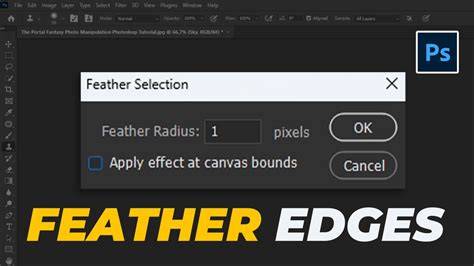
Infographics that map the workflow from masking to final blend can help readers visualize the process. A schematic showing masking regions, edge feathering, and color-matching steps would complement the text well.
Suggested Video Content
Short clips demonstrating masking, edge cleanup, and color matching can provide practical context to readers new to green screen editing in Snapseed.
Your OBS green screen is all wrong, and the fix is so simple!
Practical Table: Snapseed Edits for Green Screen Workflow
| Step | Tools Used | Purpose | Notes |
|---|---|---|---|
| Prepare | Healing, Brush | Remove distractions, refine edge | Zoom for precision |
| Isolate | Masking, Selective | Isolate subject from background | Non-destructive edits |
| Background | Tune Image, White Balance | Match lighting and color | Fine-tune mood |
| Blend | Details, Brush (Dodge & Burn) | Edge blending, color harmony | Avoid halos |
| Finalize | Edit History | Review and adjust | Keep iterations |
Save your final image as a separate copy to preserve the original and allow further experimentation. Snapseed’s flexible export options help you deliver ready-to-share composites with consistent quality across a series of images.