In Figma, when you enable the Snap to Pixel Grid feature, objects will align to the underlying grid as you place or move them. This behavior helps prevent mis-aligned pixel errors when exporting elements, ensuring assets maintain crisp edges at export time.
What Snap to Pixel Grid Actually Does
With snapping on, elements lock to whole pixel positions on the grid during most placement and movement operations. This reduces the risk of fractional coordinates that can cause thin white edges or misaligned spacing in exported assets.
However, the community discussion around pasting or copying frames from one file to another reveals an important nuance: pasted frames can retain fractional coordinates even when the source and destination files have snapping enabled. This means that while you are snapping while you drag or place, the act of pasting can bring in fractional XY values that then need manual adjustment.
In practice, users have observed that:
- Copped or pasted frames may save fractional coordinates, which can complicate alignment in larger workflows with many files.
- Overlaying multiple files with Snap to Pixel Grid on can still produce fractional positions in pasted content, leading to misalignment across canvases.
- Some users reported that specific keyboard shortcuts or methods (e.g., holding a modifier key) can temporarily override snapping during a paste, but this is not universal and may depend on context or version.
These observations indicate that while Snap to Pixel Grid is intended to enforce pixel-aligned placement, it does not guarantee that copied content preserves only integer coordinates when pasted between files or components.
Practical Scenarios and How to Manage Them
When creating a new Figma file with Snap to Pixel Grid enabled, users often copy frames from other files and paste them into the new canvas. If the source frames were snapped to pixel grid in their origin file, pasted frames could still carry fractional coordinates, especially if the paste operation involves complex components or nested frames.
To minimize issues, consider these workflows:
- Paste with snapping override: Some users report that holding certain keys can break out of snapping during movement, allowing precise placement beyond the pixel grid. This can help when fine-tuning pasted content, though it may not be universally reliable across all versions.
- Post-paste adjustment: After pasting, quickly nudge or input exact coordinates in the properties panel to re-align to integer values. This keeps the overall layout consistent with the pixel grid without reworking the entire frame.
- Use a dedicated tool or plugin: Plugins that round values or normalize coordinates can help ensure pasted frames conform to whole-pixel positions. Several teams have built custom scripts to address this exact need, especially for large asset banks.
- Plan for fractional edges in exports: If fractional coordinates persist, anticipate thin white edges at export and adjust by rounding dimensions or using a “Snap to Pixel” workflow during export preparation.
Tips for Faster and More Reliable Snapping
To rapidly enable or verify snap-to-pixel behavior, you can use these approaches:
- Enable Pixel Grid display to visualize snap targets and ensure objects line up with grid lines during placement.
- Zoom in to a high level (for example, 800% or more) to clearly see pixel alignment when tweaking positions after pasting.
- Remember keyboard shortcuts that affect snapping: holding down a specific key while moving can temporarily disable snapping to allow precise placement; consult your current setup and version for exact keys.
- If you frequently paste between files with snapping on, consider creating a workflow where you paste into a temporary canvas, round coordinates, and then move elements into their final destination.
Visual Aids and Data
Pixel grid visibility and snapping behavior can be demonstrated by showing the grid overlay and moving objects to the nearest grid line. This helps verify that the placed elements respect whole-pixel positions during normal interactions, while highlighting where fractional coordinates may slip in during paste operations.
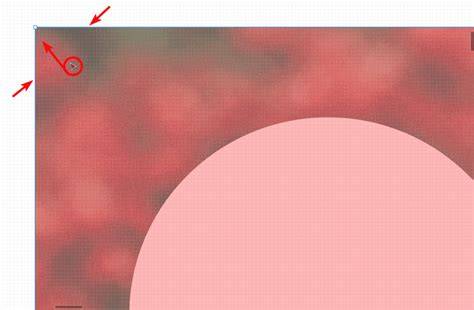
For more technical insight, it can be useful to observe how Pixel Preview and Zoom Settings influence the rendering of vector paths and grid alignment. The Pixel Grid can be turned on from the Zoom Settings menu, and Pixel Preview reveals how the canvas renders crisp edges at various zoom levels.
How To Turn On Pixel Grid In Figma (Updated 2026)
Related Features and User Feedback
Users have discussed various strategies and feature requests to address this behavior, including:
- A dedicated option to "Make All Frames Round Values" that rounds coordinates to whole pixels during paste and edit operations.
- An option to disable snapping globally or to apply snapping selectively to different axes or layers.
- Priority for keyboard shortcuts that allow quick toggling of snapping during common tasks such as pasting or resizing.
Some users report that a combination of built-in capabilities and plugins can mitigate the issue, but a comprehensive, built-in solution remains a frequent wish in the design community.
Practical workflow example
Suppose you copy a frame from a source file with Snap to Pixel Grid on and paste into a destination file also with snapping on. If the pasted frame shows fractional coordinates, you can:
- Hold a modifier key while moving to break from snapping if you need precise placement for the initial alignment.
- Immediately adjust the coordinates in the right-side properties panel to integer values (for example, X and Y rounded to the nearest integer).
- Optionally invoke a rounding plugin or a quick rounding action to normalize coordinates across multiple frames.