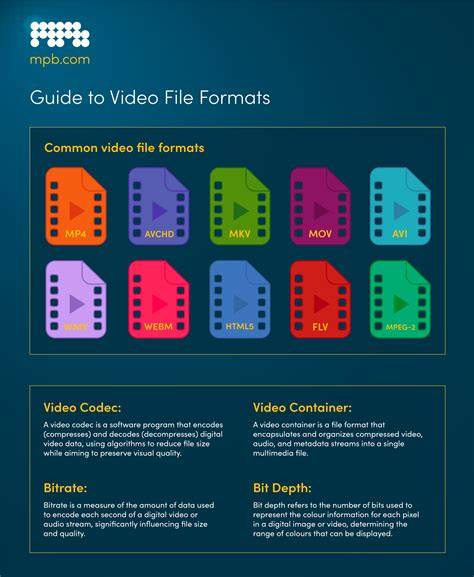
iMovie is a user-friendly video editing tool available on macOS and iOS that handles a variety of video formats and codecs, though its compatibility depends on the version you’re using and the device you’re on. Native support has evolved over the years, with iMovie historically embracing formats tied to Apple’s ecosystem, while also accommodating common industry standards through codecs and container wrappers.
What containers does iMovie work with?
mov is a container. If it contains one of the above, it will work. mp4 is a container. If it contains one of the above it will work. avi is a container. If it contains one of the above, it might work without conversion, but can probably be converted. These statements reflect iMovie’s practical approach: the container matters, but the codecs inside determine compatibility. In practice, iMovie typically handles MP4, MOV and M4V files, though not every file in those containers is importable because the codecs inside may not be supported.
Codecs and native support
Native, iMovie handles DV, HDV, AVCHD, H.264, Apple Intermediate Codec (AIC), Apple Animation Codec, Motion JPEG/M-JPEG, and various MP4 varieties to differing extents. Some notes from user experience and documentation suggest that iMovie’s effective support includes: DV, HDV, AVCHD, Apple Intermediate Codec, Apple Animation Codec, Motion JPEG, and H.264, with “some, but not all, varieties of MP4” being usable depending on the embedded codecs. If Final Cut Pro is installed on the same machine, you also gain access to ProRes 422 and related professional codecs. Perian’s QuickTime components were historically used to play many codecs on macOS, but these are no longer part of modern macOS environments. Different iMovie versions expanded or restricted supported codecs and export options, especially around HD, 4K, and newer formats.
Latest capabilities and device considerations
The actual version of iMovie supports any actual device within AVCHD v2 standards, so up to 1080/60p with 28 Mbps is generally fine for supported cameras and sources. Some vDSLRs go beyond those limits, so it’s important to check for specific camera support beyond Apple’s listed tests. iMovie 10.x and later introduced 4K editing in some updates and added features like Cinematic Mode and Storyboard in subsequent releases. iMovie on macOS Mojave and later removed support for certain older codecs as macOS evolved, and Apple shifted focus toward modern codecs and optimized playback on Apple silicon devices.
Practical implications for workflow
When you import video, you can drag and drop into the timeline or use Import Media to browse your clips. Clips can be edited with audio and video layers, overlays, titles, and transitions. Some formats may require conversion if iMovie cannot import them directly; in such cases, converting to a widely compatible container with an accepted codec (for example, MOV or MP4 with H.264/AAC) is a common solution. If you plan to work across other Apple software (Final Cut Pro X, Motion, etc.), you can leverage ProRes 422 and other high-quality codecs for smoother editing and color grading.
Aspect ratio and export considerations
Another important factor is aspect ratio. iMovie mainly supports two default formats: 16:9 (landscape) and 9:16 (vertical). If you import video with a different aspect ratio, iMovie will crop or add black bars to fit. You can adjust the export resolution and format from the sharing/export options, including 1080p and higher where available, depending on the source material and version.
Historical context and evolution
iMovie began as a simple consumer tool and evolved through numerous versions. Features shifted from early non-destructive editing and DV/HDV support to broader AVCHD, H.264, and QuickTime-based workflows. iMovie 08 introduced a major redesign with broader HD output but also notable codec or metadata limitations. iMovie 09 added refined editing tools and new export options, while iMovie 10.x expanded 4K support and modernized the interface. Over time, Apple improved native import and export paths for common consumer cameras and widely-used codecs, alongside maintaining compatibility within the Apple ecosystem.
Tips for maximizing compatibility
- When in doubt, export intermediate files in a widely supported format such as MOV or MP4 with H.264 video and AAC audio for broad compatibility.
- If you encounter import issues, consider converting the source to a compatible container/codecs using a trusted converter before importing into iMovie.
- For best performance on a Mac with Apple silicon, keep iMovie updated to leverage the latest codecs and hardware acceleration.
Notes on related codecs and components
Apple Intermediate Codec (AIC) is a historical QuickTime component that helped bridge older formats; modern workflows favor more universal codecs like H.264/AVC, HEVC (H.265), and ProRes where applicable. QuickTime and related components influence what codecs can be played or edited without conversion on macOS, but system updates can remove older 32-bit codecs in newer macOS versions. Perian was a community-supported project to extend QuickTime’s codec support, but it is no longer maintained in current environments.