Final Cut Pro XML (FCPXML) is a specialized, self-describing format that uses XML elements to describe data exchanged between Final Cut Pro and third-party applications and tools. You can use XML documents (plain ASCII text files with tagged elements) to transfer the details of your libraries, events, projects, and clips between Final Cut Pro and third-party applications, devices, and media asset management tools that don’t recognize Final Cut Pro documents and files.
In Final Cut Pro, you can import and export XML to enable round-tripping with other software, facilitating complex workflows that involve external MAM systems, editors on different machines, or specialized processing pipelines. The XML import and export options are described in detail in the Final Cut Pro XML developer documentation. When you import an XML file, Final Cut Pro generates clips, events, projects, and a library, depending on the contents of the XML file.
Importing XML into Final Cut Pro
In Final Cut Pro, choose File > Import > XML. Navigate to the XML file you want to import, then click Import. Final Cut Pro processes the XML and generates the corresponding clips, events, projects, and library, depending on the contents of the XML file. Tip: You can also import XML files by double-clicking them in the Finder or dragging them to the Final Cut Pro app icon.
Exporting XML from Final Cut Pro
You can export events, projects, and libraries as XML files. In Final Cut Pro, select a library, or select one or more events, projects, or clips that you want to export as XML files. To export the project currently open in the timeline, click in the timeline to make it active. Choose File > Export XML. In the window that appears, enter a name for the XML file in the Save As field. Navigate to a folder on your Mac or storage device where you want to store the XML file. Click the Metadata View pop-up menu and choose a metadata view. By choosing a metadata view, you determine what information is included in the XML file and how it’s organized. See View and change clip metadata and Modify metadata views. Select the XML version (the current version, or one of two previous versions) for the export. Note: In most cases, you should choose the current version. You have the option to choose from two previous versions of the Final Cut Pro XML Interchange Format if you have XML processing code or a third-party app that doesn’t recognize the current version. Click Save.
Versioning and Interoperability
With Final Cut Pro 10.3 or later and compatible third-party applications, you can update your libraries, events, projects, and clips simply by dragging them between applications. For example, you might drag a set of events from Final Cut Pro to your media asset management (MAM) application, or drag a library from your MAM application to Final Cut Pro to update it instantly. For more information about compatible third-party applications, see the Apple Support article Final Cut Pro ecosystem. Note: Final Cut Pro XML version 1.10 or later is required for object tracking and Cinematic mode video features introduced in Final Cut Pro 10.6. However, bin information loading is limited to clips and sequence clips.
Historical context and cross-compatibility
In Final Cut Pro 7, some color bar clips and color matte behavior differ from later fcpxml representations, and some sequence clips may be imported as different sequence clips. The XML file is imported and the Restore and transfer clip dialog box is displayed. Historically, xmeml and fcpxml have coexisted across applications like Premiere Pro CC, each with its own versioning and tagging conventions. The two primary XML formats we focus on are xmeml (Premiere Pro) and fcpxml (Final Cut Pro X). For example, Premiere Pro and Final Cut Pro X export and view XML to describe assets, markers, keywords, and more, though their structural details (frame-based vs. timecode-based representations) differ. XML’s self-describing nature is a key advantage over older formats like EDL or CSV because each element explicitly describes its data type and meaning.
Premiere Pro commonly uses a variant of xmeml, while Final Cut Pro X uses fcpxml to describe clips within a project’s primary storyline, connected clips, and secondary storylines. It’s important to know which type and version of XML you’re dealing with, since different versions may be incompatible across hosts. For example, FCX X version 10.2 can open fcpxml version 1.5, but not 1.6 from 10.3. This kind of version awareness helps prevent import/export issues when moving projects between machines or software.
Practical understanding of XML content
XML files can be opened in a text editor to view the content. A simple fcpxml example might include an interview clip with a Note, keywords, and time-based markers. The asset block in the resources area includes media formats, titles/generators/effects, and multicam data. Each asset has a block with a format attribute and an id-based reference, and integers like 2002/60000 describe duration and frame rate as rational numbers for precision. Timecode, in/out markers, and keyword metadata illustrate how information is embedded in the XML to describe the media and its contextual metadata. This granularity is what enables robust cross-application workflows where editors, colorists, and asset managers rely on precise data exchange.
XML’s human-readability increases its value for developers and power users who need visibility into the data that drives edits, effects, and organization. The “self-describing” nature means that elements and attributes convey meaning, enabling tools to interpret the content without guessing. This is a cornerstone of why fcpxml is favored for Final Cut Pro X workflows, especially when integrating with third-party systems and automation pipelines.
Practical tips and common scenarios
- Export a metadata view that matches your collaborators’ needs to control what information is included in the XML.
- Choose the current XML version for general compatibility, or select a prior version if you’re exchanging with legacy tooling.
- Use drag-and-drop or Finder double-click to streamline XML import into Final Cut Pro.
- When working with multiple editors or environments, keep versions aligned to avoid cross-version import issues.
- For large projects, consider exporting an XML bundle (.fcpxmld) in Final Cut Pro 10.6 and later, noting that some apps may have trouble reading certain bundles.
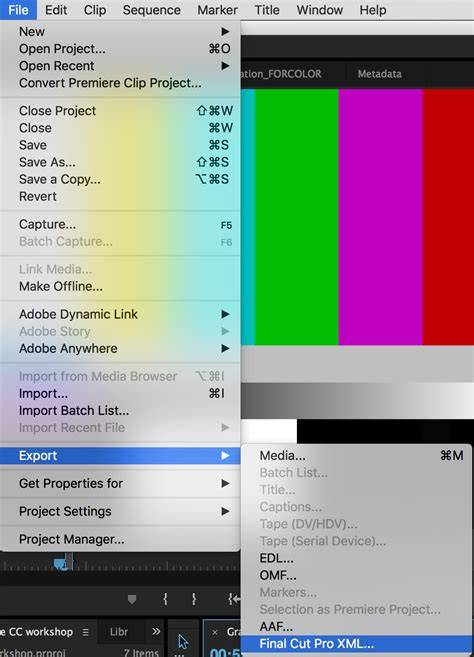
From both Final Cut Pro X and Premiere Pro you can view XML by exporting an XML file from an Event or Library, or from a Premiere Pro Project. XML files can be opened in a text editor to view the content, and the structure includes assets, markers, and metadata that describe the media and its usage within a project. This makes XML a powerful bridge between editing software and external systems, enabling sophisticated workflows that extend beyond a single application.
Related notes
There are discussions around the ecosystem, compatibility issues across versions, and strategies for cross-application XML exchange. In some cases, users report that exporting XML bundles or specific versioned files can be problematic if downstream tools don’t recognize the version or bundle format. Maintaining consistent software versions across editors helps minimize these issues, and consulting the official ecosystem guides provides guidance on supported workflows and formats.