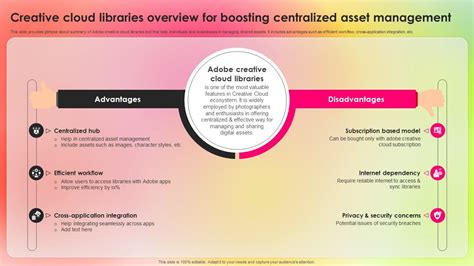
Creative Cloud Libraries is a collection of design assets that can hold several types of design elements to help you organize, browse, and access creative resources across projects and Adobe applications.
What you can store and how it stays updated
Creative Cloud Libraries help you organize, browse, and access creative assets. Always use the latest iteration or version of your asset with linked assets. No matter where your asset is used, if you edit the library copy, all your projects are updated with the edited asset. The assets you store as a Graphic in a Creative Cloud Library retain their vector form.
Access and sharing across teams
Everywhere access. Share assets and components from your libraries with other users. Allow others to work with items in your shared libraries, or share them with more users. You can share your libraries with other users for them to view, edit, use, rename, move, or delete the contents of the shared library. When a library is shared with you, you receive a notification in the Creative Cloud desktop app.
Integrations and right assets
The right asset: Save assets directly to your libraries from Adobe Photoshop, Adobe Illustrator, Adobe InDesign, Adobe Premiere and Adobe mobile apps and services like Shape, Brush, Color, Comp and Hue. The new Adobe Stock service provides you with access to 50 million high-quality, royalty-free images, videos, and graphics. In Illustrator CC 2014 and earlier, every graphic asset dragged from the Libraries panel into a document was unlinked from the original asset, but from Illustrator CC 2015 onwards, with the linked assets feature, an asset dragged from a library to a document is a linked asset. All assets used in Illustrator CC 2014 remain unlinked assets, while newer versions support linking.
Working with assets in Illustrator and beyond
Creative Cloud Libraries are displayed in the Libraries panel in Illustrator. To open the Creative Cloud Library panel, click Window > Libraries. The Libraries panel supports personal libraries, sharing options, and search within the current library. You can store objects and assets from your document in the Creative Cloud Library, and the assets you store as a Graphic retain their vector form. Text objects from your document can be added to libraries and shared across applications, preserving or applying character/paragraph styles and other attributes when needed.
Practical workflow tips
Select an asset, add it to your library, and manage its updates to ensure consistency across projects. You can add elements, select an image, and choose to buy the photo or save a preview to your library. If you place the pointer on a selected image, the License and Save to downloads and Save Preview to Downloads icons are displayed. The graphic is updated in the Creative Cloud Library, and the thumbnail is automatically refreshed.
Text assets can be added and edited across InDesign and Illustrator, with updates reflected in the library and thumbnails refreshed accordingly. You can edit and use text assets across these two applications, and the text asset remains synchronized with its library copy. The visual search functionality in the Libraries panel helps you quickly find stock images similar to a library element. If you have a question or idea to share, participate in the Adobe Illustrator Community.
How to access and manage libraries
Open the Libraries panel in Illustrator via Window > Libraries. From there, you can navigate between A. Personal library, B. Invite to library, and C. More options, along with D. Search current library, E. Show edit options, and F. Share options for collaborative work.
Mastering Creative Cloud Libraries: Streamline Your Design Workflow
In addition to asset types, you can work with text, vector graphics, and raster images, ensuring they maintain their respective properties when stored in libraries. The Libraries panel’s visual search helps locate stock elements that resemble a library item, enabling efficient.Asset sharing and linked assets enable consistent updates across projects, reducing version control headaches and ensuring design coherence.