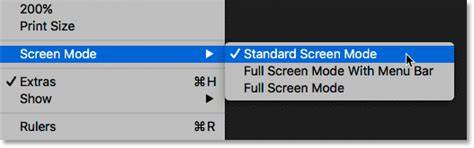
Photoshop offers several ways to maximize the view of your image by adjusting the screen space available for the document. Understanding the three Screen Modes and how to quickly switch between them can help you focus on your artwork without unnecessary interface clutter.
Why Screen Modes matter
As camera technology improves, our photos get bigger and bigger, and the interface can crowd the screen. A Screen Mode controls how much of Photoshop’s interface is displayed, allowing you to minimize distractions and maximize the work area.
Three Screen Modes in Photoshop
- Standard Screen Mode displays the entire Photoshop interface, including the Toolbar, panels, Menu Bar, and Options Bar. This is the default mode and uses the most screen space for tools and options.
- Full Screen Mode With Menu Bar hides most interface elements but keeps the menu bar visible. This mode maximizes the viewing area while still giving access to menus for commands and settings.
- Full Screen Mode hides the interface completely, leaving only the image. This provides the largest possible workspace and is ideal for viewing or presenting your image without any Photoshop chrome.
Where to find Screen Modes
- Menu Bar: View > Screen Mode to switch between Standard, Full Screen With Menu Bar, and Full Screen modes.
- Toolbar: The Screen Mode icon at the bottom can be clicked and held to reveal a fly-out menu with the three options.
In Standard Screen Mode, you can still use the Fit on Screen view to see the whole image within the document window, or switch to 100% View Mode to view at actual pixel size. The 100% view shows every pixel, but the interface may obscure part of the image depending on the window size.
Key keyboard and quick tips
- Cycle through Screen Modes quickly by pressing F to move from Standard Screen Mode to Full Screen Mode With Menu Bar, and again to Full Screen Mode. Press F once more to return to Standard Screen Mode.
- Exit Full Screen Mode or reveal the interface by pressing Esc.
- In any Screen Mode, press Tab to show/hide the Toolbar, Options Bar, and Panels, or Shift+Tab to hide just the panels on the right.
- To temporarily show tools or panels while in Full Screen Mode, hover the cursor along the left edge (tools) or the right edge (panels).
macOS realities and tips
On macOS, full-screen behavior can differ from Photoshop’s own screen modes. The native macOS full-screen option may leave a portion of the desktop visible. In Photoshop, you can still rely on View > Screen Mode to switch modes, and use Tab or Shift+Tab to manage visibility of panels. If you use macOS full-screen mode, exiting can require revealing the menu bar and using the green window button, which may conflict with Photoshop’s own interface settings. Hiding panels with Tab can help you work with a visible menu bar in macOS full-screen mode.
Practical usage scenarios
- When presenting a single image for viewing or a screen saver-style display, switch to Full Screen Mode to remove all overlays.
- For precise editing with a clean canvas but access to menus, use Full Screen Mode With Menu Bar to retain menu access while maximizing view area.
- For detailed inspection of pixels, switch to 100% View Mode in Standard Screen Mode to ensure every pixel is visible at actual size.
Additional considerations
Some workflows benefit from multiple monitors: you can keep panels on one screen while viewing the image on another. Screen Modes affect only the current document window; other panels and tools remain on their assigned monitor unless you move them.