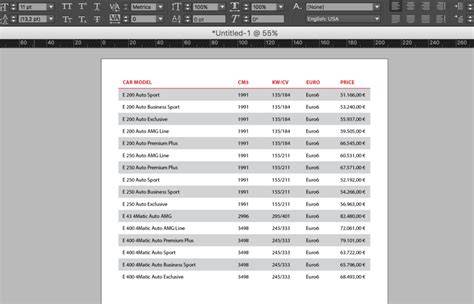
There are lots of ways to make tables look good in InDesign. In this blog-style guide, we’ll take you through the steps to create a simple yet attractive grayscale or color table, starting with cell and table styles for consistency across your book.
Two essential cell styles for consistency
Cell styles specify the amount of space around the text in a cell, and also which paragraph style is used within that cell.
A simple table might have just two cell styles, one for the header row and one for all the other cells. Take a moment now to set up two cell styles for your table: a Header cell style and a Text cell style.
First open your Cell Styles panel by choosing Window>Styles>Cell Styles. Using the Type Tool, click in one of the cells in your header row to put your cursor there.
Create a new cell style by clicking the fly-out menu in your Cell Styles panel and choosing New Cell Style. In the Style Name box at the top, name your style Header, and in the Paragraph Style drop-down box, choose the paragraph style you’ve created for your header row. (If you set up your table based on our previous blog post, your paragraph style for column heads will be called tch.) Then click OK.
Now apply the Header cell style to your header row by selecting the whole row with your Type Tool, then select Header in your Cell Styles panel to apply the cell style. Done.
Next repeat the steps above to create a new cell style for the regular text cells in your table. Using the Type Tool, click in one of the cells in your table to put your cursor there. Create a new cell style by clicking the fly-out menu in your Cell Styles panel and choosing New Cell Style. In the Style Name box at the top, name your style Text, and in the Paragraph Style drop-down box, choose the paragraph style you’ve created for your table text. (If you set up your table based on our previous blog post, your paragraph style for column heads will be called tb.) Then click OK.
Now apply the Text cell style to all the rows below your header row by selecting them with your Type Tool and choosing Text in your Cell Styles panel. Done.
Table styles: controlling the overall look
Table styles specify the overall look of your table, including its border, row and column strokes, and fills. To create a table style for your table, first open your Table Styles panel by choosing Window>Styles>Table Styles. Using the Type Tool, select your whole table by hovering at the top left corner of the table, then click to select the table. Create a new table style by clicking the fly-out menu in your Table Styles panel and choosing New Table Style. In the Style Name box at the top, name your style (Table 1 in this example). In the Cell Styles area at the bottom of the dialog box, choose Header for your Header Rows cell style, and Text for all the other rows. Then click OK.
Now apply the new table style to your table by selecting the whole table and choosing Table 1 in your Table Styles panel. Done.
Creating a grayscale or color table
We’ll walk through a simple grayscale or color table using the example from our previous post as a starting point. This table looks nice in grayscale and offers a fresh look beyond the traditional boxes-around-each-cell format.
Start by adding a dark gray fill to your header row. Open your Header cell style by double-clicking it in your Cell Styles panel, then choose Strokes and Fills on the left. In the Cell Stroke area, deselect the top and bottom of your cell so only the left and right strokes remain blue in the default diagram. Then fill in the rest of the dialog box as shown. The left and right sides will have a 1 pt white stroke applied, and the header row will receive the background fill color you choose.
Then open your Table style by double-clicking it in your Table Styles panel. Use your Table style to control the fills and strokes for the rest of your table, deciding whether to include fills and strokes and, if so, what colors and thicknesses they’ll be. In the Table Style Options dialog, choose Table Setup on the left. In the Table Border area, choose None from the Type drop-down to turn off borders around the table. All other choices will be grayed out after this.
Next choose Row Strokes on the left. This table does not use any row strokes, so turn them off. Choose Every Other Row from the Alternating Pattern drop-down, then choose None from both Type drop-down menus. Do the same for Column Strokes: choose Every Other Column and None for Type options. Finally, choose Fills on the left. This table uses alternating rows of gray, so select Every Other Row from the Alternating Pattern drop-down. In the Alternating section, set the fills as shown: the first alternating row has a fill of 10% black; the next alternating row has no fill color. If you want to preview, ensure the Preview box is checked. You can adjust the Skip First value if you want the first row below the header to be colored. Click OK.
Polishing and color experimentation
Your table may look good now, but you might want to tweak it. For example, you can change the header row fill to magenta, the header text color to white, and the left column text color to magenta by applying different fills and character styles. There are many options for adding color to a table while keeping print readability in a black-ink book. Experiment with color and text changes by adjusting your paragraph, character, cell, and table styles. If you make a change you don’t like, undo it with Ctrl/Cmd+Z.
We hope our set of posts about setting up tables in InDesign helps you get started with your own tables. The guidance here focuses on practical steps for creating and applying table styles, cell styles, and paragraph styles for scalable, consistent layouts.
Key concepts and practical steps
- Set up two cell styles: Header and Text, and apply them to header and body rows respectively.
- Create a Table Style that assigns the header and body cell styles, then apply the style to the entire table.
- Design a grayscale or color table by adjusting header fills, borders, and alternating row fills in the Table Style Options.
- Experiment with colors and typography by adjusting paragraph and character styles linked to the cell styles.