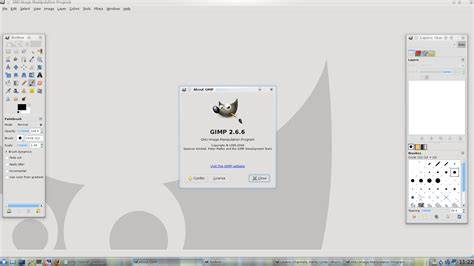
Need a capable image editor without another subscription eating your budget? GIMP is the tool most people are looking for when they search what is gimp: a free, open-source raster image editor that can handle photo retouching, layer-based compositing, web graphics, and everyday image cleanup.
GIMP stands for the GNU Image Manipulation Program. The “GNU” part matters because it signals the project’s open-source roots and its long history in the free software ecosystem, where users are expected to inspect, modify, and redistribute software under the terms of its license. The practical reason GIMP exists is simple: not everyone needs, wants, or can justify a paid image editor. A subscription model can work for a large studio, but it is a bad fit for a student, freelancer, nonprofit, or home user who edits occasionally.
That open-source model also changes the support structure. GIMP is maintained by a global community, not a single company with a closed product roadmap. That means updates are shaped by contributors, plugin developers, translators, and users who need the software to stay useful across platforms. The phrase gimp gnu image manipulation program official about history is a common search query because people want the origin, license model, and current purpose in one place.
GIMP is used for raster image editing, which means editing images made of pixels rather than mathematical shapes. That includes photo retouching, compositing multiple images, removing backgrounds, adjusting color, repairing defects, preparing web graphics, and creating screenshots for documentation. It is also used in workflows that do not require a full design suite. A developer might use it to crop product screenshots and add callouts. A blogger might use it to resize featured images and optimize file size.
The question what is gimp app often comes from mobile users expecting a phone app, but GIMP is primarily desktop software. The question what is gimp program is more accurate: it is a desktop program for image manipulation, not a social app or a lightweight viewer. Raster graphics are made of pixels, while vector graphics are built from mathematically defined shapes. That difference is the single most important technical idea to understand before choosing GIMP.
GIMP excels when your work depends on individual pixel control. A photographer can retouch skin, correct color casts, or remove sensor dust one pixel region at a time. A content creator can crop a screenshot, blur private data, or blend several images into one composite. Where GIMP is weaker is pure vector production. If your job is logo design, brand systems, or illustration that must scale from business card to billboard, vector software is the better tool. That does not make GIMP less useful. It is a strong raster editor with a clear purpose.
Layers are separate image sheets stacked on top of each other, and that is the core of how GIMP works. Instead of flattening every edit into a single image, you can keep text, adjustments, cutouts, and background elements separate until the final export. Selections let you isolate part of an image so your edits only affect the region you want. Layer masks make editing more flexible because they hide and reveal parts of a layer without permanently deleting pixels. That is one reason GIMP remains practical for non-destructive workflows. GIMP also supports plug-ins and extensions, which is a major reason the open-source model matters.
If a workflow needs automation, special filters, or format handling, the ecosystem can often extend the base installation. If you are coming from other editors, think of GIMP as a layer-first tool. GIMP features cover the editing tasks most people actually need day to day. The toolbox includes crop, scale, rotate, perspective transforms, paint tools, healing and clone tools, text, gradients, and a wide set of selection methods. Layer support is the feature that turns simple editing into serious compositing. You can build a graphic from parts, keep text editable, and adjust individual elements without starting over. GIMP also supports filters and repeatable actions that make common work faster.
If you routinely resize images for web use, sharpen a set of photos, or standardize output for blog posts, a stable workflow matters more than fancy features you will rarely touch. If you are researching what is gimp 2.10, you will see a lot of discussion around the 2.10 branch because many tutorials and workflows were built around it. The current lesson is not the version number; it is that the toolset has remained practical for image production over time. GIMP is used for everyday image work that would otherwise require a paid editor. A photographer might use it to remove blemishes, balance exposure, and sharpen an image for delivery. A marketer might use it to create a social graphic with text overlays and branded colors. Web graphics are one of the strongest use cases. Digital artists and illustrators often use GIMP for painting and texture work, especially when the project does not need a full vector pipeline.
Custom brushes, pressure-sensitive tablets, and layer-based compositing make it workable for concept sketches and bitmap art. A strong image editor is not defined by how expensive it is. GIMP and Photoshop both handle layers, selections, compositing, and professional-style image editing, but they differ in pricing, ecosystem, and development model. Photoshop is a commercial product with a large proprietary plugin and workflow ecosystem. For many routine tasks, GIMP is strong enough. If you are editing blog graphics, cleaning photos, masking objects, or building composites, it can absolutely get the job done. The right question is not “Which brand is better?” It is “Which tool fits this team’s budget, output, and dependency model?”
If your organization values open-source tools, reduced licensing risk, and flexibility, GIMP is compelling. For broader context on software ownership and open-source adoption, the NIST cybersecurity and software guidance repeatedly emphasizes transparent controls and manageable dependencies, which is one reason many technical teams prefer open tools where practical. GIMP is a good fit for users who need capable image editing without recurring costs. That includes beginners who want to learn editing fundamentals, students working on class projects, educators who need a teaching tool, and photographers who mainly need retouching, cropping, and export control. Small businesses and solo freelancers often benefit the most because every paid seat matters. If you only need image editing occasionally, the economics are obvious.
Open-source advocates also value GIMP because its development model is transparent. There is no hidden license escalation, no forced cloud dependency, and no requirement to keep paying just to open the software next month. GIMP is not a universal replacement for every commercial image workflow. That is the honest answer. Some users miss specific integrations, high-end automation, or tightly polished enterprise workflows found in proprietary tools. GIMP is also less suitable for pure vector branding work. If the project depends on logos, packaging systems, or scalable diagrams, you will want a vector-first tool. Those limitations do not make GIMP weak. They make it specialized. Do not force GIMP into a vector-first workflow if your job depends on scalable logos or technical illustrations.
The safest way to start with GIMP is to download it from the official site, not from a third-party download portal. The official project site at GIMP.org provides current release links, news, documentation, and platform guidance. Installation is straightforward on the main desktop operating systems. On Windows and macOS, you typically download an installer or disk image and follow the standard prompts. On Linux, you may install through your package manager or an official package source depending on your distribution. Once installed, start with three basics: open an image, duplicate the layer, and export a copy after editing. Those three habits protect your work immediately.
A good beginner workflow in GIMP starts with non-destructive habits. Open the image, duplicate the layer, and do your adjustments on the copy. Next, use selections to isolate what needs attention. If a face needs brightness adjustment but the background does not, select only the subject. If a screenshot contains sensitive information, select the area and obscure it. After the initial edit, resize or crop for the target platform. If you are teaching yourself, repeat this same sequence on five different images. Repetition builds confidence faster than jumping between random tutorials. File type choice matters because not every format preserves the same information. GIMP’s native project format is XCF, and that is the format you want when you need to keep layers, masks, text objects, and editability intact. For finished images, export based on the job. Use JPEG for photographs when transparency is not needed and file size matters. Use PNG when you need transparency, sharper text edges, or a cleaner web graphic. Beginners often make the mistake of overwriting their working file with a flattened export. Do not do that. Save the editable project first, then export copies for specific uses. The official documentation explains export behavior clearly, and the pixel-based nature of GIMP explains why quality, compression, and transparency all behave differently from one format to another.
The fastest way to learn GIMP is to focus on the few tools you will actually use first. Start with crop, selection, move, text, layers, and export. Keyboard shortcuts are worth learning early because they reduce friction. Repeating the same actions through menus is slow. Repeating them with shortcuts turns GIMP from an unfamiliar program into a workable part of your process. Practice on real images, not just sample exercises. Real files have awkward lighting, bad crops, inconsistent backgrounds, and size constraints. That is where you learn how the tool behaves under pressure. You do not need to master GIMP to use it well. For a grounded learning path, combine the official manual with practice projects and a short checklist: open, duplicate, edit, export, verify.
GIMP still matters because image editing is a recurring need, and recurring needs get expensive when every tool is subscription-based. A free, capable editor gives users independence, especially when they only need practical editing rather than an expensive full suite. Its open-source model also supports transparency. Users can inspect the project’s direction, contributors can improve it, and organizations can adopt it without surrendering long-term control to a single vendor. GIMP’s longevity is also part of its value. It has stayed relevant because the core tasks have not disappeared: edit the image, clean the image, export the image. The tools may evolve, but the work remains familiar. Industry reporting from organizations like the IBM Cost of a Data Breach report and workforce data from the BLS both point to a world where digital communication, visual content, and efficient workflows keep expanding.
GIMP is a free, open-source raster image editor built for editing, retouching, compositing, and creating web-ready graphics. Its biggest strengths are cost, flexibility, community development, and practical power for everyday image work. Its biggest tradeoffs are that it is not ideal for vector-first design and may not match every advanced commercial workflow. Those tradeoffs are normal. If you need a dependable editor for photos, screenshots, or web graphics, download GIMP from the official site and test it on a small real project. Use it to crop one image, correct one photo, or build one banner.
Im not a designer but our art teacher has told us that if we are interested in doing art for a job we should get GIMP. What do you think is this true. Gimp is a raster (bitmap) editing application, you can use it for drawing from scratch or say editing photographs. However that alone is not the whole story. You use a Mac, Go to our local newspaper and the art department uses Mac's and Photoshop. A friend is a university lecturer, He writes a report. Has to use MS Office and diagrams using Adobe Illustrator. That is what has always been used. It is expected. Your art teacher is correct and so is the other advisor. Get going using Gimp and develop some skills. If you are going to invest in anything, get a Wacom drawing tablet. It is simply a matter of choice.
GIMP is often compared to Photoshop than Illustrator. Inkscape is the most widely recommended alternative for Illustrator. You will see a lot of videos on YouTube comparing GIMP and Photoshop. You can watch them for extra info. I cannot say all of them are unbiased. Some people have spent a lot of time learning one of these and will favour their most used tool. Another good option is to use Photoshop and Illustrator trial versions. GIMP and Inkscape are free of cost and open source. So you can try them without any limitations.