In Attribute Editor, you will see separate tabs for the Materials assigned onto your object. After creating a project and choosing the exported FBX mesh, you will have mulitple Texture Set Lists. These are the Materials assigned on the mesh in Maya. In my case I have two. If you were to rename the Materials in Maya, upon import, the names would match.
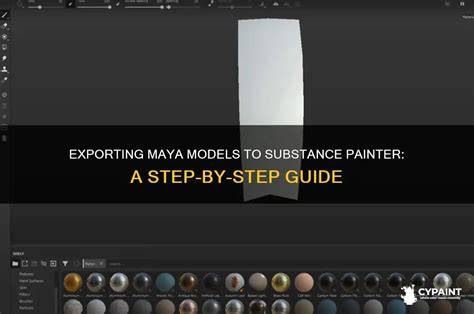
Go to Smart Materials and search for Glass. Drag and Drop any of them to the glass surface. The glass is NOT transparent yet. There are 2 things you need to change. When you export, multiple Texture Set Lists become additional textures that are exported.
These steps help ensure that the material behaves correctly when transparency is introduced and mapped across different texture sets.
Understanding Texture Sets and Material Assignment
Texture Sets correspond to materials assigned on the mesh in the 3D application (Maya in this case). When you export an FBX, each Texture Set List may translate into separate textures or texture slots in Substance Painter. Maintaining consistent naming between Maya materials and Substance Painter texture sets helps preserve the intended material assignments during import.
How to use Transparency effect in Substance Painter
Using the Glass smart material provides a starting point, but you must adjust properties to achieve your desired transparency, refraction, and color. The process often involves tweaking roughness, specular, normal maps, and opacity channels to get realistic glass appearances across all texture sets.
Practical steps: From Maya to Substance Painter
- Prepare the FBX export in Maya, ensuring materials are organized and named consistently with your texture sets.
- Import the FBX into Substance Painter and inspect the Texture Set Lists in the Texture Set panel.
- Open the Smart Materials panel and search for Glass; apply to the glass surface by dragging and dropping.
- Adjust transparency-related parameters: color, opacity, roughness, and metalness as needed to achieve the desired glass look.
Managing Transparency and Rendering Consistency
Transparency is not automatic after applying a Glass smart material. You must configure the material's opacity and ensure the renderer supports the transparency workflow you intend to use. When multiple Texture Sets are exported, verify that each set receives the correct textures (albedo, roughness, normal, opacity) and that their values are harmonized across all sets.
Tips for Effective Glass Materials
- Use low roughness to create a sharp surface reflection typical of glass, while maintaining subtle micro-roughness for realistic highlights.
- Map refraction properties through opacity and color channels to simulate light bending through the material.
- Keep consistency of color across texture sets to avoid color shifts when lighting changes.
- Regularly compare in the viewport with and without transparency to validate visual fidelity.