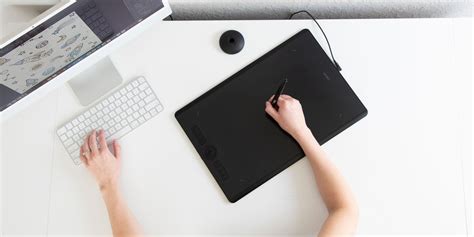
Drawing tablets, also known as pen tablets or graphic tablets, are input devices that can be used to substitute or complement a mouse. The Wacom Intuos M replaces the Intuos Pro Medium as my top pick for the best drawing tablet for most users. It’s a really capable product that can handle professional work environments as long as you don’t need tilt support, multi touch input and are not using 4K or multiple displays. For those cases, the Wacom Intuos Pro M is still the best option.
If you're on a budget, take a good look at the XP-PEN Deco Pro Medium and Small models, or even cheaper, the XP-PEN Deco 01 V2.
What is a drawing tablet used for?
Drawing tablets can be used for most creative and content production needs such as illustration, photography, 3D modeling, animation, graphic design, etc. Most professional programs on those fields offer advanced pen support and can recognize and use pen pressure and even tilt, on more feature-rich models like the Wacom Intuos Pro lineup. Touching the tip of the pen on the tablet surface is the equivalent of a click, while pressure and pen tilt can be used to vary stroke width, opacity, effect intensity, and other attributes. There are buttons on the pen that can be programmed for right click or other commands.
Most important of all, working with a drawing tablet is faster and more efficient than with a mouse. Your hand can travel from point to point on the screen in a single movement instead of repeated slides, as with a conventional mouse or trackpad.
Why using a pen is better than a mouse
Holding a pen is also much more ergonomic than using a mouse, and most users with repetitive strain injury (RSI) or tendonitis suffer less pain when using a tablet. In my personal case, it completely cured a chronic pain I had in my right wrist. I’ve been using a Wacom pen tablet exclusively for the past 20 years and could not go back to a mouse.
Working with a mouse requires repetitive muscle movements while the rest of the hand keeps still, creating uneven muscle fatigue. A pen, on the other hand, allows you to work in a more relaxed position and eliminates the forearm twisting that strains muscles and tendons.
Top Wacom picks and what they excel at
The Wacom Intuos Pro Medium (PTH-660, released in January 2017) drawing tablet is our top pick for all creative professional fields - such as design, illustration, video and photography. The medium size has plenty of resolution to handle single displays of any common size, including 4K or 5K LCDs above 30”.
Areas in which drawing tablets don't work so well include some games that don’t suit pen input and certain CAD workflows where the mouse wheel and rapid zooming are essential. Pressure sensitivity is sometimes ignored in those programs, but the more ergonomic position and programmable buttons could compensate.
Wacom recently introduced an optional pen designed specifically for 3D programs: the Wacom Pro Pen 3D - compatible with current Intuos Pro, Cintiq Pro and MobileStudio Pro models - trades the pressure sensitive eraser in the back for an additional customizable button that can be mapped to any command in your application.
Using a pen alongside a regular mouse is common: drivers often play well with mice and both devices do not interfere with each other. Many professionals have switched fully to pen input, abandoning the mouse for years.
Touch versus pen: should you mix or go touch-inclusive?
Keep in mind that touch input can be an overrated feature for some use cases. Laptop users already have a trackpad or touchscreen, lessening the need for multi-touch on the tablet itself. On the pen displays front, sometimes touch input gets in the way of work and can interfere with the pen, even with palm rejection on newer Wacom models.
Models and how they fit different workflows
Wacom is still the best brand of drawing tablets, but the competition has been heating up. You can find good quality cheap drawing tablets from brands like Huion, XP-PEN, Artisul, Gaomon, Monoprice, Ugee and Yiynova. Unlike most of the competition, Wacom pens use a patented electromagnetic resonance (EMR) technology, so they don't need batteries or any wires to function, reducing maintenance and weight for a more natural pen feel. The most noticeable difference, though, is not the lack of a battery. To be fair, nowadays the batteries on alternative pen tablet brands last so long that this is not really an issue and both XP-PEN and Huion offer models with battery-free EMR pens.
The best Wacom tablets tend to offer better pen precision, with improved pressure transitions and less wavy diagonal lines than the competition. Wacom tablets tend to be supported for a longer time and have better drivers and third party integration than competing brands, making them a lasting investment. As the market evolved, Wacom’s more expansive pen displays and tablet computers faced stronger competition from budget brands, Microsoft Surface tablets and even the iPad with the Apple Pencil.
All-in-one options, like the MobileStudio Pro and Cintiq Pro Engine modules, cater to professionals who want a portable workstation with upgrade paths. These devices can be pricey but offer a complete on-the-go workflow for serious artists.
Best and budget options
Best cheap drawing tablets and Wacom alternatives: If you’re on a tight budget and can’t reach the $200 range for an Intuos M with Bluetooth, look at the XP-PEN Deco Pro Small in the $100 range and the Deco 01 v2 at around $60. Both models are highly rated and offer solid performance for their price.
Best Wacom drawing tablets and pen displays - updated guidance emphasizes choosing by use case rather than model alone. The Intuos Pro is a premium traditional graphics tablet that pairs well with external displays, while the Cintiq Pro line offers built-in display and professional features. The Cintiq Pro 27, for example, features a true 10-bit 4K display and a highly customizable Pro Pen 3, with a 120 Hz refresh rate and multi-touch functionality, though it carries a premium price and an extra stand cost.
The entry-level Wacom One line provides an approachable entry point for beginners, with a built-in display and straightforward interface. The Wacom One 12 and Wacom One 13 Touch cover different preferences for gesture control and portability.
For mobility, Wacom Movink 13 provides a featherlight solution with an OLED screen and high color accuracy, designed specifically for on-the-go drawing. It emphasizes weight and thin form factor while maintaining professional pen performance.
Choosing the right size and display
Tablet size should be relative to screen size and resolution. The smaller the tablet surface, the less hand movement is necessary to move the cursor, but a too-small surface for a large screen leads to a jumpy cursor. Larger tablets provide longer strokes but may feel slower and heavier to manage. For most artists, the medium-sized models strike the best balance between price and drawing area.
Resolution matters too: higher tablet resolutions support more precise cursor control, especially on high-resolution displays. If you work with 4K displays or multiple monitors, investing in a Pro model can yield meaningful gains in accuracy and feel.
When using dual displays, consider mapping and hotkeys to switch control between screens. Some setups work best with a tablet-sized mapping equal to one monitor, while others benefit from quick hotkey toggles to move between screens without losing workflow fluidity.
Practical notes for photographers and general creators
Wacom has become a staple in the photography industry. The One by Wacom and Intuos Pro lines are common tools for professional photographers and designers, delivering reliable performance and consistent driver support across software ecosystems. The pen’s precision and pressure sensitivity provide nuanced control for editing, masking, and retouching tasks, and the built-in shortcuts on some models help streamline workflows.
In practice, many professionals adopt a hybrid workflow: using a tablet for creative tasks in applications like Adobe Photoshop, Lightroom, or design apps, with the mouse still available for general navigation. Drivers are generally stable and play well with other input devices, allowing seamless coexistence of pen input and traditional mouse usage.
How to decide your model
Wacom remains the gold standard for drawing tablets, but you should evaluate your needs: display type (pen display vs. graphics tablet), screen size, budget, required features like tilt, multi-touch, and 4K workstation compatibility, as well as future-proofing with software support and driver stability. For many users, the Intuos M delivers excellent value, while professionals needing robust displays and advanced input will lean toward the Cintiq Pro or MobileStudio Pro lines. If budget is a constraint, XP-PEN Deco Pro or Deco 01 V2 offer compelling competition with solid performance.
In conclusion, your choice should align with how you work most of the time, your preferred software suite, and whether you value portability, display quality, and system integration as essential elements of your creative process.