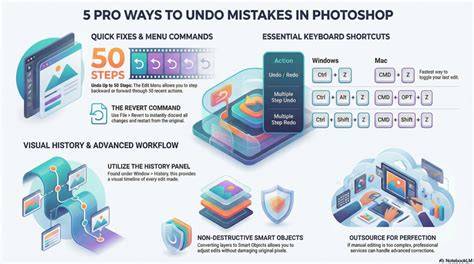
As with any artistic process, mistakes are inevitable. However, this method might not be the most efficient, especially if you need to undo multiple actions in a row. Additional Tip: To tailor the keyboard shortcuts to your preference, simply navigate to the Edit section of the top menu bar and select the Keyboard Shortcuts option. What if you want to cancel the undo action? The process is similar. Did you know that in Photoshop, a command can instantly revert everything to the last saved state? The shortcut for this operation is F12. You can assign Photoshop's Undo, Redo, Revert, and other operations to TourBox. TourBox can significantly enhance your workflow efficiency, making it the perfect companion for creativity and design.
In addition to using the Undo and Redo commands, you can access the History command in Photoshop's top window menu bar to open the History panel. When using Photoshop, it's common to perform undo operations. In the Performance panel, you'll see a "History States" module on the right side. The "History States" count is related to your computer's performance. You may have noticed that even if you set the history states to the maximum in the Performance panel, Photoshop can only undo up to 1000 steps.
Non-destructive editing means that any edits you make can be described using parameters that require much less data than the original image. However, non-destructive editing has its limitations. You're limited in the types of edits you can make, and you can't stack multiple edits on top of each other. On the other hand, most operations in Photoshop are destructive. In theory, unlimited undo in Photoshop is possible, but it would require unlimited storage space to support it.
Let's consider a specific example. If you're working on a professional design in Photoshop, it's common for the file size to exceed 1GB. Once you close Photoshop, any unsaved actions cannot be recovered. By default, Photoshop allows you to have 20 steps of undo in the history.
To perform multiple undo actions, stepping back through the history of your actions, you need to use the "Step Backwards" command instead.
For clarity, here is how you can manage undo operations across common scenarios:
- Undo (step backward) - Reverts the most recent action. Access via Edit > Undo, or use keyboard shortcuts (default: Ctrl/Cmd + Z).
- Redo - Reapplies an action you just undid. Access via Edit > Redo, or use keyboard shortcuts (default: Ctrl/Cmd + Shift + Z on some setups).
- Step Backwards - Jump back through multiple history states in one sequence. Access via Edit > Step Backward, or use a dedicated shortcut if defined.
- History Panel - Open to view and select a specific state from a chronological list of edits. Useful for jumping to a precise moment in your editing session.
- Revert - Returns the document to the last saved state, discarding all unsaved changes. Default shortcut is F12, and it can be reassigned.
Non-destructive editing versus destructive editing remains a central consideration for workflow. Non-destructive edits preserve original data and use adjustment layers, Smart Objects, and masking to apply changes non-destructively. Destructive edits alter the pixel data, making undo options more limited in the long run.
Another practical aspect is storage and performance. The History States limit ties into your system's resources. Even with maximum history states configured, practical undo depth often caps around a few dozen to a few hundred steps on typical setups, depending on file size and available RAM. Large professional projects frequently require strategic saving, versioning, and possibly external backups to avoid data loss when closing or crashing.
Beyond basic undo, there are workflow enhancements worth noting. You can customize keyboard shortcuts to streamline actions like Undo, Redo, Revert, and Step Backwards, ensuring faster access during intensive editing sessions. A popular option is to map these commands to a controller or external device like TourBox to boost efficiency and consistency in creative workflows.
In summary, while Photoshop provides powerful undo and history features, there are practical limits driven by file size, system performance, and the distinction between destructive and non-destructive edits. Understanding how to access Undo, Redo, Step Backwards, and the History panel, along with configuring shortcuts, helps you maintain control over edits and protect your work through efficient, non-destructive practices.
Dave Johnson is a technology journalist who writes about consumer tech and how the industry is transforming the speculative world of science fiction into modern-day real life. Dave grew up in New Jersey before entering the Air Force to operate satellites, teach space operations, and do space launch planning. He then spent eight years as a content lead on the Windows team at Microsoft. As a photographer, Dave has photographed wolves in their natural environment; he's also a scuba instructor and co-host of several podcasts.