Photopea is a free online photo editor, we can use Photopea to Edit image and create graphics. In this tutorial, we will show the steps how to make a perfect circle in Photopea using Ellipse Tool. Steps are easy to follow for Photopea beginners. Happy sharing and I hope this helps. More Photopea Tutorials are available here.
Choosing the Ellipse Tool and starting a circle
Go to left tool bar, and find Rectangle Tool. Click and hold, and we show Ellipse Tool and select Ellipse Tool. How to make a perfect circle in Photopea using Ellipse Tool. Click and drag on Artboard to make an ellipse shape. When you open photopea.com, you will see 3 options; click on the first one, “New Project.”
Creating a perfect circle with Shift-constrained ellipse
To create a perfect circle, switch to the Ellipse Tool and press Shift while dragging on the canvas to constrain the proportions. Holding down the Alt key will let you draw the shape from the center out. This makes it easy to position a circle exactly where you want it on the artboard. The Custome Shape tool is at the end of the list of shape tools, and there’s a drop-down menu for choosing how you want to draw a shape.
Setting dimensions and stroke for a clean circle
Before creating a shape, you can adjust its dimensions by modifying its width and height values in the corresponding input boxes W and H using the Options Bar. There’s an option to add a stroke beside the fill option. The properties panel is straightforward and minimal. Check mark the same option, same radii, to round all corners equally. In Warp, you can freely distort the shape in any way you want.
Using the shape tool: from drawing to a finished circle
Choose the line tool from the toolbar. The free option will draw the shape without locking its height and width. The shape tools allow you to draw a circle by using Ellipse Tool with Shift to constrain to a circle. When you select the shape tool, the properties bar will appear at the top, where you can adjust the shape settings before or after drawing. Settings like fill type, fill color, stroke, etc., can be customized to achieve a perfect circular graphic.
Working with paths and text on a circle
There are multiple methods to edit shapes; we have mentioned 3 of them. You can convert the ellipse to a path, then use the Type Tool to place text along the circle path. Steps include: go to Shape tool, choose Ellipse, and switch from Shape to Path. Click and drag on Artboard, and press Shift to make a perfect circle. Select Type Tool, and click on the circle path in step 2. We can type to input text.
Practical tips for mastering circles in Photopea
There’s an option to sample colors with the eye dropper tool, and the gradient tool can create appealing circular designs with smooth color transitions. The gradient tool creates cool-looking gradients; when you select the gradient tool, the properties bar will appear on top. In addition, you can import color palettes and use the eyedropper tool, though it works best on raster layers. The circle remains a foundational element for logos, icons, and decorative design.
Additional considerations: vector paths and precision
Each character will become a path with knots, which you can modify manually. By the end of this guide, you’ll be able to easily draw various shapes and use other design tools. The shape tools are a bit complicated to master along with all the settings but with practice you can get good at them. Discover the fundamentals of creating basic shapes in digital art using Photopea, including circles, squares, and polygons.
Potential content formats with circles
Shapes are the basic building blocks of any artwork, including digital art. Whether you are creating a simple logo or a complex illustration, you will need to start with shapes. Shapes help to define the structure and layout of your artwork, and they can be used to create patterns, textures, and depth. There are several tools and techniques for creating shapes in digital art, with the most common tools including the shape tool, ellipse tool, polygon tool, and rectangle tool. Each of these tools has its own unique features and functions.
- Access basic shapes from the toolbar on the left side of the workspace.
- Use the Ellipse Tool for circles, holding Shift to constrain to a circle.
- Modify fill, stroke, and radius in the top properties bar or Options Bar.
You're previewing this lesson. This lesson is copyright of Coding Ireland 2017 - 2025. Photopea tips and hacks, tutorial shows how to make circle text in Photopea. Photopea is a free online platform that we can make photo editing and make graphic design. We can add text and make circle text in Photopea. Steps are easy to follow for Photopea beginners. Happy sharing and I hope this helps. More Photopea Tutorials are available here. We can follow these steps to make circle text in Photopea, 1. Go to Shape tool, choose Ellipse, and switch from Shape to Path. 2. Click and drag on Artboard, and press Shift to make a perfect circle 3. Select Type Tool, and click on the circle path in step 2 4. We can type to input text 5.
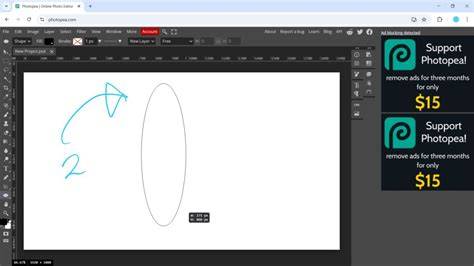
Insert additional visuals when helpful to illustrate circle creation steps, such as a simple before/after of an elliptical selection constrained to a circle.
How to MAKE a CIRCLE in Photopea (Step by Step) 2026
Table: Quick reference for circle creation in Photopea
| Step | Action | Tip |
|---|---|---|
| 1 | Select Ellipse Tool | Hold Shift to constrain to circle |
| 2 | Hold Alt to draw from center | |
| 3 | Adjust W and H | Use Options Bar |
| 4 | Apply Stroke/Fill | Fine-tune with Properties |