There are two ways to change the font when you’ve added text to your project: select the new font to see a live preview in the Edit Text panel, or use the Tool Options panel. Once you’ve added the text to your canvas, you can locate the Tool Options panel by looking at the dockers on the right. If the Tool Options panel isn’t visible, go to Settings > Dockers > Tool Options.
Krita uses the system fonts available on your computer, so to add another font to Krita, you need to install it on your computer first. First, find the new font you want to add. Once you have found and downloaded your font, locate the file you downloaded, which should be in a zipped folder. Once you have extracted the folder, you should see a few files. One is the license agreement, which you must read to ensure you can use the font for your specific project. Then there is usually a JPEG or PNG file to show the font. Lastly, you’ll see the font file(s).
If you are on a Mac OS, unzip the folder by double-clicking on it. Once you have installed the font on either operating system, it is automatically available in supported programs, such as Krita.
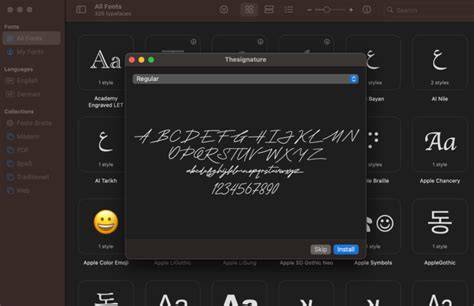
To add new fonts, start from your operating system’s font management and install the font system‑wide, allowing Krita to access it without additional steps inside Krita. After installation, restart Krita if it was running, and the new font will appear in the font list for text tools and in the Edit Text panel.
KRITA 5.1.5 - QUICK TIP: HOW TO ADD A NEW FONT TO KRITA!
- Step 1: Locate the font you want to install and download it from a reputable source.
- Step 2: Extract the downloaded zip file to reveal the font files and license.
- Step 3: Install the font on your operating system (Windows, macOS, or Linux).
- Step 4: Restart Krita if it was running, then select the new font in the Edit Text panel or via the Tool Options panel.
In Krita, you can preview a font by selecting it in the Edit Text panel, which helps you compare with your current text. The Tool Options panel can also switch fonts after you’ve added text to the canvas, ensuring you see how the chosen font looks in real time.
Installing Fonts on Different Operating Systems
Mac OS: unzip the font folder by double‑clicking, then install the font by double‑clicking the .ttf or .otf file and selecting Install Font. Windows: open the font folder, right‑click the font file, and choose Install. Linux: copy the font file to your user’s .fonts directory or system‑wide font directory, then refresh the font cache if needed.
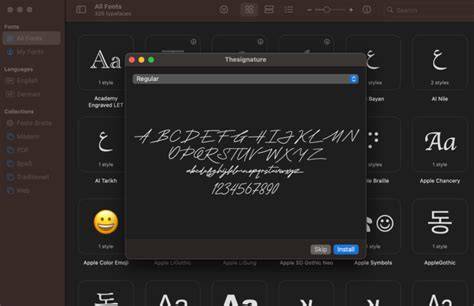
After installation, Krita automatically makes the font available for use in text tools. If you don’t see the font right away, restart Krita or refresh the font list by reopening the Edit Text panel or the Tool Options panel.
| OS | Steps to Install Font | Where It Appears in Krita |
|---|---|---|
| macOS | Unzip, Install Font from .ttf/.otf | Edit Text panel, Tool Options panel |
| Windows | Extract, Right‑click font > Install | Edit Text panel, Tool Options panel |
| Linux | Copy to .fonts or system fonts, refresh cache | Edit Text panel, Tool Options panel |
Remember to review the font license before use to ensure compliance with your project’s licensing terms. Once installed, Krita will show the new font in both the Edit Text panel and the Tool Options panel for quick switching and preview.