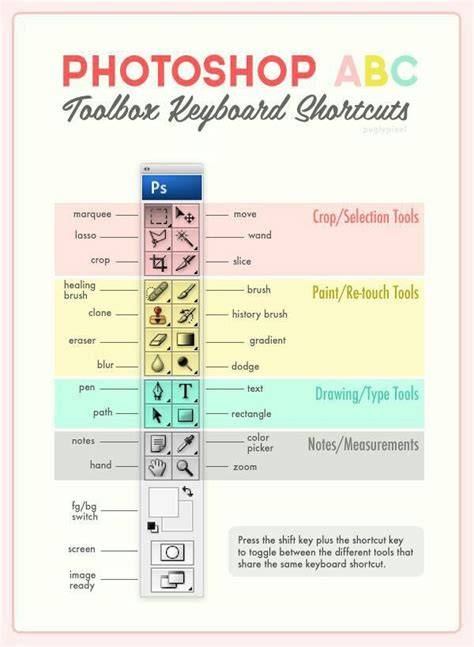
Each of us who work in Adobe Photoshop use different tools from drop down menus, which can be costly in terms of time. Why click through menus when you can create keyboard shortcuts for a variety of tools and actions? With simple keystrokes, you can save precious seconds. You can customize shortcuts for commonly-used tool and. For example, Transform Path > Flip Horizontal and Flip Vertical has no preset keyboard shortcut but I have opted to add shortcut Ctrl +. One thing you should understand is that you should only create custom keyboard shortcuts using keystrokes that are not assigned to other tools. Saved changes can be exported to another computer (so you can create favorite setups at home and at work). If you want to reset back to default settings, hold down Alt + Ctrl + Shift (on Mac Command + Option + Shift) while starting Photoshop. A dialog box will appear asking if you wish to delete the preferences/settings file.
Like what you're reading? Adobe first introduced the ability to customize our own keyboard shortcuts in Photoshop CS, which means you'll need Photoshop CS or higher to follow along. Prior to Photoshop CS, we were basically stuck with whatever keyboard shortcuts the good folks at Adobe felt like giving us. You can now assign a keyboard shortcut to pretty much anything in Photoshop, from Menu Bar options and commands to palettes and palette options, filters, adjustment layers, tools, or whatever you like! We can even change any of the shortcuts that Adobe has built in to Photoshop!
As I stated, you can create keyboard shortcuts for just about anything, but to get you started, we'll look at how to assign shortcuts to two of the most commonly used filters in all of Photoshop, Gaussian Blur and Unsharp Mask. Both of these filters are used time and time again, yet neither of them have keyboard shortcuts assigned to them, which means that every time we want to use them, we have to drag our mouse cursor up to the Filter menu at the top of the screen and then make our way through sub-menus until we get to them. Wouldn't it be easier and faster to simply press a couple of keys on the keyboard? Of course it would! Let's see how to assign shortcuts to them.
Before we go adding or changing keyboard shortcuts, we first need to select which currently existing set of shortcuts we want to make changes to. You'll find this option at the very top of the Keyboard Shortcuts dialog box. Photoshop gives us three different types, or categories, of keyboard shortcuts that we can create. We can create shortcuts for Application Menus, which are all the different menu options we find up in the Menu Bar at the top of the screen, Palette Menus, which are the options we find in the menus of the various palettes, and Tools, which are the tools we find in Photoshop's Tools palette, like the Lasso Tool, Rectangular Marquee Tool, Pen Tool, and so on. We can add, change or delete keyboard shortcuts for any of these things, and we choose between these three shortcut categories from the drop-down list directly below the "Set" option we looked at a moment ago.
Once you've chosen your shortcut category, scroll through the list of available commands, options or tools in the center part of the dialog box until you come to the one you want, then click on it to select it. In my case, I want to add a shortcut for the Gaussian Blur filter, which is found under the Filter menu, so I'll first select the list of filters either by double-clicking on the word Filter or by clicking on the small triangle to the left of the word, which twirls open the list. Then I'll scroll down to the Blur options, where I find the Gaussian Blur filter listed. With the Gaussian Blur filter selected in the list, I can simply type in the keyboard shortcut I want to use to access it.
Now, one of the problems you'll undoubtedly run into when customizing your own shortcuts in Photoshop is that Adobe has already used up many of the key combinations you'll want to use. Photoshop is, after all, a huge program and there's only so many keys on your keyboard. For example, I think I want to use Shift+F5 to access the Gaussian Blur filter, so I'll hold down my Shift key and press F5, which appears inside the small input box as "Shift+F5". If we look below the scroll window though, we can see that Photoshop is warning me about something. At this point, I have a couple of options. If I use the Fill command often enough that I want to keep its shortcut, I can simply type in a different shortcut and see if its available. Or, if I don't use the Fill command on a regular basis and don't mind handing its shortcut over to something I use much more frequently, I can simply accept the change.
I'm going to do the same thing for the Unsharp Mask filter, which is also found under the Filter menu. More specifically, it's found under the Sharpen sub-menu, so I'll scroll down the list of filters until I find the Sharpen group, and then I'll continue scrolling until I get to the Unsharp Mask filter. I want to assign Shift+F6 to this filter, so I'll click on the Unsharp Mask filter in the list to select it, which highlights it in blue and opens up the small input box in the Shortcut column, and I'll hold down the Shift key and press F6, which appears inside the input box as "Shift+F6". The Feather command is another one that I rarely use, so I have no problem reassigning its keyboard shortcut to the Unsharp Mask filter.
At this point, I've assigned keyboard shortcuts to two of the filters I use most often, and now I'm ready to save my changes. I'm going to save my changes as a new shortcut set. When the Save dialog box appears, I'm going to name my new set "My Shortcuts". Of course, you can give your shortcut set whatever name you like. Click OK to exit out of the Keyboard Shortcuts dialog box at this point, and you're done! And there we have it! Just follow these same basic steps to easily customize your own keyboard shortcuts in Photoshop!
macOS and Windows specifics are noted by users and can guide which key combinations are more ergonomic on a given system. A combination of number keys for a specific percentage (i.e. 12% as 1 and 2) can be used for Opacity, and you can find Arrow & “other” keys between the “typewriter” keys and the numeric keypad. When the Move tool is active, press any arrow keys to move 1 pixel in that direction. Blending Modes have shortcuts as well!
Check out our Selections and Masking Mastery course for further enhancement of your skills. This complete course includes 2.5 hours of step-by-step lessons, 6 structured modules, downloadable practice files, and custom Photoshop brushes. Jesús Ramirez is a graphic designer and the founder of the Photoshop Training Channel, which he started in 2012 and has grown past two million YouTube subscribers. He has taught at Adobe MAX, Adobe Summit, and Photoshop World, teaches courses for CreativeLive and Pluralsight, and was one of five artists chosen for Adobe Stock's Make a Masterpiece campaign.
TOP 10 Photoshop Shortcuts (Most Helpful Shortcuts)
| Action | Current Shortcut | Suggested Shortcut |
|---|---|---|
| Gaussian Blur | None | Shift+F5 |
| Unsharp Mask | None | Shift+F6 |