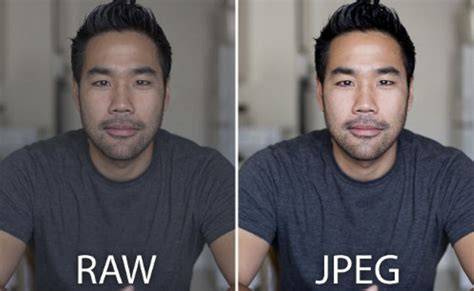
Photo editing can be pretty daunting. Fortunately, basic photography editing isn’t nearly as hard as it seems. Specifically, I offer a series of basic principles that you can use when editing any image.
First, understand file formats: cameras offer RAW and JPEG. And while the JPEG format is nice for quick snapshots, if you want to do serious photo editing, then you need to be using RAW. It’ll give you far more flexibility; with a RAW file, you can dramatically alter exposure, white balance, color, and more. One RAW drawback: It’s not an easily displayable format. By the way, you can set the file format in your camera’s menu - and if you’re struggling, check your camera’s manual.
Choose the right starting point: RAW vs JPEG
To start learning how to get the best results, consider that RAW offers the greatest editing control. You should also confirm your editing program can work with RAW images.
Second, evaluate your image with a histogram and exposure adjustments: How does my photo look? Is it too bright? Is it too dark? Generally, you want at least some details in the image shadows and some details in the image highlights. The histogram shows the distribution of tones in your image. Peaks toward the middle of the histogram represent midtones, whereas peaks toward the left represent shadows and peaks toward the right represent highlights. After looking at your image and analyzing the histogram, simply move your Exposure slider until you get the result that you want. (If you’re not sure how to proceed, I’d recommend simply pushing the Exposure slider back and forth while watching your image. Note that basic photography editing programs offer additional exposure sliders, and these allow for precise adjustments. For instance, the Highlights slider lets you adjust only the bright areas of the image, the Shadows slider lets you adjust only the dark areas of the image, and so on.)
White balance and color foundation
Now, your camera will have already applied a white balance of some sort, but it often needs adjustment. A perfect white balance shows the whites in your images exactly as they look in real life (though you can always tweak this later for artistic reasons). Do you see the difference? Select the eyedropper tool, then click on an area of your image that should be a true white color.
By the way, if you’re after a softer, more ethereal look, you may want to decrease the Contrast slider. (You also have the option to fine-tune the contrast with the Highlights, Shadows, Whites, and Blacks sliders.)
Color saturation and vibrance
Saturation refers to the intensity of the colors in your image, which you can adjust via - you guessed it! By boosting the saturation, you can add pop to your image, and so I do often recommend you add a bit of saturation - but carefully, like seasoning to a meal. Some post-processing programs offer an alternative, called vibrance. This is like saturation, but tends to be more subtle. If saturation isn’t giving you the look you’re after, go ahead and try vibrance instead. Or start by trying vibrance, then move on to saturation. On occasion, you should even decrease the vibrance and/or saturation. For instance, if you want a moody image but the colors are just too bright and powerful, try reducing the saturation.
Sharpening and noise control
Now, most RAW photos can do with a bit of sharpening. So go ahead and boost the sharpening amount (be sure to zoom in to 100% while you do this; that way, you can see the effects up close). Finally, while every image doesn’t need noise reduction, if you zoom to 100% and see little speckles, you’ll probably want to reduce both luminance noise and color noise. Note that too much noise reduction will decrease sharpness and look all-around bad, so don’t go overboard! Instead, boost the Luminance slider slightly, check the result, and then fine-tune. Do the same to the Color slider. And you’re done!
Advanced options and workflow management
At this point, you can always dive into more advanced photo editing applications (e.g., adjust specific colors or work with the tone curve). Of course, I’ve only offered a starting point, but it really will take you far. What part of photo editing do you struggle with? Do you have any basic photo editing tips of your own?
Why you need to learn to edit without presets and filters: After you have edited hundreds of images, you will have a favorite processing flow that you apply to most images because that's the style you like. Then one day you install the latest update, and without warning some preset filters that are a key part of your editing flow have just disappeared from the software. The nerve. Or you upgrade your computer and that software is no longer compatible. Or the company went out of business and they're no longer updating that editing software so you have to find another photo editing tool and develop your style all over again. Aaaargh!
This has happened to me. I had a favorite set of actions I used in Photoshop on nearly every image, (actions are like presets for Photoshop). I would just run the action and go on my merry way, never bothering to learn what changes were actually happening in my image or why. It had always just worked and I was too lazy to pay attention and actually learn something. To be fair I'm hitting on some reasons to think about future proofing the technology part of your workflow. I really am a big believer in presets and actions. When you have hundreds or thousands of images to process, you do need tools at hand that make your process efficient. You could output those presets to unique xml files or lut styles that could be imported to other editing tools. At the risk of being captain obvious here - when you're only using looks that other people have crafted you are going to get frustrated and stuck. You will want to do something different, purposeful, and more creative with your photos. That cannot be accomplished with a one click edit.
Once you've got the hang of understanding your camera, exposure basics and how to compose a great photo it's time to learn a few photo editing essentials to put the finishing touches on your artistic vision. The steps below will get you started on the photo editing process right away. You'll also find things to think about before you begin editing at the end of this article. Here are the key steps for editing your photos:
- Crop your images and clean them up.
- Adjust white balance.
- Adjust exposure and contrast.
- Adjust color vibrancy and saturation.
- Sharpen images.
- Finalize and share.
The basic photo editing techniques should be available in even simple editing programs, and each can enhance your images to make them more powerful and shareworthy. Advanced editing software will offer these basic tools and will also include refinements that allow you to do more sophisticated editing that's outside the scope of this article.
You don't have to do all of the basic editing steps on every image, but the steps you choose to do should be done in the order listed. The easiest photos to edit, of course, are ones taken by a skilled photographer who takes time to get exceptional shots in the field. (You'll also want to consider shooting in RAW image format for the greatest editing control. Read Understanding Your Camera to learn more about RAW vs. JPG image formats. You should also be certain your editing program can work with RAW images.)
To start learning how to get the best shots, consider taking a hands-on photography course. Sign Up for an Outdoor Photography Class
Practical editing steps in detail
Crop and Clean Up Your Images: Straighten images: It's always better to pay attention to be sure your horizon is horizontal when you shoot, but straightening is also an easy first editing step. Crop images: It's best to crop to improve minor compositional details, like distracting elements at the edge of the frame or repositioning your subject slightly. Spot-clean images: The outdoors is a dusty place and nature's gritty elements have a way of finding their way onto your camera lens, and then onto your photos. (Using a lens brush regularly in the field cuts down on this.)
Adjust the White Balance: White balance relates to color levels, not exposure levels. If your image has an overall color tone that you find displeasing or unnatural, you can adjust white balance to fix it. Note that JPG files, because they capture far less digital data than RAW files, offer a minimal amount of white balance adjustment during editing. Most editing programs let you pick from preset modes like "flash," "daylight" or "cloudy" to better calibrate the image for the lighting conditions when it was shot. In addition, many have both a "temperature" and a "tint" slider that you can fiddle with to fine-tune the overall lighting cast on an image.
Adjust Exposure and Contrast: Adjusting exposure is the process of making the photo exactly as bright or dark as you want. Note that "noise" (a mottled look) can sometimes be introduced when you crank up the brightness. That's why it's always better to get the correct exposure (one that's sufficiently bright) when you first take the photo. Adjusting contrast: Contrast is the range of dark to light tones. When it's extra high, you see a stark image, where all tones, regardless of color, are either very dark or very light. When it's extra low, you see a flat image where no elements in the frame stand out. Typically, you want a middle contrast that avoids either of those extremes. But if you prefer either of those effects, you can adjust the contrast to achieve that. The histogram helps optimize final exposure levels during editing and can be referenced on screen where you adjust exposure.
Adjust Color Vibrancy and Saturation: Once white balance is adjusted, you can further refine colors in your photos with the saturation and vibrancy controls. The distinction between the two is subtle: Increasing vibrancy increases color intensity in neutral color tones and maintains color intensity in the brighter colors. Increasing saturation makes all colors throughout the frame more intense. When bright colors pop, it can give the photo a more dramatic look.
Adjust Sharpness: Sharpening an image gives it a crisper, cleaner look. Begin by adjusting the overall amount of sharpness (on a scale from 0 to 100). Start at 50 percent, then adjust the level up or down to get the sharpness you prefer. If you sharpen too much you can create a halo effect around objects. This step is essential for any image you plan to enlarge or print.
Finalize and Share Your Photos: After you've done all of your editing, set your photos aside. Then come back later and examine them to see if you're happy with each one. You should also save all of the final edited versions of images alongside the original images they came from.