Google Slides is a great tool for creating visually engaging presentations, and layering images is a simple yet powerful technique to craft a cohesive collage that supports your message. By arranging images in layers, you can customize their order, overlap elements, and enhance your slides' overall look. Follow these steps to layer pictures effectively and produce polished results.
Getting started: setting up the canvas
Open Google Slides. Then, click on the “Theme” option on the toolbar to choose a background theme for your photo collage. Now, choose the “Layout” option on the same toolbar. It will display several layouts.
Adding and selecting images
The next step is to add images to your presentation. Select the “Image” option to add images. Choose all the images that you want to add. Now, adjust the images to set them in the right places. You can do so by dragging and dropping the images.
Positioning and layering images
To layer images in your collage, right-click on the image you want to adjust, then go to the “Order” option. This lets you move a photo in front of or behind another one. Click and drag each image to position them where you want them to appear. Pull the corners to resize them as needed. If you want to stack images, use the “Bring to front” or “Send to back” options to control overlap and depth.
Additionally, you can crop images to change their shape. Click on a photo, then hit “Crop” in the toolbar. You can also add borders by selecting the image and using the Border weight tool to adjust thickness and color. These small adjustments help create a clean, balanced collage.
Enhancing readability and coherence
Creating a good collage on Google Slides is all about keeping things clean and balanced. Stick to a color theme by using 2-4 matching colors to keep your collage neat and consistent. Maintain alignment and spacing by aligning images properly and keeping equal space between them. Use contrast for readability by ensuring any text on or near images is easy to read. Use high-quality, high-resolution images to avoid pixelation and distractions.
Adding text and optional elements
Yes, you can easily add text to your collage. To add text, click “Insert” and then “Text box.” Click anywhere on the slide and start typing. You can adjust the font, size, and color to match your design. You can also add shapes and lines to guide the viewer’s eye or to create intentional separations between elements.
If you want to make your collage more dynamic, you can add animations. This optional step can give your collage more liveliness without compromising clarity. Save and share your work is saved automatically! To download it, go to “File” → “Download” and pick a format like PDF or JPEG.
Practical tips and best practices
Try layering images or adding a mix of shapes and text to tell a story. For a central focal point, place a large image in the middle and surround it with smaller supporting visuals. Use alignment guides that appear when you move images to keep everything balanced. Remember, there’s no single “correct” way to do it-your collage is yours to create. If you’re short on time, you can use templates to speed up the process.
Consider using a simple background theme such as “Simple Light” for a clean white backdrop that makes images pop. Consistently applying a color theme and balanced spacing will help your collage look professional, whether it’s for work, school, or personal projects.
Advanced uses and related ideas
To layer images in your collage, right-click on the image you want to adjust, then go to the “Order” option. You can also add text to provide context or captions for images to reinforce the message. For more advanced presentations, you can pair your collage with an AI presentation maker to refine designs and suggest professional finishes.
Optional: drag-and-drop activities and templates
While Google Slides excels at slides, you can borrow ideas from drag-and-drop activity templates to create interactive collages in an instructional context. Use clear instructions to guide viewers through layered visuals and interconnected elements. Templates can offer ready-made layouts that simplify arranging multiple images while preserving balance and readability.
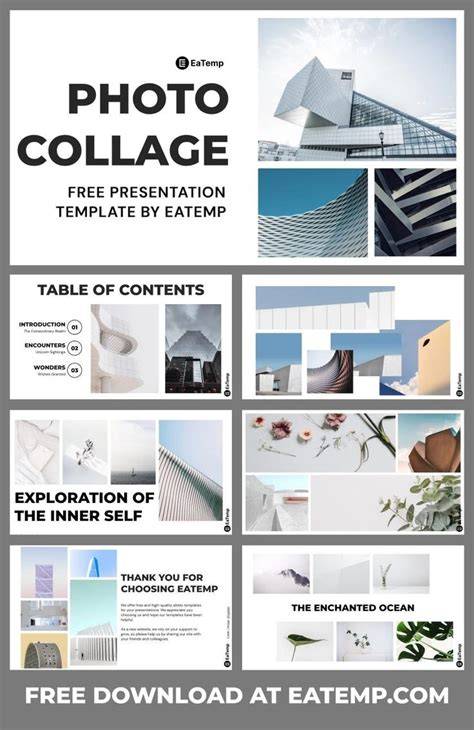
Create a Collage in Google Slides Tutorial Easy
Finally, experiment with different layouts, shapes, and colors to discover what best communicates your message. Each slide can become a new creative space, and small changes can make a big impact.