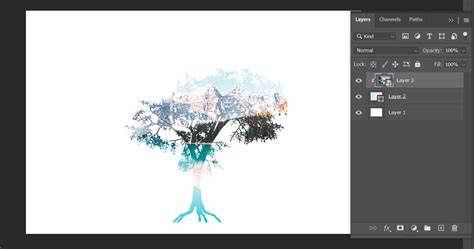
In Photoshop, layers are the building blocks of any project. As your design grows, you might end up with many layers on your canvas. Too many layers can make things confusing and increase your file size. In Photoshop, every layer is like a clear sheet you can edit independently. Once you finish editing a part of your work, you can merge several layers into one. When you merge layers, the top layer covers the area of the layer beneath it. Remember, merging layers is a one-way process. After you save, you can't get the original layers back.
Photoshop offers several ways to merge layers. The simplest method is to merge adjacent layers, but you can also merge non-consecutive layers, groups, or even all visible layers. This article compiles the most common workflows and keyboard shortcuts, explains their implications, and provides tips to keep your project organized while reducing file size.
Basic merging: down and visible
The easiest way to merge two adjacent layers is to select the top layer and use the Merge Down command, which merges the selected layer with the layer directly below it. To merge two adjacent visible layers, select the top layer and press Cmd+E (Mac) or Ctrl+E (Windows). If you prefer the Layers panel options, choose Layer > Merge Down or right-click and pick Merge Down.
To merge only the visible layers in your document, you can hide any layers you do not want to merge and then merge the remaining visible layers. If you want to merge all visible layers into a single layer, you can also use the command to Merge Visible in the Layers panel menu. This merges the selected visible layers into one, preserving the bottom visible layer as the base of the merged result.
Merging non-consecutive layers and using Clipping Masks
For non-consecutive layers, hold down Ctrl (Cmd on macOS) and click each layer you want to merge. This selects multiple layers that aren’t next to each other. Then you can merge the selected layers, though results may vary depending on blend modes and content.
A clipping mask defines the shape and boundaries of a group of layers. You can merge layers with a clipping mask by placing target layers above a base layer masked by the clipping shape. This allows you to merge content while respecting a defined boundary.
Stamp Visible and creating merged snapshots
Stamp Visible is a distinctive way to merge layers without changing the original ones. Select a layer and press Ctrl+Alt+E (Cmd+Option+E on macOS). This creates a new layer containing a snapshot of all visible layers without altering the original layers. You can press Shift+Ctrl+Alt+E (Shift+Cmd+Option+E on macOS) to stamp all visible layers into one new layer. If you want to merge a specific set of layers, select a layer group and press Ctrl+Alt+E (Cmd+Option+E on macOS).
Stamping is useful when you want to preserve the ability to edit individual layers while working with a single consolidated result. Remember that merging down, merging visible, or stamping are all destructive to the original layering structure in ways you should plan for ahead of time.
Merging with different blend modes and preserving edits
One common challenge is merging layers that have different blend modes. Blend modes affect how pixels interact with layers beneath them, and these interactions don’t transfer identically when layers are merged. If you merge layers with non-Normal blend modes, you may lose certain visual characteristics. To preserve flexibility, you can create a snapshot of the current appearance on a new layer (Stamp Visible) and keep the original layers intact for further edits.
When you want to keep your layers editable while consolidating the visual result, you can duplicate layers or group them and then merge copies, or use a stamped layer as a final composite.
Flattening and when to flatten
Flattening reduces file size by merging all visible layers into the background and discarding hidden layers. Any transparent areas that remain are filled with white. Flatten All Layer Effects is a separate option to flatten only layer styles, not the entire image. If you later need to revert, flattening is irreversible, so consider duplicating before flattening.
You can also merge layers within clipping masks or groups, or flatten an entire document to reduce file size when you’re sure you won’t need to edit individual layers again. If you want to merge everything, including hidden layers, you can choose Flatten Image from the menu instead.
Practical tips for merging effectively
- Name layers and groups to reflect their content so you can identify what to merge quickly.
- Organize by grouping similar or related layers before merging to minimize confusion.
- Use clipping masks to control where merged results appear, especially for shapes and masks.
- Learn shortcuts to speed up workflows and reduce repetitive actions.
- Always duplicate before rasterizing or merging if you might need to revert to the original state later.
Related concepts and workflow considerations
Before merging, you might want to duplicate layers or create a merged copy to preserve originals. Linked layers stay discrete, enabling separate edits even after a merge-like effect is achieved in composite steps. If a layer is hidden, you won’t see it in the composite, and hidden layers do not participate in merges unless you explicitly include them by turning visibility on.
When you have a series of layers that all make up the same image, such as shading, sketching, and inking layers for a character, grouping them helps you see and work on just these layers in the context of the larger image.
Practical example: step-by-step quick merge
- Look at the layer names and order in the Layers panel to understand what you’ll merge.
- For non-consecutive layers: Hold down Ctrl (Cmd on macOS) and click each target layer to select them.
- To merge visible layers: Hide layers you don’t want to merge, then merge the visible ones.
- To keep originals intact and create a merged copy: Use Stamp Visible by pressing Alt+Ctrl+E (Option+Cmd+E on macOS).
- If you want a single base after merging, you can rename the new merged layer to keep track of changes.

Additional considerations for professionals
As you near the final stages of a project, merging layers can help reduce file size and simplify handoffs. However, merging is destructive, so maintain a workflow that allows you to revert to unmerged layers if necessary. The presence of multiple layers can still be advantageous for non-destructive edits via smart objects, clipping masks, and adjustment layers.
Understanding the distinctions between merging, stamping, flattening, and grouping is essential for a robust Photoshop workflow. The same general principles apply whether you’re working on a simple graphic or a complex composite with many layers and effects.
Summary of common commands at a glance
- Merge Down: Merge the selected layer with the layer directly below it (Ctrl/Cmd+E).
- Merge Visible: Merge all currently visible layers into one.
- Stamp Visible: Create a new merged layer from the current visible state (Shift+Ctrl+Alt+E or Shift+Cmd+Option+E).
- Flatten Image: Merge all layers, including hidden ones, into a single background layer.
- Rasterize as needed: If a layer won’t merge due to vector data or smart objects, rasterize after duplicating as a safety measure.