Hi. In this lesson, I'm going to talk to you about using the background removal tool here in Clipchamp. Now, 100 percent full disclosure, it is a preview feature. Right now, at the time of this recording, it is not necessarily completed, but they're letting us preview it to see what we can do with it. And I'm sure they're going to continue to on it because it doesn't always work well.
I have here a little video background, and we're going to do an overlay and put another image on top of it. Now, I'm going to come here in this image, which is of a light bulb, and I will say both these images and video clips, all of these, are part of our stock images and stock video. Now, this is the top image, the one I just added, this light bulb. What I'd like to do is remove the background on this image. Just keep the light bulb and a little bit of these fingers here holding it. To do that, I'm going to right-click, and you see I have the option to remove background.
Current limitations of Clipchamp background removal
I believe there may be some misunderstanding regarding Clipchamp's background removal feature, and I'd like to clarify this for you: Currently, Clipchamp only supports background removal for images, not videos. For videos, Clipchamp only supports background removal for footage shot against a green, blue, or red screen. Can I remove elements from a video? Clipchamp's background removal feature is based on AI calculations of color differences in the pixels of an image to remove the background.
Therefore, if you want to achieve a blurred background while recording a video, PowerPoint application already includes this feature internally. It locks onto the person using facial recognition from the webcam and does not require AI assistance. If you wish to change the background of your presentation video, that functionality should be available within Teams.
Practical steps to remove background from an image in Clipchamp
- Open your project in Clipchamp and select the image on the timeline or canvas.
- Right-click the image to reveal the context menu.
- Choose "Remove background" from the options (note that this is currently limited to still images).
- Adjust as needed to keep the foreground subject and the portions you want to retain.
Remember, the background removal feature is a preview. If it doesn’t remove the background perfectly on the first try, you may need to tweak lighting, contrast, or use masking techniques in combination with other layers.
Alternatives and complementary techniques
- Use a green/blue/red screen footage for better background removal results, if you are working with video clips Filmed on a green/blue/red screen.
- For blurred or replaced backgrounds in video, consider using other software like PowerPoint or Teams for certain background effects when appropriate.
- Keep an eye on Clipchamp updates, as background removal is tagged as a preview feature and may improve over time.
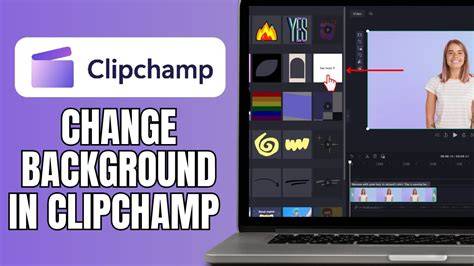
Illustrative example showing foreground subject extraction and background replacement in Clipchamp (image/video overlay workflow).
In this context, the feature’s current limitations mean it best serves image foreground isolation, while video background manipulation remains tied to green screen techniques or alternative tools.