If you've been researching a career in UX or UI design, you've probably heard the name Figma come up more than any other tool. Hiring managers list it. Job descriptions require it. Design portfolios are built with it. This guide answers that question properly - covering what Figma is, what it can do, how designers use it across a real project, and how you can start learning it even if you've never designed anything before.
What Figma is and how it changed design workflows
Figma is a browser-based design tool used to create user interfaces, interactive prototypes, and design systems. Unlike older software that you install on your computer, Figma runs in your web browser (or a lightweight desktop app). It was launched in 2016 and spent its first few years as a challenger to established tools like Adobe XD and Sketch. By the early 2020s it had become the dominant tool in the industry, used by design teams at companies ranging from small startups to Google, Airbnb, and Spotify.
Before Figma, designers typically worked in desktop apps that saved files locally. If revisions were needed, the process started again. Version control was a mess. Figma changed the workflow fundamentally. Because it lives in the browser, a design file has a single URL. Everyone looks at the same file. When the designer updates something, the change is live immediately. Comments happen directly on the canvas. Developers can inspect any element and copy the CSS values without the designer needing to write a spec document.
There's also the matter of the free tier. Figma allows individuals to create and work on design files at no cost. For anyone learning the tool or building a portfolio, that removes a meaningful barrier. Figma covers most of what a UX or UI designer needs across a typical project.
Core concepts and what you can build with Figma
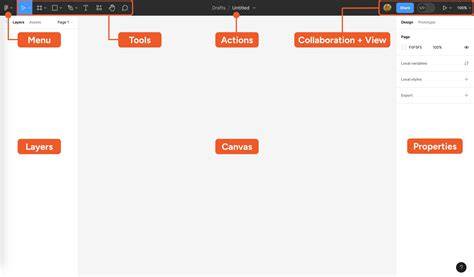
The core of Figma is a vector-based canvas where you design screens and interfaces. You work with frames (which represent screens or components), shapes, text, images, and icons. Everything is editable and adjustable. Figma lets you link screens together to create interactive prototypes. You can simulate user flows - tapping a button on one screen takes you to another, a drawer slides in, a modal appears. This is a core part of the UX process. Rather than guessing whether a design will work, you prototype it, put it in front of users, observe where they get confused, and iterate.
One of Figma's most important features for professional work is the components system. A component is a reusable design element - a button, a card, an input field. You create it once, and then use instances of it throughout your designs. This is how real design teams maintain consistency across a product. A design system is essentially a library of components combined with rules about how they're used. Figma is the tool where most design systems are built and maintained.
Multiple people can work in the same Figma file at the same time. You can see other users' cursors moving on the canvas. Stakeholders can leave comments pinned to specific elements. For remote teams - which now includes the majority of design teams - this capability is genuinely transformative. When a design is ready to be built, developers need to know the exact measurements, fonts, colours, spacing, and behaviour of every element. Figma has an inspect panel that surfaces all of this automatically.
FigJam is Figma's whiteboarding and collaboration tool - separate from the main design canvas but part of the same product. It's used for brainstorming, user journey mapping, affinity diagrams, and workshop facilitation.
Practical workflows in Figma
Wireframing - Low-fidelity wireframes are often sketched in Figma using simple shapes and placeholder text. Prototyping and user testing - The designer links screens together and shares the prototype for user testing. Developer handoff - The finished designs sit in Figma for developers to reference throughout the build. This isn't a rigid sequence - in practice these stages overlap and loop back.
Figma vs. other design tools: You may come across other design tools like Adobe XD (largely discontinued as a standalone product), Sketch (Mac-only, still used by some teams - see our Figma vs Sketch comparison for a direct breakdown), and more recently Penpot (an open-source alternative). There are also specialised tools like Axure for complex prototyping and Maze for user testing. Figma is not the only tool that exists, but it is the tool you will encounter most consistently in job descriptions, bootcamp curricula, and design team workflows. Learning it first is the practical choice.
Getting started with Figma
Figma has a reasonably gentle learning curve if you start in the right place. Our Figma for beginners guide walks through the first steps in detail - from setting up your account to building your first frame. Create a free account. Go to figma.com and sign up. Follow Figma's own tutorials. Practise by rebuilding things. Take a screen from an app you use - a login page, a settings screen - and try to recreate it in Figma. Learn components early. Most beginners skip over components and later have to unlearn bad habits. Use community files. Figma has a community section where designers share free files. The tool itself is learnable. What takes longer to develop is the design judgement behind the tool - knowing why you're making a particular layout decision, how to structure a user flow, what makes an interface intuitive.
If you're serious about moving into UX or UI design, learning Figma in isolation only gets you so far. At UX Academy (myuxacademy.com) - a live online UX design school based in the UK - Figma is the primary tool used throughout the curriculum. Every project, prototype, and portfolio piece is built in Figma, so by the time you complete the course you have genuine working experience with the tool in a realistic context. You can explore the Beginning UX (AI) Design course to see how Figma fits into the broader programme. Figma is free to start. So is the masterclass. Not sure whether UX or UI design is the right fit?
Why Figma matters for portfolios and teams
Figma is the tool you will encounter most consistently in job descriptions, bootcamp curricula, and design team workflows. It supports real-time collaboration, reliable design systems, and smooth developer handoff, which are all essential for modern remote and cross-functional teams.
- Browser-based collaboration with live updates and in-canvas comments.
- Robust components and design systems to ensure consistency.
- Seamless developer handoff via an inspect panel with CSS values and measurements.
- Accessible entry point with a generous free tier for learners and portfolios.
In practice, many projects flow through a cycle of wireframing, prototyping, testing, and handoff, with overlap as feedback arrives and changes are implemented in real time within the shared file.
When to choose Figma over alternatives
There are other tools in the ecosystem, but Figma remains the most consistently required in professional settings. For beginners, starting with Figma is the practical choice because it aligns with industry workflows and offers a low barrier to entry thanks to a free tier.
Table: quick reference for key Figma features
| Feature | Benefit |
|---|---|
| Browser-based access | Work from anywhere; real-time updates |
| Components and design systems | Consistency across product surfaces |
| Live collaboration | Multiple teammates edit and comment concurrently |
| Inspect panel for developers | Automatic specs, measurements, and CSS values |
| FigJam | Brainstorming and workshops within the same ecosystem |