Removing a background from a video in Premiere Pro is a common task that can dramatically improve the clarity and professionalism of your project. Whether you’re dealing with a genuine black backdrop, a dark scene, or a non-uniform background, this guide covers built-in tools and practical workflows to achieve clean results.
Why you might remove a background
Removing a background enhances visual appeal by reducing distractions and allows you to place subjects in new environments. It enables customizable environments, professional presentations, and branding consistency. Green screen work or other controlled backgrounds benefit from these techniques, but you can also isolate subjects from regular backgrounds with masking and keying.
When to choose Ultra Key vs. masking
If the video has a solid green or blue background, Ultra Key is the fastest method. For non-solid or complex backgrounds, masking and tracking provide greater control and precision.
Step-by-step guide: background removal with Ultra Key
- Import your footage and create a sequence in Premiere Pro. Drag the clip onto the timeline.
- Apply the Ultra Key effect. Search for Ultra Key in the Effects panel and drag it onto your clip.
- Key the background color. In Effect Controls, use the eyedropper to select the background color (green or blue, or another solid color if applicable).
- Refine the matte. Adjust Transparency, Highlight, Shadow, and Tolerance under Matte Generation. Fine-tune edges with Matte Cleanup options like Choke and Soften, and reduce spill with Spill Suppression.
- Replace the background. Import the desired background and place it on a video track below the keyed clip. Adjust position, scale, and perspective to match the scene.
- Final color and edge refinements. Use Lumetri Color to match lighting and overall color, and apply subtle edge feathering if needed.
- Export. Go to File > Export > Media, choose a suitable format (e.g., H.264), and render the final video.
Step-by-step guide: background removal with masking (for non-solid backgrounds)
- Place your clip on the timeline and select it. Open Effect Controls and choose Opacity, then use the Pen tool to create a custom mask around your subject.
- Track the mask. If the subject moves, set keyframes for the mask path to follow motion frame by frame or at intervals.
- Refine the mask edges. Use Feather to soften edges and adjust the mask to minimize artifacts.
- Replace the background on a lower video layer. Import and position the new background to fill the frame for the entire duration.
- Match color and lighting. Apply Lumetri Color to ensure the subject and background appear cohesive.
- Export the result as described above.
Alternative: using a third-party plug-in
Premiere Pro supports plug-ins designed to simplify background removal. For example, BCC+ Linear Color Key can streamline keying and work across multiple software platforms. Create a new project, import media, and apply the effect from the plug-in panel, then refine as needed before replacing the background.
Tips for best results
- Lighting matters: consistent lighting reduces shadows and improves keying results.
- Higher-quality footage yields cleaner edges and easier removal.
- For complex details, combine Ultra Key with masking to isolate fine elements.
- Color matching after removal helps the subject blend naturally with the new background.
- A subtle depth-of-field shift (slight background blur) can improve realism.
Common questions
- Can I remove black backgrounds? Yes, using Ultra Key on a solid background or masking for non-solid backgrounds.
- Will removing the background affect video quality? It can; use high-resolution footage and careful settings to preserve quality.
- Is it possible to remove a background without a green screen? Yes, but it’s more challenging and may require masking and advanced tracking.
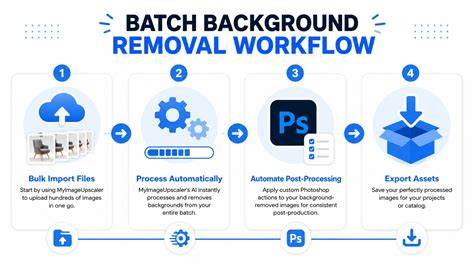
REMOVE The BACKGROUND From VIDEO In Premiere Pro
With these methods, you can effectively remove black or other backgrounds in Premiere Pro, whether you’re working with a green screen, a dark backdrop, or a complex scene. Practice with Ultra Key for solid-color backgrounds and switch to masking for more intricate footage to achieve professional results.