When you have two camera angles but one carries much better audio quality, it’s often useful to detach the audio from the stronger source and apply it to both shots. DaVinci Resolve supports unlinking audio and video so you can edit each track independently, reuse high-quality audio, and keep your multicam workflow simple and flexible. The core idea is to detach the audio, then align and use the preferred audio track across the timeline.
Identify the need to unlink and prepare your timeline
To unlink audio and video from one another: Select a clip, then right-click it and choose Link from the contextual menu (or press Command-L). This is the step people use to pair or separate tracks for synchronized editing. Unlinking allows you to manipulate video and audio independently, which is essential when you want to replace or reuse audio from one camera on another shot.
In a two-camera setup, you’ll typically want to keep the video from both angles in the timeline but swap in the cleaner audio from the better microphone. This is done by unlinking the audio from the clips, then selecting and moving the desired audio track to accompany the other video angle. After unlinking, you can also link the clips back if needed for future edits, but for your current goal, unlinking and reassigning audio is the key step.
Step-by-step: unlinking and reusing audio
- Step 1: Open the Edit page and place both camera angles on the timeline so you can compare timing and framing side by side.
- Step 2: Select a clip, right-click, and choose Unlink (the opposite of linking). The video and audio portions of the clip become independent.
- Step 3: Click the audio track you want to reuse (the better-sounding track from your preferred camera) and copy or drag it onto the other camera’s audio lane. Make sure to align it with the visual content by using waveform cues and, if needed, the timeline’s snapping features.
- Step 4: If the audio you’re using originates from a different clip, trim or adjust its length to sync with the video, using the Waveform Display to refine alignment.
- Step 5: If you want to preserve the original audio on the other camera for reference, you can mute or lower its volume instead of deleting it. Right-click the audio track and choose Mute Clip, or use the Inspector’s volume control.
- Step 6: Review both angles with the shared audio, ensure pacing and sync feel natural, and adjust as necessary using keyframes for dynamic volume changes if needed.
Alternative approaches and considerations
While the manual describes linking and unlinking as a core workflow, you may encounter scenarios where the audio from different clips won’t perfectly align due to timecode drift or slightly different start points. In such cases, use the Waveform Display to align the audio tracks precisely, and consider minor trimming on the video to maintain lip-sync accuracy. If one camera’s audio contains wind noise or other issues, you can apply noise reduction and equalization in Fairlight after unlinking to improve the overall sound quality without affecting the video timing.
Another common approach is to keep both audio tracks in the timeline and mute the less desirable one when necessary. This provides flexibility if you later decide to revert to the original recording or blend multiple audio sources for a richer soundscape. Importantly, you can always re-link clips if you want to reestablish synchronization across both video and audio after edits.
Audio editing in Fairlight after unlinking
Once the audio is detached, you can edit, enhance, or replace it using Fairlight, DaVinci Resolve’s dedicated audio tool. Open the Fairlight page, locate the audio track, and use the Waveform display to visually inspect the signal. Adjust levels, balance, and panning through the Inspector, and apply EQ or noise reduction to clean up unwanted background noise. If you plan to replace audio entirely, import the new track into the Media Pool and align it to the video in the timeline.
Best practices for reliable results
- Keep a backup: Maintain the original audio track in case you need to restore it later.
- Maintain consistent levels: Use Normalize Audio to keep loudness uniform across clips.
- Smooth transitions: Apply Fade In/Fade Out at audio boundaries to avoid abrupt changes.
- Verify timing: Check sync alignment when replacing dialogue or adding external audio.
- Use keyframes: For precise volume control during dynamic edits, keyframe audio levels.
Common questions about unlinking in DaVinci Resolve
- How do I unlink audio from video? Right-click the clip in the Edit page and choose Unlink. The audio and video become independent for separate edits.
- Can I delete the audio after unlinking? Yes-select the audio track and press Delete. If you want to keep it for reference, simply mute it instead.
- How do I replace audio after unlinking? Unlink, delete the old audio, import the new audio file, and drag it onto the timeline aligned with the video.
- What about syncing external audio? You can use Auto Sync Audio in the Media Pool to automatically match external audio with video based on waveforms.
Why unlinking is useful for multi-angle shoots
Separating audio from video lets you:
- Remove wind noise or other issues from one camera’s audio by replacing it with the other camera’s clear sound.
- Sync external or superior audio with video that did not capture good sound, without re-recording.
- Edit audio levels independently of video, achieving a cleaner mix for interviews, vlogs, or cinematic productions.
SYNC AUDIO in DaVinci Resolve
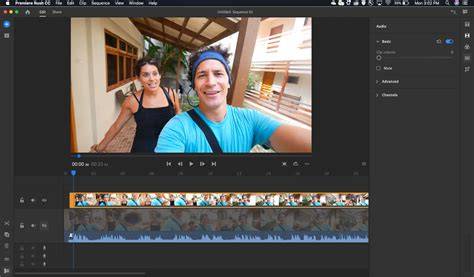
In practice, unlinking is a straightforward and powerful operation in DaVinci Resolve that supports flexible post-production workflows. By detaching audio from one camera and applying the best-sounding track to both angles, you can achieve a seamless, professional sound across your edit without needing a full multicam workflow for this particular case.