Inpainting with Stable Diffusion enables precise edits to images by modifying only chosen regions while preserving the rest of the content. This article assembles and reorganizes the ideas and instructions from the provided draft to deliver a comprehensive, step-by-step guide on using inpainting effectively.
Understanding the basics of Stable Diffusion and inpainting
Stable Diffusion is a diffusion model that generates images by operating on the latent representations of those images. The algorithm looks like this: Stable Diffusion retrieves the latents of the given image from a variational autoencoder (VAE). It uses CLIP to obtain embeddings of the given prompt. The diffusion process takes place using a UNet-like model, utilizing the latents from the first step and the prompt embeddings from the second step. Finally, the result of the diffusion process is decoded using the VAE. If we want to focus only on text-to-image generation without the need for image-to-image, we can skip the first step and begin the diffusion process directly from noise. This scheme is oversimplified, but it accurately captures the main idea.
But what is the diffusion process? It’s a process in which a UNet-like model receives latents and prompt embeddings as inputs, then adds noise to the latents or starts directly from noise if it’s not an image-to-image task. The amount of noise added is determined by a hyperparameter. The UNet, given initial latents and prompt embeddings, predicts noise, which is then subtracted from the input. The resulting output is passed through the UNet again, making it an iterative algorithm. So at each diffusion step, the model “cleans out” noise from the latents. After several dozen iterations, we obtain VAE latents that can be decoded into an image. The number of iterations is also a hyperparameter.
There are several approaches to incorporate Stable Diffusion for inpainting tasks. One such method is to fine-tune the original SD model. The Stable Diffusion inpainting approach is specifically designed to work with models fine-tuned for inpainting tasks, and there are dedicated pipelines such as StableDiffusionInpaintPipeline and StableDiffusionInpaintPipelineLegacy from the 🤗 Diffusers library. For real-world tasks, these options are more comprehensive and typically yield better results than generic img2img alone.
Choosing the right inpainting setup
To maximize reliability, use inpainting-focused models/pipelines whenever possible. RunwayML, for example, implements a fine-tuned inpainting checkpoint (runwayml/stable-diffusion-inpainting) with special UNet input channels to handle the encoded masked image and mask itself. In general, dedicated inpainting models (sd-v1-5-inpainting.ckpt, SDXL inpainting checkpoints, etc.) perform better, especially for object removal or complex edits. Regular Stable Diffusion checkpoints can still work for small fixes, but the results may be less consistent when removing objects or making large masked changes.
Two common configurations are worth noting:
- Only masked option: crops the masked region to generate at full resolution, then pastes it back. This helps when editing small regions with fine details like faces or hands, but may lose some global context.
- Whole picture option: masks are applied to the entire image and the model considers the surrounding context during inpainting. This is better for larger edits where lighting and colors must remain coherent with the background.
Practical workflow: inpainting with the img2img interface
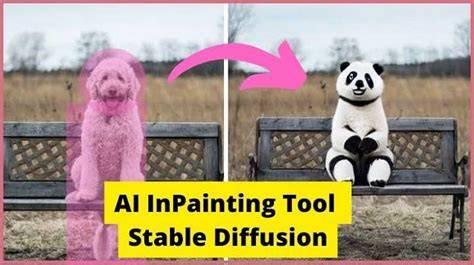
Inpainting in Stable Diffusion via the img2img tab follows a straightforward workflow. Start by preparing an image and a mask that delineates the area to be edited. You can paint directly in the interface or upload a pre-made mask. The two crucial decisions are: mask the exact area to edit and then choose the appropriate inpainting model or checkpoint. If the generated image doesn’t originate from the current session, you can import it as a PNG under the Inpaint workflow.
Mask creation is essential: use a brush to mark the regions to modify. A rough outline is often sufficient, as the model will blend the changes with surrounding pixels. The mask contour is typically blurred to guarantee seamless transitions between edited and original areas. The default Mask Blur value (4 pixels in many interfaces) is a good starting point, but you may adjust it to 8-12 for crisper or softer blends depending on the image.
Key settings in the Inpaint workflow include:
- Denoising strength: controls how much the masked region changes. Values around 0.75 are common starting points; higher values yield more surprising edits, while lower values preserve more of the original content.
- Inpaint area: choose Between “Only masked” (focus edits strictly inside the mask) or “Whole picture” (consider the entire image for consistency).
- Masked content: “Original” (use the existing content as a guide) versus “Latent noise” or “Latent nothing” (generate something more drastically different).
- Prompt guidance: use the same or extended prompts to guide generation for the masked region while keeping consistency with the rest of the image.
Processing steps are iterative. You may need to run several passes, adjusting the mask, denoising strength, and prompts to achieve a harmonious result. If you want to remove an object from an image, try providing an empty or minimal prompt for the masked area; often the model will attempt to fill the space in a way that best matches the surrounding content.
How to leverage inpainting models vs. regular checkpoints
Inpainting models are typically better at maintaining global consistency when you push denoising strengths higher. If you’re editing larger areas or removing objects with complex context, use an inpainting-specific checkpoint. Regular checkpoints can handle small patches or minor tweaks, but may struggle with object removal or significant context changes.
For SDXL users, there are inpainting variants and hybrid approaches that merge base models with official inpainting checkpoints to reduce visible seams. If you see hard edges in your inpainted results, testing a hybrid approach or adjusting the mask blur can help achieve a smoother blend.
ControlNet adds another layer of control to inpainting, enabling the preservation of pose, outline, or stylistic constraints while editing. Inpainting with ControlNet can help ensure that edits stay faithful to the intended structure of the image, such as preserving human poses or maintaining consistent lighting and texture.
Practical tips and common pitfalls
- Too high denoising strength (near 1.0) can degrade global consistency or introduce artifacts. Start around 0.7-0.85 and adjust as needed.
- When editing small regions on low-resolution canvases, use “Only masked” with appropriate padding to upscale just the masked portion, then composite back to the full image.
- For faces or hands, consider mask precision and possibly using a dedicated face restoration model to avoid unnatural results.
- If you’re iterating on the same image across passes, export intermediate results to avoid recursive inpainting collapse, which subtly shifts distributions across iterations.
- When removing objects, an empty or minimal prompt for the masked region often yields better results than forcing a specific replacement text.
Workflow extensions: combining inpainting with other tools
Beyond standalone inpainting, you can combine inpainting with ControlNet for better structural preservation, or use specialized extensions and dashboards (e.g., Inpaint Anything) to generate precise masks quickly. The combination of inpainting with layered workflows-mask creation, precise prompts, and careful denoising control-enables powerful and repeatable edits even in challenging scenarios.
When to choose a dedicated inpainting model vs. a general pipeline
Dedicated inpainting models generally outperform generic pipelines for object removal and complex edits, especially at higher denoising strengths. For small fixes (e.g., minor facial touch-ups or subtle adjustments), regular checkpoints can suffice. Always consider the scale of the edit, the desired level of global consistency, and the model’s training emphasis when selecting your approach.
Examples and outcomes
The approach of substituting non-masked latents with original latents plus step-specific noise, while leaving the masked area evolving under the prompt, can produce reasonable results for many inpainting tasks. However, it may underperform compared with a model specifically trained for inpainting, as demonstrated in comparative analyses. The takeaway is to start with a simple, robust inpainting setup and progressively adopt specialized models or more advanced control methods as needed.
- Generate a base image using txt2img or img2img.
- Mask the region you want to edit with a brush, ensuring a closed mask.
- Select an inpainting model or pipeline appropriate to your edit size and desired realism.
- Choose between “Only masked” or “Whole picture” as the inpaint area depending on the context.
- Adjust denoising strength and padding, then run multiple generations to pick the best result.
For a deeper dive, you can explore advanced workflows that include iterative passes, different masks for successive edits (hands, shadows, backgrounds), and cross-checking with prompts that describe the intended outcome to maintain stylistic coherence across passes.
Additional resources and next steps
Inpainting and outpainting with Stable Diffusion are rapidly evolving fields. Experiment with different checkpoints, masks, and prompts. If you want a structured path, consider guided tutorials and practical projects that walk you through end-to-end workflows-from base image creation to precise region edits and refinements.