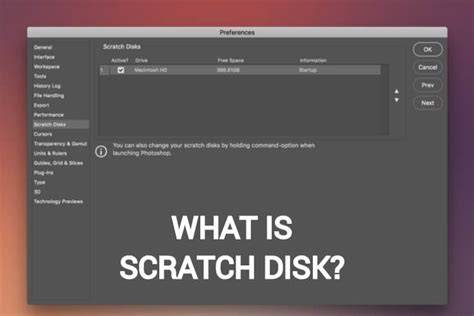
If you regularly work with programs like Adobe Premiere Pro, Final Cut Pro, and Adobe Photoshop, you've probably encountered Photoshop scratch disk errors. The most common error is Photoshop's refusal to open, along with the message stating either "Could not complete your request because the scratch disks are full" or "Could not initialize Photoshop because scratch disks are full."
In this guide, we will show you how to resolve the scratch disk problem on a Mac step by step and, as a bonus, keep your computer clean and performing at its best. This article draws on practical solutions that help when Photoshop cannot initialize due to full scratch disks.
Immediate solutions
Clear your Photoshop cache - Photoshop has an in-built solution for deleting specific caches. When these caches aren't removed automatically, they can grow and take up a lot of your disk space. To use this tool with an image open: click the Edit menu, hover over Purge to reveal Undo, Clipboard, Histories, and All. Purging removes recorded states, clipboard contents, or entire histories; selecting All purges all cache files. Video Cache stores changes you've previously made to video projects, and you will be warned that purge cannot be undone.
Delete your temp files - Photoshop's temp files are often the worst culprits for occupying scratch disk space. After closing Photoshop, search for files with the .tmp extension or run a Finder search for "Photoshop Temp" to locate and delete temporary files. Save your progress before deleting and ensure you remove only temporary files to reclaim scratch disk space.
Clear your disk space - if you lack another drive, perform a general spring cleaning. Use built-in macOS storage tools (Optimize Storage and related recommendations) to identify files you can remove. Regular disk cleanups help prevent scratch disk issues from recurring. Consider trusted cleanup tools, such as CleanMyMac, to automate maintenance without digging through system folders manually.
Advanced solutions
Change your scratch disk - you can assign multiple scratch disks. In Scratch Disk Preferences, select the drives you want to use (for example, your Mac’s internal drive plus an external drive). Using an external SSD can offer more space and speed. When setting up a new scratch disk, format the external drive with Disk Utility (APFS or MacOS Extended) and designate it as a scratch disk location.
Increase Photoshop RAM allowance - RAM and scratch disk work together. In Photoshop Settings > Performance, adjust Memory Usage to allocate more RAM to Photoshop, freeing up some scratch disk pressure. Quit unnecessary apps to free RAM for large files.
Reset Photoshop preferences - resetting preferences can resolve persistent scratch disk errors. Quit Photoshop, relaunch, and see if the issue persists after the reset.
Longer-term strategies
Run regular maintenance - manage login items and background extensions that consume memory and CPU, and tidy Time Machine snapshots to reclaim space. Tools like CleanMyMac can automate many maintenance tasks, including scanning for leftovers and optimizing performance.
Disable auto-recovery judiciously - auto-recovery saves progress but uses disk space. If scratch disk issues are frequent, you may disable auto-recovery and remember to save manually more often; keep in mind this risks losing progress after a crash.
Transfer files to an external drive - move old or large files off the scratch disk drive to free space. An external SSD can expand scratch disk capacity, and cloud storage is another option. Regularly evaluating what you store on the scratch disk helps prevent future full-disk errors.
Monitor and manage scratch disk usage - ensure you have adequate free space on the drive designated for scratch disks. Photoshop can use more than one storage device, but each device must have sufficient space to prevent frequent full-disk messages.
Understand the role of scratch disks - scratch disks act as virtual memory for Photoshop when RAM is insufficient. They store temporary data for performance optimization, so keeping enough free space is essential for smooth operation.
Common questions and clarifications
What are scratch disks in Photoshop?Scratch disks are your hard drive space used by the app as virtual memory when there is not enough RAM to complete a task. You can assign multiple scratch disks to different drives to balance load and prevent a single full disk from blocking Photoshop.
Why do scratch disks fill up?Temporary files from old projects and large caches can accumulate on the scratch disk, especially if Photoshop is force-quit or kept open for long periods. Lack of free space and limited RAM also contribute to the problem.
Can I empty scratch disks without opening Photoshop?Yes - you can delete Photoshop caches and temp files outside Photoshop, and you can free up space on the drive used for scratch disks by removing unused files. Some steps may require closing Photoshop before removing certain files.
Helpful notes and practical tips
- Scratch disk space is hard drive space; dedicated drives (SSD preferred) provide better performance for large projects.
- Consider using external drives with fast interfaces (Thunderbolt/USB-C) to expand scratch disk capacity.
- Regularly back up important Photoshop files and manage storage to keep scratch disks from filling up again.
- RAM and scratch disks are interrelated; increasing RAM limits helps reduce reliance on scratch space during heavy editing sessions.