Artificial intelligence has revolutionised the way we create images, with tools like MidJourney producing stunning visuals in seconds. But if you want truly lifelike, photorealistic results, you need to be precise in how you write your prompts. Whether you’re generating professional portraits, marketing visuals, or artistic compositions, achieving hyper-realism requires attention to detail, realistic textures, and the right MidJourney settings. This guide will walk you through the best techniques to create ultra-detailed, lifelike AI-generated images.
1. Use precise descriptions
MidJourney generates images based on the descriptions you provide. The more specific you are, the better the AI can understand and replicate real-world details. If your prompt is too vague, such as “a man sitting in a park” MidJourney will interpret it in a generic way, often resulting in an unrealistic or inconsistent image. To create hyper-realistic images, focus on clear, detailed descriptions that include: Age, gender, ethnicity, and skin tone - This helps define the subject accurately. Facial features - MidJourney struggles with fine details unless explicitly mentioned, so describing freckles, wrinkles, eye colour, or facial hair makes the image more lifelike. Hairstyle and texture - Instead of simply saying “short brown hair,” specify if it’s wavy, straight, or slightly tousled. Clothing and fabric texture - Real-world clothing has visible fibres, seams, and natural folds, which should be described to avoid artificial-looking outfits.
Example prompt: “A 35-year-old woman with hazel eyes, soft blonde hair, light freckles, and a natural complexion, photorealistic, ultra-HD, cinematic shot.”
By giving MidJourney structured, well-defined prompts, you can significantly improve the realism of AI-generated images.
2. Specify lighting and camera settings
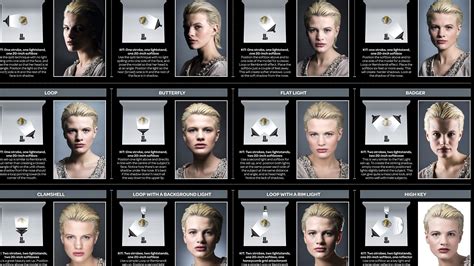
Lighting plays a crucial role in photography, and the same applies to AI-generated images. Without the right lighting, faces may look flat, colours may appear unnaturally, and textures might lose their realism. To enhance photorealism, consider these lighting options: Natural daylight - Soft, diffused light (such as from a cloudy sky) avoids harsh shadows and creates a balanced, lifelike look. Studio lighting - A controlled environment allows for crisp details, often seen in professional headshots and fashion photography. Golden hour - The warm, golden tones from sunrise or sunset add depth, richness, and a natural glow to skin tones. Similarly, camera settings can make AI images feel more like real photographs: DSLR-like sharpness - Ensures clarity and fine details in the image. 50mm or 85mm lens - These portrait lenses replicate the natural perspective of the human eye, avoiding distortion. f/1.8 aperture - A shallow depth of field blurs the background, making the subject stand out naturally.
Example prompt: “A young man with short black hair, warm golden hour lighting, shot with a Canon EOS R5, 85mm lens, f/2.0, high dynamic range, cinematic colour grading.”
Adding specific lighting and camera details will help MidJourney replicate the characteristics of real-world photography.
3. Emphasise realistic textures and imperfections
One of the biggest challenges in AI-generated images is avoiding an artificial, overly smooth look. Often, AI tends to “airbrush” skin, making people appear plastic-like, which reduces realism. To counter this, include details that mimic the natural flaws of real-world images: Skin details - Instead of flawless skin, specify visible pores, fine lines, and slight blemishes to add authenticity. Hair texture - Hair should have individual strands with slight imperfections, rather than appearing as a solid mass. Clothing realism - Describe the fabric weave, soft folds, and natural wrinkles to avoid the unnatural, stiff appearance AI sometimes generates.
Example prompt: “A close-up of an elderly man, deep wrinkles, visible skin pores, white beard, slightly sunburned skin, realistic skin imperfections, 8K detail.”
By making your prompts as detailed as possible, you encourage MidJourney to include natural variations, making the final image more realistic.
4. Avoid unnatural or vague phrasing
AI models don’t always interpret broad descriptions the way humans do. Using vague phrases like “a beautiful woman” or “a super realistic face” can lead to generic, unnatural results. Instead, focus on descriptive and specific language: ❌ Instead of “a beautiful woman”, ✅ Try “a 25-year-old woman with emerald green eyes, loose wavy auburn hair, and light freckles, DSLR-shot, cinematic lighting.” Similarly, avoid phrases like “photo-like person”, which lack clarity. Instead, describe the subject in real-world terms, focusing on age, skin texture, eye detail, and lighting conditions.
Example prompt: “A businessman with short brown hair, wearing a navy suit, soft natural light, DSLR-quality, hyperrealistic skin texture, sharp depth of field.”
By avoiding overly broad or unnatural phrases, you give MidJourney better guidance, resulting in more lifelike images.
5. Use realism keywords and MidJourney commands
MidJourney has built-in settings that help enhance photorealism. Using the right keywords and parameters will improve the clarity, texture, and overall quality of your images. Keywords that boost realism: Photorealistic, hyperrealistic, lifelike, ultra-HD, 8K resolution, high detail, cinematic lighting. Creating hyper-realistic images in MidJourney is all about precision. Detailed prompts, realistic textures, proper lighting, and DSLR-like settings all contribute to lifelike AI-generated visuals. If you want professional-quality results, take the time to experiment with different styles, lighting conditions, and realism settings. The more refined your approach, the better your images will be.
To get photorealistic images, you can switch from V6 to V7. V7 offers a significant leap in both generation speed and realism. Avoid using Niji models, as they are tailored for anime-style results rather than photorealism. Include style raw (--style raw) to reduce artistic enhancements and keep results closer to the prompt. Use the stylize parameter to control artistic touch, with typical realism ranges around 500-750. Refer to aspect ratios with --ar, control variation with --chaos, and consider --seed for reproducible results.
5.1 Practical steps to achieve 5-step realism in MidJourney
- Define the level of stylization with --stylize (or --s). Lower values yield more realism; typical ranges for realism fall around 500-750.
- Indicate camera lenses and shot angles to resemble real photography, specifying lens type and perspective (e.g., 85mm portrait, telephoto, or wide-angle).
- Avoid Niji models when aiming for photorealism; rely on the latest standard MidJourney model for the most realistic output.
- Apply --style raw to minimize MidJourney’s built-in artistic enhancements and stay closer to your prompt.
- Use high-quality reference images and avoid low-resolution references when using --sref and --cref to maintain realism in textures and features.
Bonus: Upscaling an image in MidJourney. Upscale options like Upscale Subtle and Upscale Creative exist; for faces occupying a large portion of the frame, Upscale Subtle often yields the best balance between realism and detail. Note that upscaling consumes more GPU minutes, so plan accordingly.
In practice, photorealism emerges from the synergy of precise subject description, controlled lighting, authentic textures, and camera-inspired detailing. A prompt is not a copy-paste recipe; it’s an invitation to guide the AI with explicit, world-like details. If you’re looking to push realism further, consider using Omni Reference or high-quality image references to anchor the AI in real-world appearance.
Real-world context and practical uses
To illustrate the impact, MidJourney is widely used in marketing visuals, professional portraits, product photography simulations, and editorial storytelling. The ability to generate realistic imagery quickly enables hybrid workflows where designers act as creative directors, guiding AI outputs to fit brand storytelling while maintaining a human-centric aesthetic. With careful prompting and parameter tuning, AI-generated visuals can complement photography, video, and live-action production.
Understanding the landscape and its implications
As AI image generators become more capable, the design and marketing industries experience faster turnarounds, broader accessibility, and new hybrid workflows. The key remains the same: craft prompts with real-world references, textures, lighting, and lens effects to coax lifelike results from MidJourney. The human touch-creative direction, critique, and narrative alignment-remains essential to ensure AI-generated visuals resonate with audiences and meet professional standards.