When encountering a missing paint bucket tool after updates, users often wonder whether the tool has been relocated, hidden, or removed entirely. This article consolidates the common solutions discussed by forum discussions and expert responses to help you quickly restore access to the fill/bucket functionality in Photoshop.
Understanding the issue: where the paint bucket tool can reside
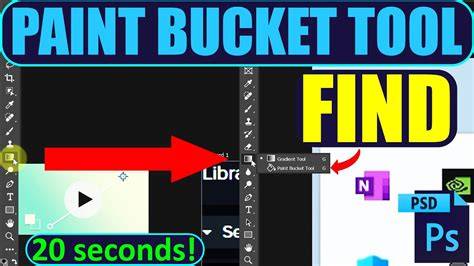
Several threads indicate that the paint bucket tool may be hidden under another tool, commonly the Gradient Tool, in the toolbar. Users report that left-clicking and holding the Gradient Tool reveals the Paint Bucket Tool in the flyout menu, which means you can access it without it appearing as a separate, always-visible icon.
Another frequent scenario is a toolbar that has been reset or rearranged. In some updates, the tool arrangement changes, and the Paint Bucket Tool might seem to disappear until the toolbar is reset or adjusted. The general consensus is that the tool still exists within Photoshop, but its visibility depends on workspace configuration and toolbar settings.
Step-by-step fixes most recommended by users
- Restore the toolbar defaults
Go to Edit > Toolbar, click Restore Defaults, and then Done. This returns tools to their original placements and can bring back missing icons, including the Paint Bucket Tool.
- Check for the gradient/paint bucket flyout
In the toolbox, click and hold on the Gradient Tool to reveal the Paint Bucket Tool in the flyout menu. Move or select it to reveal both tools again.
- Verify workspace visibility
Some users find the Paint Bucket Tool hidden because a different workspace is active (e.g., Essentials). Switch back to the standard workspace, or reselect the default Workspace (Window > Workspace > Essentials, or similar) and see if the tool reappears.
- Close conflicting applications
If other apps (like Illustrator) are running, they can affect how Photoshop presents its windows. Close extraneous applications to restore normal tool visibility.
- Reopen and reset incrementally
If a full reset doesn’t work, try a gradual approach: reopen Photoshop, go to Edit > Toolbar, and manually rearrange tools, particularly placing the Paint Bucket Tool in a convenient position. Then restart if needed.
Practical tips for ongoing workflow
To avoid future confusion, keep a note of where the Paint Bucket Tool is located in your current workspace and consider keeping a stable workspace layout. If you frequently toggle between tools, the gradient/paint bucket flyout can be a quick access point without permanently displaying every tool icon.
Common user observations and clarifications
- Some users report that the Paint Bucket Tool reappears after resetting the toolbar defaults, confirming it is not removed but relocated or hidden by the current workspace.
- Others note that closing auxiliary applications (like Illustrator) can restore tool visibility, suggesting a window management issue rather than a tool removal.
- There are cases where users must perform Edit > Toolbar and then move the Paint Bucket Tool back to its rightful place in the toolbar to regain easy access.
In most scenarios, performing the toolbar reset via Edit > Toolbar > Restore Defaults and rechecking the Gradient Tool flyout resolves the problem. The tool is not permanently removed; it is typically a matter of workspace configuration or a temporary UI state.
Guidance on when additional media could help
Infographics showing the relationship between tools in the toolbar and their flyouts can help visualize how to access the Paint Bucket Tool from the Gradient Tool. A short schematic diagram illustrating the progression: Gradient Tool -> Paint Bucket Tool flyout can be informative for users learning the interface.
Adobe Photoshop CC Paint Bucket dan Gradient tools
If you still experience issues after trying the above steps, consider checking for updates or reinstalling Photoshop, as persistent UI bugs may require a fresh setup or patch from Adobe support.