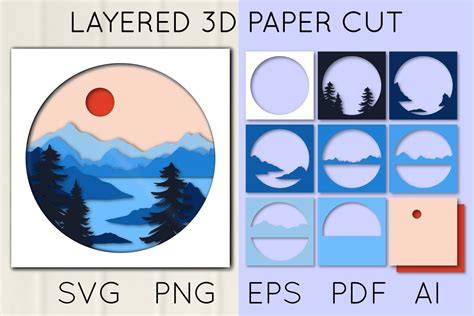
The paper cut out effect in Photoshop is a digital recreation of layered paper silhouettes that creates depth and tactile realism. It aims to mimic several superimposed layers of paper, each casting subtle shadows to suggest thickness while remaining entirely digital from start to finish. This technique has proven versatile in advertising, pop-up books, and mask making, where the look of hand-cut precision adds a crafted, tangible feel to designs.
1. Draw the main shape
Use the Pen tool to create the desired shapes. You can create some letters or basic polygons. The precision of the initial silhouettes sets the foundation for convincing depth later on, so take time shaping clean, expressive forms that read well at varying scales.
2. Add a shadow
The key to the paper cut out effect lies in the shadows we use to give depth to the design. To add exterior shadows to any of the figures, double-click the layer that contains a figure, and a panel will open to give it a style. Select the Drop Shadow option. Adjust the settings to achieve the desired effect.
3. Play with an inner shadow
Inner shadows help simulate a recessed or folded edge where light would hit less directly. Tweak the angle, distance, choke, and size to match the light source and the perceived thickness of the paper. Subtle changes can dramatically enhance realism without overpowering the shape.
4. Adjust the shadows
For more detail, you can edit the shadow separately from the fill layer. To do this, go to the Layer menu, then to Layer Style, and choose the Create Layer option. Now in your layer panel, you will have two layers: one of the shape and one of the drop shadow. Separating them lets you refine edge softness, shadow color, and blur to achieve a natural, tactile separation between layers.
5. Create a grainy paper texture
The secret to the success of your digital paper cut out is in the texture. Make a new layer, place it on top of your composition, and fill it with gray. Texture adds the subtle imperfections that make paper feel real rather than flat.
6. Apply the texture with the right blending
To create the paper texture in your image, select the layer with the gray color, and select the styling option Soft Light. This blending mode allows the grain to interact with the underlying colors, producing a cohesive, natural look. And voila, you are done.
Lidia Lukianova offers a practical example of this technique. This sample file has Adobe Stock images you can use to practice what you learn in this tutorial. If you want to use the sample file beyond this tutorial, you can purchase a license on Adobe Stock.
Practical tips and workflow refinements
- Begin with a solid silhouette: clean vector shapes translate better into convincing layered paper.
- Use multiple layers for depth: produce several overlapping shapes with distinct drop shadows to mimic thickness.
- Refine edge details: jagged or irregular edges read as torn paper; use tools like Warp and masking to enhance authenticity.
- Balance light and shadow: set a consistent light direction across all layers to maintain believability.
- Experiment with textures: subtle paper grain, speckles, or fibers can elevate the tactile quality without overpowering the design.
Techniques demonstrated by the sample artist
She used the Lasso tool to draw the jagged edge of the ripped paper across the model’s face. With the Paper edge layer selected, she used Control+click (Windows) or Command+click (macOS) on the mask of the Model layer to make a selection. Lukianova deselected the Paper edge layer by holding Control+D (Windows) or Command+D (macOS), then dragged it below the Model layer. Still on the Paper edge layer, she selected the Warp tool (Edit > Transform > Warp) and dragged the top handles to customize the shape of the ripped edge so it looked less uniform and more natural. To add the appearance of dimension to the torn paper, she double-clicked the Paper edge layer to bring up the Layer Style dialog. Lukianova dragged the paper texture image from her desktop to her open document and dragged the new layer so it was just above the Paper edge layer.
- Draw main shapes with the Pen tool.
- Apply exterior shadows via Layer Style > Drop Shadow.
- Experiment with inner shadows for edge depth.
- Create separate layers for shape and shadow to fine-tune depth.
- Overlay a gray texture layer and blend with Soft Light to simulate paper grain.
- Incorporate real-world texture references (like torn edges) for authenticity.