Photoshop shortcuts are the quickest path to a smoother, more efficient workflow. This guide compiles the most practical keyboard commands and workflow tips drawn from a comprehensive set of sources, organized by category to help you navigate Mac and Windows alike.
Keyboard shortcuts by platform and foundation
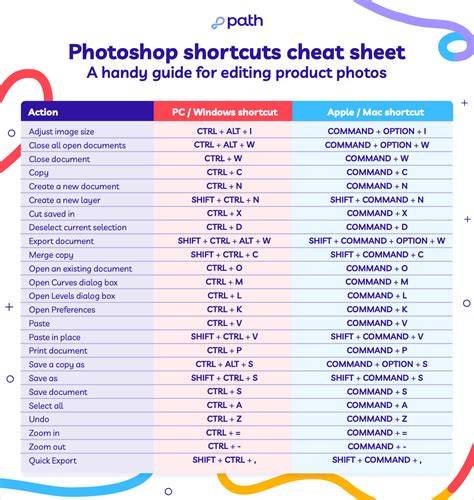
On Mac, the primary modifier key is Cmd and the secondary is Option. On Windows, they are Ctrl and Alt. Note: If shortcuts stop working, check Caps Lock is off. Pro tip: Hold Shift and press a tool shortcut key to cycle through tools that share the same key. Cmd/Ctrl + J is the foundation of safe, non-destructive editing. Before you change anything on a layer, duplicate it first. If something goes wrong, delete the duplicate and the original is untouched. Cmd/Ctrl + T opens Free Transform mode. Resize, rotate, skew, distort and warp your selected layer or selection. Press Enter to confirm or Esc to cancel. X swaps your foreground and background colours instantly. When painting masks, this is the shortcut that keeps you in flow. Painting black to hide, press X to switch to white to reveal, press X again to switch back. Shift + bracket keys adjust brush hardness without opening any panel. Hard edges for precision work, soft edges for blending. Cmd/Ctrl + Alt + Shift + K opens the full keyboard shortcuts dialogue inside Photoshop. From here you can view every shortcut, customise any command and save your own shortcut set.
Commonly used basics for beginners include Undo (Ctrl/Cmd + Z), Free Transform (Ctrl/Cmd + T), Duplicate layer (Ctrl/Cmd + J), and Move Tool (V). For color and brush work, shortcuts for switching brush sizes and cycling blending modes save substantial time. Blending modes can be cycled with Shift + ALT + + (Windows) or Shift + Option + + (Mac) to explore options quickly. The Layers panel is often brought up with F7 (FN + F7 on some laptops) to ensure visibility of layers while editing.
Working with selections, masking, and layers
Layers are the backbone of Photoshop, enabling non-destructive editing and flexible composition. When working with selections, use shortcuts to refine edges, move selections, or adjust color and tone on masked areas. To duplicate a layer and keep edits non-destructive, Cmd/Ctrl + J is foundational. Merging layers can be done with Shift + Ctrl/Cmd + E, or merge down with Ctrl/Cmd + E. To create a new layer above the current one, Shift + Ctrl/Cmd + N. For quick masking, add a Layer Mask and paint with black to hide or white to reveal. These actions accelerate editing while preserving original data.
Color adjustments and tonal control
Color management is essential for credible edits. Color Balance (Ctrl/Cmd + B) lets you adjust shadows, midtones, and highlights with real-time previews. Hue/Saturation (Ctrl/Cmd + U) provides global or selective color adjustments; use the Master dropdown to target specific color ranges. For black-and-white work, you can desaturate or use the Black & White adjustment with precise control over how colors convert to grayscale (keyboard shortcut: Ctrl/Cmd + Alt/Option + Shift + B, plus additional options). These tools enable nuanced tonal workflows without destructive changes.
Text, type, and typography shortcuts
Typing speed and layout are improved by shortcuts that render text quickly. Press T to activate the Text Tool, then click to add text and use the contextual task bar for font, alignment, and color adjustments. To select all text, Ctrl/Cmd + A. Type management often relies on the Options Bar, the Character and Paragraph panels, and the Properties Panel for more advanced controls. The new contextual task bar provides quick access to typography adjustments without navigating away from the canvas.
Generative Fill and AI-assisted edits
Generative AI features in Photoshop 2024 enhance editing with context-aware replacements. Right-click to open Generative Fill, type a prompt to replace the selection, and explore up to three variations within the Properties panel. Generate again to create more variations or delete unused results to manage file size. Keep in mind that AI excels at many edits but can struggle with complex hands or nuanced human features, so plan prompts accordingly.
Clipping paths, masks, and product photography workflows
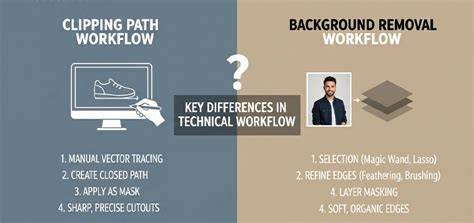
Clipping paths and clipping masks speed up background removal and compositing. Learn to use the Pen tool (P) and Direct Selection tool (A) together with keyboard shortcuts to create precise paths and masks. Efficient workflows involve aligning the Pen tool with the Layers and Paths panels and using Quick Mask (Q) when refining selections. For clipping masks, the Add Layer Mask option is a quick route to non-destructive masking, and layer relationships drive consistent results across edits. When working on product photography, clipping paths and masks are essential to isolate subjects cleanly from backgrounds.
Practical workflow integration: 27 + shortcut cycling
In daily practice, you’ll often cycle through blending modes, transform tools, and masking options. Shift + ALT + + allows rapid cycling through blending modes; Shift + Ctrl/Cmd + + cycles through modes as you press the key repeatedly. Free Transform, duplicating layers, and adjusting color balance in sequence create a smooth editing rhythm. The Layers panel visibility, the quick access to brushing and masking tools, and a consistent nerve for keyboard-driven actions help you maintain momentum during complex edits.
Tables and data-driven elements
| Category | Common Shortcuts | Notes |
|---|---|---|
| General | Ctrl/Cmd + Z, Ctrl/Cmd + T, Ctrl/Cmd + J | Undo, Free Transform, Duplicate Layer |
| Layers & Masks | Shift + Ctrl/Cmd + E; Ctrl/Cmd + E; F7 | Merge, Merge Down, Show Layers Panel |
| Color & Tone | Ctrl/Cmd + B; Ctrl/Cmd + U; Ctrl/Cmd + Alt/Option + Shift + B | Color Balance, Hue/Saturation, Black & White |
| Selection & Mask | P, A, Q, Ctrl/Cmd + 7 | Pen Tool, Direct Selection, Quick Mask, Hide/Show Path |
| Generative Fill | Contextual Task Bar, Generate | AI-assisted replacement within selection |
These elements illustrate how the cheat sheet translates into concrete actions across typical Photoshop tasks, from quick edits to complex masking and AI-assisted modifications.
Visual aids and multimedia
Infographics and quick-reference diagrams can help internalize shortcut groups and tool workflows.
12 AMAZING Keyboard Shortcuts You Need to Know