Whether you want to tidy up your workspace or keep your work confidential, here is how you can clean up or delete recent files in Photoshop. In this guide, we will walk you through two core actions: clearing the recent file list and preventing files from appearing there in the first place.
Clearing the Recent File List
If you simply want to clear the recent files, navigate to File > Open Recent > Clear Recent File List. Click on it, and just like that, all the recently opened files will be removed from the list. It’s a quick and effective way to keep your workspace clean.
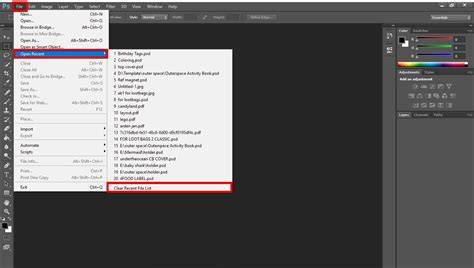
In addition to clearing the list, you might want to manage how recent files are presented when you open them in the Start screen or via the Open Recent menu. This helps you avoid exposing private or client images unintentionally during live streams or demonstrations.
Preventing Files from Appearing in the Recent List
But what if you want to go a step further and prevent these files from appearing in the recent list in the first place? It’s just as straightforward. Go to Edit > Preferences > File Handling. Within the “File Handling” menu, you’ll find the option to set the number of recent file list entries. To prevent files from appearing in the recent list, set the number of recent file list entries to 0.
Practically, this stops new files from populating the Recent Files list, keeping your workspace free from recently opened documents. You can still use File > Open Recent to access files you previously opened if needed, but they won’t accumulate automatically.
Additionally, you can customize how the Photoshop Start screen behaves to minimize distractions. By default, the Start screen appears when you launch Photoshop or close all documents. Uncheck the box that says Auto Show Home Screen to skip this screen on startup. If you want it back, re-enable the option. This approach complements clearing or preventing entries in the Recent Files list by reducing on-startup exposure to recent items.
For users who want more control over what appears in the recent list, you can adjust how many entries are shown in File > Open Recent. Historically, Photoshop can show 25 entries, but you can increase or decrease this number to suit your workflow. In practice, increasing the count makes it easier to find older documents, while setting it to 0 ensures nothing is recorded in the recent list.
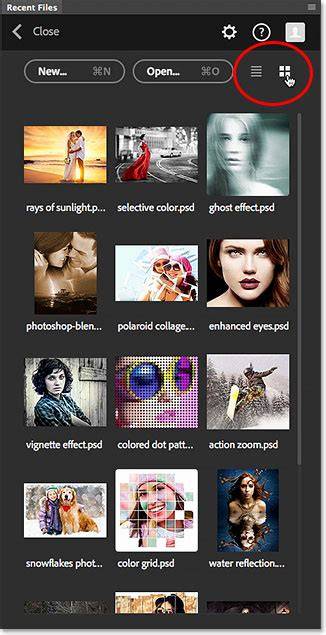
In addition to these steps, the Start screen and the Recent Files panel are related. The Start screen appears when you launch Photoshop CC, and it also appears when you close out of documents. When the Recent Files workspace is enabled, you can view recent files as thumbnails rather than as a plain list, providing a visual alternative to the traditional Open Recent menu.
Using the Recent Files Workspace
On a Windows PC, enable the Recent Files workspace by going to Edit > Preferences > General and turning on “Show ‘Recent Files’ Workspace When Opening A File.” After restarting Photoshop, you’ll see the Start screen with recent files as thumbnails behind the scenes. The Recent Files panel behaves like a mini Start screen, offering quick access to New and Open options while displaying thumbnails of your recent documents.
To access recent files without closing an open document, select Open from the File menu while the Recent Files workspace is enabled. The panel provides a visual gallery of recent documents, making it easier to identify and reopen projects. If you want to turn off the Recent Files workspace later, you can return to General Preferences and uncheck the same option, then restart Photoshop to apply the change.
Note that the immediate UI behavior can vary slightly across versions and platforms, but the core steps for clearing or disabling the recent list remain consistent. The key is to locate the Clear Recent File List command or to adjust the File Handling and Start screen preferences to align with your privacy and workflow needs.
As you refine your setup, you may also discover ways to manage visibility during demonstrations or streams. For example, you can hide previews and thumbnails on the welcome screen or control what appears in the recent list to avoid exposing client content or sensitive images. This balance between accessibility and privacy is a practical aspect of daily Photoshop use.
Practical Tips and Quick References
- To clear recent files: File > Open Recent > Clear Recent File List.
- To prevent recent files from appearing: Edit > Preferences > File Handling, set Recent File List Entries to 0.
- To hide the Start screen thumbnails: uncheck Auto Show Home Screen in General Preferences.
- To view recent files as thumbnails: enable Show “Recent Files” Workspace When Opening A File in General Preferences.
How to Clear Recent Files in Photoshop CC [Full Guide 2026]
By combining these settings, you can tailor Photoshop’s recent-file behavior to fit your privacy requirements and workflow efficiency. Whether you clear periodically or prevent entries altogether, the outcome is a cleaner, more focused editing environment.