Photoshop preferences can become corrupted or cluttered, leading to new errors when running actions, missing panels, or misbehaving tools. Resetting the Photoshop Preferences File is a reliable method to restore stability while keeping or safely restoring your work as needed.
Why resetting helps
The Preferences file is where Photoshop stores many performance settings, including general display and interface options, tool configurations, file handling, type settings, scratch disk settings, and plugin options. Each time you close Photoshop, this file is rewritten, which creates a small risk that something goes wrong and causes odd behavior. Resetting the preferences returns these settings to their defaults and can reveal whether the problem was caused by a corrupted preferences file.
Two universal methods that work across versions
First, quit Photoshop and follow the original method that works with any version:
- Quit Photoshop.
- On Windows, navigate to File > Exit, then restart Photoshop and immediately press and hold Alt+Ctrl+Shift (Windows) or Option+Command+Shift (Mac).
- A dialog will prompt you to delete the current settings. Confirm to delete the Adobe Photoshop Settings file.
- Photoshop will relaunch with default preferences.
In Photoshop CC and later, there is a new integrated option in the Preferences dialog box to reset on quit. This method avoids the abrupt keyboard shortcut on startup:
- Open Photoshop, then go to Edit > Preferences > General (Windows) or Photoshop > Preferences > General (Mac).
- Enable the option Reset Preferences On Quit.
- Quit Photoshop, then relaunch. A prompt will ask you to confirm the reset when you quit; confirm, and Photoshop will restart with default settings.
What gets reset beyond the numeric settings
Resetting the preferences will reset more than just interface options. You may also reset color settings, custom keyboard shortcuts, and user workspaces. If you’ve saved any workspaces or custom shortcuts, be prepared to recreate or reimport them after the reset.
Tips for locating and managing the Preferences file
Where the Preferences file is stored depends on the operating system and Photoshop version. On Windows, it is commonly found under the User's AppData or Roaming path; on macOS, it resides in the Library folder. If you’re unsure, a quick search for “Adobe Photoshop Settings” or “Adobe Photoshop [version] Settings” in your system drives will point you to the correct directory. The PluginCache file may also influence startup by forcing Photoshop to reload all plugins, which can uncover unnoticed problems-deleting or refreshing this cache can help in some cases.
Before performing edits in the system folders, ensure Photoshop is closed. If you need to back up a working preferences file, copy it to a separate location before deletion so you can revert if needed.
Practical scenarios: when to reset
If you encounter:
- new errors when running actions
- panels or menu items disappearing
- tools behaving erratically or misconfigured
- unexpected colors or tool presets not loading
Resetting the preferences is a sensible first step. It often resolves subtle corruption issues that accumulate over time.
Additional considerations and troubleshooting steps
After a reset, you may wish to:
- reload or recreate essential workspaces
- reinstall or re-enable needed plugins
- reconfigure color settings and keyboard shortcuts
- check for updates or known issues for your Photoshop version
If problems persist, consider backing up critical work, trying a fresh installation, or testing on a different user account to isolate system-level influences. For persistent printer, desktop, or display issues, ensure the graphics drivers and OS updates are current, as these can interact with Photoshop’s rendering pipeline.
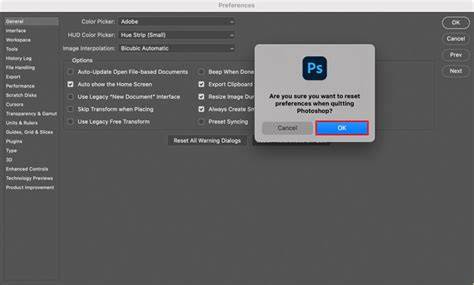
As a quick visual aid, a diagram showing the flow from starting Photoshop to the reset prompt can help users grasp the sequence and impact of the reset.
How To Reset Photoshop To Default Settings (𝟮𝟬𝟮𝟲) | 100% WORKS | NO Yapping, To The Point & EASY!
A short video guide can illustrate holding the keyboard shortcuts on startup and confirming the delete prompt, complementing the written steps.
How to verify a successful reset
After Photoshop relaunches with defaults, test essential functionality:
- Open a sample image to confirm correct display and color handling
- Run a simple action to ensure actions execute without errors
- Reset or reconfigure a few preferred tools or panels to verify stability
If issues recur, consider collecting diagnostic information (OS version, Photoshop version, steps to reproduce, error messages) and consult official Adobe support or community forums for version-specific guidance.
Frequently asked points covered
- How to reset Photoshop preferences on quit
- Keyboard shortcut method to reset on startup
- The broader impact of resetting on color settings and custom shortcuts
- Where Photoshop stores its Preferences file and how to access it
tags: #photoshop #preferences #reset