When using a Wacom tablet with Photoshop on Windows 10 the default behavior is to use Windows Ink. Unfortunately this causes problems in Photoshop, disabling Windows Ink fixes the problems but you will also lose the pressure sensitivity function on your tablet. The pressure sensitivity can be re-enabled by adding an entry to the Photoshop settings folder.
To disable Windows Ink open up the Wacom Tablet Properties window, you can access this via the Wacom Desktop Center or from the Wacom folder in the start menu. In the applications section select Photoshop and untick the ‘Use Windows Ink’ checkbox.
Do you make your living helping people, products, and places look great? The attention you give to an image in post-production can make all the difference. Creative professionals in photography teach us something new every day, but the constant is that an investment in tools that enable you to work more intuitively translates to an increase in productivity, which equals a better-quality work product.
A good exposure alone does not make a great image. Professional-quality images come from photographers who study and practice their craft, from both a creative and business perspective. Your personal vision and ability are the critical components to the creative process. In post-image processing, there are no shortcuts, but Wacom enables functions in creative applications such as Adobe Photoshop and Adobe® Lightroom®--functions that are otherwise unavailable, or at best, more time-consuming to use.
Photoshop offers dozens of tools and brushes with built-in pressure-sensitive features, only recognized when used with a creative pen tablet or creative pen display. So you can dynamically adjust color temperature and exposure with natural precision using your pen tablet.
You may be thinking that you don't have the time. But yes, you can hand-retouch your portraits, wedding, and commercial images. The time you spend in post is the time you refine your signature style, making sure you're delivering on client expectations. Your investment of time in the post-image editing process pays huge dividends, as you create a brand that keeps customers coming.
Thankfully, Wacom has also built in timesaving shortcuts as part of the professional pen tablet experience. When on assignment, your number one goal is to get "the shot." To achieve such a goal, experienced photographers practice a risk-management approach, first and foremost, by knowing their gear inside and out: on set, in the moment, and in post-production.
For example, if controlled blur is desired to establish the action, you may err on the side of capturing an image with sharp detail, knowing that you can add just the right amount of blur after the fact. In commercial photography, oftentimes the desired shot simply cannot be brought together naturally in-lens. Hence, the rise of the need to shoot for post. Multiple photos can be combined to make up a single image with speed and accuracy when applying with a pressure-sensitive pen and layer masks.
Using a layer mask and pressure-sensitive pen will allow you to make the composite much more subtle in its gradations and more pleasing to the eye. When I first started using the computer to create illustrations I primarily used Adobe Illustrator. This paper plate design was the first image in which I used Photoshop. I also used a mouse to create all my work (yep, I did that jungle plate with a mouse.)
Wacom tablets were/are expensive, and I thought $400 was a ridiculous amount to pay for one. Oh, did I mention that I'm a cheap skate? But then a friend of the family, who happened to be a graphic designer came to the house and saw my workspace. And she said, "you idiot, go buy a pen tablet!" I'm sure she said it much more diplomatically than that, but that was the gist. And she was right. If you want to use Photoshop for painting, a mouse will only take you so far. You really need to invest in a tablet. The good news is they have come down considerably in price.
The really difficult part of using a tablet is that you draw in your lap but your brush strokes show up on the monitor. That incongruity takes some getting used to. And honestly, I never found it as natural as drawing with paper and pencil, although I know some artists that don't have a problem. But a couple of years ago I upgraded to a Cintiq. The Cintiq is basically the Cadillac of the Wacom line. It's a monitor with a Wacom tablet built into it, so instead of drawing on a separate tablet you draw directly on the monitor. Sound cool? It is wicked cool, and much more natural feeling to me. I can't tell you how much I love my Cintiq. One of the function buttons was sticking the other day on my precious baby and I was fretting as if one my real children had come down with the flu. What would I do if my poor Cintiq became ill?! Luckily it recovered on it's own. Phew!
Programming the Wacom Function Keys
When I first started using a Wacom tablet I didn't make good use of the available function keys. I still had one hand on the keyboard to do things like hit "b" (the hotkey for the brush tool) and "e" for the eraser tool and my all-time favorite "CTRL-ALT-Z" for undo. But I have since started programming my Wacom for the way I work and it has definitely streamlined up my work flow. Think about the tools that you use most in Photoshop and try bringing that functionality down to the tablet. I spend most of my time switching between the brush tool and the eraser tool.
So in the Wacom preference utility, I set the left function keys to "b", "e" and "CTRL-ALT-z". The preference utility can be accessed in Windows by going to "Programs -> Wacom Tablet -> Wacom Tablet Properties" Notice how I can specify that the keys only have this behavior within Photoshop. You can set up different behavior for use in other applications (Illustrator for example)
The other thing that I have found very useful is to reprogram the buttons on the actual Wacom pen. I have set the top one to the left bracket and the bottom one to a right bracket. "[" and "]" are hot keys that are used in conjunction with brush tools. They will resize the paint brush up and down in incremental steps. That way I can increase and decrease the size of my brush just by tapping my finger against my pen. I recommend playing around with various button configurations and see what works for you.
Are you using Adobe Photoshop or Photoshop Elements? Are you hoping to get more from these powerful applications? Are you looking for better results in your images? The Adobe Brush Engine in Photoshop can be an amazing tool. When you connect a Wacom pen tablet or creative pen display to your computer, Photoshop recognizes your use of the tablet and gives you access to a number of capabilities that were not available to you before. One of the most significant benefits is the recognition of pressure sensitivity in the Wacom pen. Wacom's pressure-sensitive pens are recognized in the two dozen or more tools and brushes in Photoshop. From the Clone Stamp and Healing Brush, to Layer Masks and Adjustment Layers, you can dynamically adjust color temperature exposure, tone, contrast, and most other features, all by how lightly or firmly you press your pen to the tablet.
The programmable ExpressKeys on your Intuos Pro pen tablet are likely a nice surprise and a productivity tool you may not have expected. So many functions can be controlled by using the ExpressKeys on a tablet. These can be as simple as selecting the brush panel, or they can be programmed to do complex tasks, such as creating an inverted layer mask. If you can do it with keyboard shortcuts, it can be programmed as an ExpressKey action. Not only that, but you can have a whole set of ExpressKeys settings for each application that you run on your computer.
Lightroom serves a crucial image management and editing role in a Photographer's workflow. Taking a cue from its customers, Adobe introduced pressure-sensitive pen features in the adjustment brush to help you do some of your image editing in Lightroom. Similar to Photoshop, when you use a Wacom pen tablet in Lightroom, you gain the ability to more precisely and subtly enhance your images, so that your retouching looks natural.
Recently, Adobe introduced multi-touch support in Photoshop, similar to what we already enjoy in Adobe® Illustrator®. Multi-touch gestures speed your workflow by enabling you to get to the details that you wish to edit faster and make the necessary changes more intuitively.
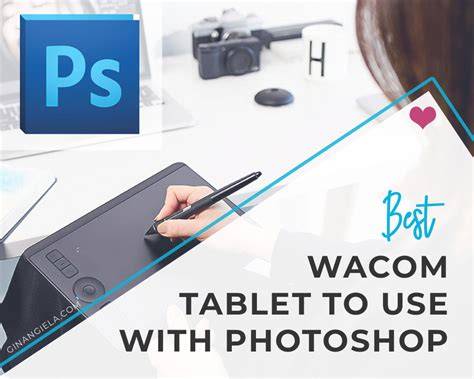
Infographic: typical Photoshop-Wacom workflow illustrating pressure sensitivity, layer masks, and ExpressKeys used in common tasks.
How to Fix NO PEN PRESSURE in Photoshop 📸
Video: overview of enabling Windows Ink, adjusting pressure sensitivity, and customizing Wacom ExpressKeys for Photoshop.
Practical setup checklist
- Disable Windows Ink for Photoshop in Wacom Tablet Properties to avoid conflicts with pressure sensitivity.
- Ensure Photoshop recognizes pen pressure across the brush tools, Clone Stamp, Healing Brush, and Layer Masks.
- Program ExpressKeys to frequently used shortcuts (e.g., brush, eraser, undo) and use pen buttons for quick brush size adjustments.
- Explore per-application settings so that configurations work optimally in Photoshop while remaining different in other apps like Illustrator or Lightroom.
- Consider upgrading to a monitor-integrated tablet like Cintiq for a more natural drawing experience directly on the screen.
In addition to tool configuration, think about how multi-touch features in Photoshop can complement pen-based editing. Multi-touch gestures can speed navigation, zooming, and rotating while you focus on fine-tuning details with pressure-sensitive brushes.