Photoshop is a Bitmap editing application that is ideally used to edit the photograph and to manipulate images. It is also widely used to create digital artwork, but the output is always in a Raster format. There are mainly two formats in computer graphics, namely raster and vector. Raster images are pixel-based and are resolution dependant. This means that these Raster images cannot be scaled without losing their picture quality. Vector on the other hand are created using dots, curves, lines and polygons and are completely scalable or resizable without any loss of quality.
Coming back to our earlier point, Photoshop is a bitmap or raster editing software and is well suited for image editing purposes. Vectors cannot be completely edited or created using Photoshop. If you’re disappointed in Photoshop for this reason, please don’t be. The good news - Vector files can be resized and used in Photoshop and also retain its picture quality.
Opening vectors in Photoshop and smart objects
Let’s move on to learn how to open and use Vectors in Photoshop. For our purpose I’ve created a background in Illustrator and saved it as an EPS file as this is a widely distributed Vector format. Try it yourself! This way, the EPS file opens as a Smart Object. So we've opened the EPS or the AI file in Photoshop. First, let’s look at the two images that has been opened. Smart object lets us do non-destructive editing in Photoshop. This means that we can transform or resize the image as much as we want without losing the picture quality. I have dragged both these files aka layers - simple layer and the smart object layer to another file. Once done, I shall scale up the both these layers back again. The results after scaling up given below and without a question the Smart Object has retained its picture quality despite the scaling.
There’s another advantage of opening a file as smart object. You can apply Photoshop filters to this layer and alter it at a later stage in your work. You can go back to the filters settings whenever you want and can also adjust the opacity of these filters. That’s not all - there’s another big surprise. You can double click this Vector Smart Object layer and voila! You can also open the file as is and later convert to a smart object. This way it will still have the non-destructible editing features but will open as a separate Photoshop file when double clicked. So let me conclude that its ideal to use Vectors as Smart Objects in Photoshop so that we enjoy all the benefits that I mentioned earlier. I hope you make the most of your Vectors in Photoshop as well, as much as you do in Illustrator or one of many Illustrator Alternatives.
By the way you can download this amazing Abstract Vector Background that we created in Illustrator.
Raster vs. Vector: deepening the difference
This video lesson, titled “Learn about Raster and Vector Image Data in Adobe Photoshop: A Training Tutorial,” shows you the difference between raster, or pixel-based, image data and vector image data in Photoshop. Photoshop documents can contain raster data, which is also called bitmap or pixel data. Separately, they can also contain vector data. These two types of image data, however, are not mutually exclusive. For example, a single Photoshop document may contain both raster and vector image data within it. Raster image data uses pixels to represent image data. Each pixel in the image is assigned a color and position. When editing raster image data, you are changing the individual pixels that make up a larger image. Because raster data can show subtle color changes, it is most often used for photographic images on computers. However, raster image data is resolution-dependent, most often measured in a number of pixels per inch or pixels per centimeter.
Alternatively, vector image data is created from lines, or vectors, defined by mathematical algorithms. So, vectors describe image data based on its geometric characteristics. For example, if you drew a smiley face shape within a Photoshop document as a vector graphic, you can then move, resize, or otherwise change the vector shape without changing its quality. This is because vector image data is resolution independent, unlike raster image data. When you’re working digitally, there are two kinds of image file types: raster and vector. Both image types may be saved with several different file extensions. Vector files are images that are built by mathematical formulas that establish points on a grid. Raster files are composed of the colored blocks commonly referred to as pixels.
Vector vs Raster Graphics | Buddy Media
Because they can infinitely adjust in size without losing resolution, vector files are more versatile for certain types of tasks than raster files. The most common type of editable vector file is the Adobe Illustrator (.ai) file. This file type can store an enormous amount of graphics information and is editable in Adobe Illustrator. Illustrator files can be easily converted to .pdf. Adobe Acrobat is the best tool for editing .pdf documents, which are designed for both printing and document transfer. Many printers utilize .pdf as a standard for printing.
Create vector image in Photoshop - that’s what many users need when they want scalable artwork for T-shirts, stencils, laser cutting, or screen printing. Good news: You don’t need Illustrator to create clean, scalable vector artwork. To get a high-quality result when you create a vector image in Photoshop, your source photo should have clear contours and good lighting. The clearer the edges of your subject, the cleaner the final vector paths will be.
- This is the most critical step. Photoshop itself doesn’t have a built-in “Image Trace” button like Illustrator. Standard adjustments like Threshold often create jagged edges and pixel noise that are not vector-friendly. This professional conversion is exactly what Image2Vector was built for.
- For technical workflows like laser cutting or screen printing, you need sharp boundaries rather than thousands of tiny tones. Focus on keeping a low number of color steps and high contrast.
- Once your shapes are generated, you can export them directly. Photoshop supports SVG (best for web and Cricut) and EPS (standard for professional print shops).
Can I edit Photoshop vectors in Illustrator? Yes, absolutely. Is the result 100% scalable? Yes. What is the best format for laser cutting? Most laser cutting software prefers SVG files. You don’t need to switch between different apps to get high-quality results. Photoshop + the right conversion technique are enough to produce professional artwork for T-shirts, stencils, and merchandise. You can get Image2Vector directly from our shop or via the Adobe Marketplace.
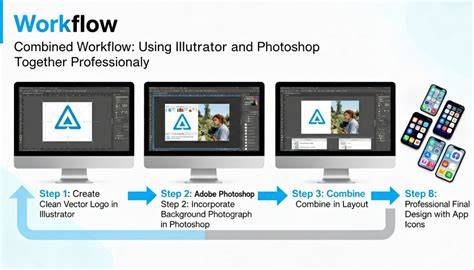
In the world of digital design, vector graphics play a crucial role in maintaining quality and scalability for various applications. Although Adobe Photoshop is primarily known as a raster graphics software, it also offers tools and techniques to work with vector graphics. When compared to raster graphics, which are composed of pixels, vector graphics are built using mathematical formulas that establish points on a grid. This allows vector images to be infinitely scaled without losing resolution. Vectors and rasters are the two primary types of graphics used in digital design. Vector graphics are based on mathematical equations, which means they can be scaled without losing quality. On the other hand, raster graphics, also known as bitmap graphics, are made up of individual pixels that form an image. In terms of color depth, raster images are capable of displaying a wider range of colors, while vector images are generally limited to solid colors. The primary difference that sets raster and vector images apart is the impact on image quality when resizing an image. When scaling a raster image, the pixels can become visible, leading to a blurred or pixelated appearance. Conversely, scaling a vector image retains its sharpness, as the mathematical equations defining the image adjust to maintain clean edges throughout the resizing process.
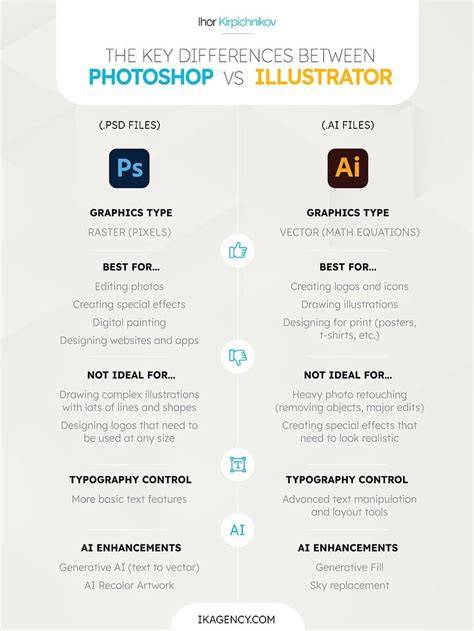
When deciding whether to use vector or raster graphics in a design project, it's crucial to consider the application of each and their specific strengths. Vector graphics are ideal for logo design and other graphics requiring clean, scalable shapes with sharp edges. Raster graphics, on the other hand, are better suited for complex, detailed images, such as photographs. In conclusion, understanding the fundamental differences between vector and raster graphics is crucial for designers to make informed decisions on which format to use in their projects. The choice between vector and raster graphics ultimately depends on the specific needs and intended applications in each design scenario.
Practical use of vectors in Photoshop
In Photoshop, we can create vector graphics such as logos and icons that are infinitely scalable without losing their quality. Vectors are defined by mathematical equations rather than pixels, allowing them to maintain their sharpness no matter how large or small they are resized. Paths are essential components of vector graphics in Photoshop, formed by anchor points and lines. We can create a path using the Pen tool, which allows us to plot anchor points and draw curves or straight lines between them. Working with layers is also important when dealing with vector graphics in Photoshop. Multiple layers can help us organize and arrange different parts of the image.
To vectorize an image in Photoshop, first, prepare the image by importing it and setting the resolution to 300 using the Control + Alt + I keys. Using an appropriate selection tool, choose the part of the image you want to vectorize. For example, to select a rectangular area, use the Rectangular Marquee tool, or use the Magic Wand tool to select areas of a specific color. When working with vector graphics, Adobe Illustrator is the go-to software. To create a vector file in Illustrator, we start by setting up a new document and then use various tools to create shapes, lines, and text. We can also import and convert raster images into vector files using Illustrator's Image Trace feature.
While Photoshop is primarily designed for raster-based editing, Illustrator is tailored for working with vectors. Unlike raster images, which are pixel-based, vector images consist of mathematical formulas that define the points, lines, and shapes within the image. This means vector images can be resized without losing quality, making them ideal for designs that need to be scaled or printed at various sizes. Photoshop does have some limited vector capabilities, like using the Pen Tool to create paths and vector masks. Illustrator has a variety of selection tools available to help us work with vector objects more efficiently. The Direct Selection Tool allows us to select, move, and modify individual anchor points that make up the paths of vector objects. In contrast, the Selection Tool lets us select entire vector objects, change their size or rotation, and manipulate the appearance using the Appearance panel.
When working with vector graphics in Photoshop, color selection and application is crucial to create visually appealing designs. We can use the Color Picker to choose colors based on hue, saturation, and brightness, or select colors with the Eyedropper tool. In vector graphics, objects are primarily created using anchor points and paths. To draw paths in Photoshop, we utilize the Pen tool which allows us to place anchor points and manipulate their handles to create curves or straight lines. Mastering anchor points and paths is essential as it allows us to easily resize, edit, and transform our vector artwork without losing quality.
Because vector graphics are composed of mathematical equations, they don't suffer from pixelation when resized. This is a significant advantage over raster graphics, which are made up of pixels and can become pixelated when scaled up or down beyond their original resolution. In conclusion, understanding the various tools and techniques in vector graphics will help us create high-quality, scalable designs in Photoshop. Vector graphics offer numerous benefits over their raster counterparts. Notably, they remain scalable and editable, resulting in higher-quality images. Unlike raster images comprised of pixels, vector graphics consist of points, paths, and shapes, which allow them to be resized without losing resolution. As a result, vector graphics provide greater compatibility with different devices and screen resolutions.
Working with vector graphics in Photoshop entails using specialized tools like the Pen Tool and Vector Masks. With the versatility of vector graphics, their potential applications are vast. For instance, graphic designers widely use vector graphics for crafting logos and business cards. Due to their high resolution and adaptability, logos designed with vector graphics maintain their crisp appearance regardless of the size they are printed or displayed at. Moreover, vector-based business cards can be conveniently altered while maintaining their visual quality. Vector graphics have become an essential component in the field of graphic design. The numerous file formats available for saving vector graphics, such as Scalable Vector Graphics (SVG), allow for easy sharing and editing among designers. Their adaptability and scalability make them ideal for a multitude of purposes, from small logos to colossal billboards.
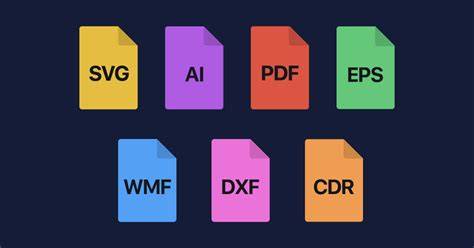
In Photoshop, we can create vector images using the Pen Tool, Shape Tools, and Text Tool. Common vector file formats include Adobe Illustrator AI, SVG (Scalable Vector Graphics), and EPS (Encapsulated PostScript). We can convert an image to a vector format using Photoshop by tracing over the raster (pixel-based) image with vector tools such as the Pen Tool. Vector images offer scalability without loss of quality and smaller file sizes for complex shapes and patterns. Yes, there are alternatives to Photoshop for vector graphics editing, such as Adobe Illustrator, CorelDRAW, Affinity Designer, and Inkscape. For logo design, we recommend using formats such as AI (Adobe Illustrator) and SVG (Scalable Vector Graphics), as they provide the best scalability and quality for various applications, from print materials to digital platforms.
Key takeaways
Vectors are defined by mathematical equations and can be scaled without losing quality, unlike raster graphics which are pixel-based. Photoshop can work with vector data, primarily through Smart Objects, Pen Tool, and vector masks. For robust vector workflows, use Illustrator for the creation of complex vectors and bring them in as smart objects or export as SVG/EPS for scalable results.