Troubleshooting xp pen artist 156 when the tablet is not detected can involve checking the Tablet Client Driver and the Wintab Service, enabling necessary permissions, and ensuring services are running after a reboot. The following guide compiles the essential steps from the provided draft into a cohesive, detailed process.
Initial checks: locate and enable Tablet Client Driver
Open Task Manager and locate the Tablet Client Driver & Wintab Service processes. If you don’t see the Tablet Client Driver, proceed with the file-based steps to reveal the components required for operation.
Open File Explorer and double-click your C: drive. Type wtclient into the search bar and press Enter. You should see the 2 files shown in the diagram below. Double-click each of the files. The message, “Do you want to allow this app to make changes to your PC?” should appear. Click “Yes.”
Activating the Wintab Service
Open Task Manager. You should now see the Tablet Client Driver process. If the Tablet Client Driver appears, continue to ensure the Wintab Service is active.
If the Wintab Service is not visible, proceed with the following steps to start it:
- Open Control Panel > Administrative Tools and run Services.
- Find WinTab Service. Right-click and choose Start.
- Open Task Manager. You should now see Wintab Service.
Reboot and verify
Reboot your computer. After your system loads the desktop, the prompt “Do you want to allow this app to make changes to your PC?” should appear again. Click “Yes.”
You should now see the tablet icon on your taskbar. Double-click it to test your pen pressure. If functional, close the window and test the pressure in your chosen drawing software. Note that some software (i.e. Microsoft Paint) does not support pen pressure.
Additional tips for persistent issues
Ensure the tablet driver version is compatible with your operating system and software. If the pen pressure still does not register in your drawing program, check for updates from the XP-Pen official site or reinstall the driver and the Wintab components.
In scenarios where the tablet icon remains absent from the taskbar, revisit the Services panel to confirm WinTab Service status after boot and verify that the tablet drivers load without conflicts with other input devices.
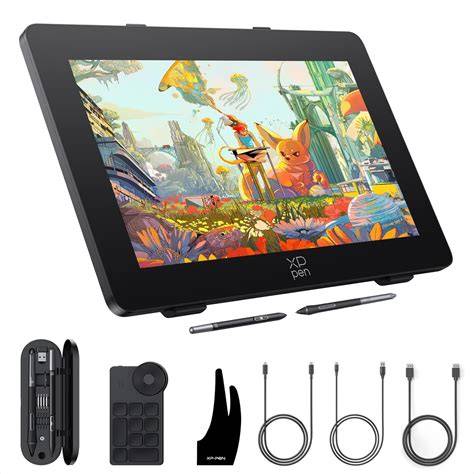
Testing the XP-Pen Deco LW Drawing Tablet
- Confirm Tablet Client Driver is running in Task Manager after enabling viawtclient files.
- Start WinTab Service from Administrative Tools if it isn’t visible in Task Manager.
- Reboot and recheck the system prompts and tablet icon presence on the taskbar.
- Test pen pressure in your preferred drawing software to ensure full functionality.
Pro-tip: when some software lacks pressure support
Some programs, such as Microsoft Paint, do not support pen pressure, so test with software that supports pressure sensitivity (e.g., Photoshop, Clip Studio Paint, Krita) to accurately verify the device capability.