iMovie on iPhone is a powerful yet approachable tool for turning everyday footage into polished movies. This guide pulls together practical steps from a detailed draft to help you edit quickly and creatively, whether you’re building a Magic Movie, a storyboard, or a full-featured project.
Getting started and project types
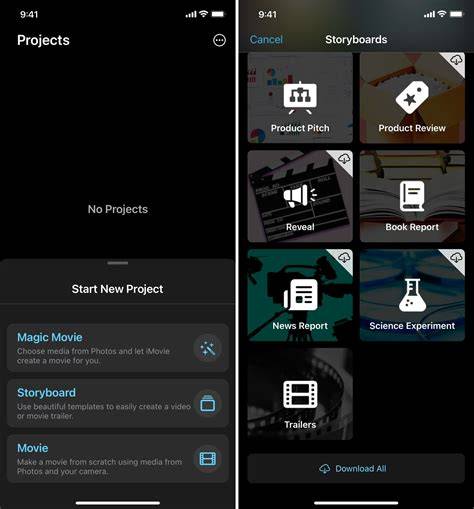
After you download iMovie from the App Store, you’ll see options for Movie or Trailer. For practice and flexibility, start with Movie, then explore Trailer templates for Hollywood-style results. In the Projects screen you’ll find all your work, and you can create new projects to begin editing.
Magic Movie vs. storyboard projects
In Magic Movie, you select video clips and photos and let iMovie assemble a movie with a soundtrack and transitions, while storyboards provide a guided framework with a shot list, titles, and music to match. If you want full control over every detail, switch to a storyboard project and customize your clips, titles, and effects manually.
Importing and organizing media
Clips and photos live in your iPhone’s library. You can add them to a project by tapping the + button and choosing from Video, Photos, or Albums. You can reorder clips by dragging them within the timeline. For a broader workflow, you can also import DSLR footage or footage from other sources via iTunes or Camera Connection Kit, then place them into your project for editing.
Scrubbing and planning your edit
To preview quickly, scrub through clips by swiping the timeline. This helps you decide the order and which parts to keep. When adding new clips, transitions are automatically inserted between consecutive clips to create a smooth flow.
Basic editing: trimming, splitting, and extending clips
- Tap a clip to select it (it will light up in yellow).
- Trim the clip from the start or end by dragging the yellow handles at the edges.
- Split a clip at the playhead by using the Split tool, or shorten/lengthen at the playhead to refine timing.
- To shorten or lengthen a previously trimmed clip, drag the trim handles again; if the handle won’t move, there may be no additional frames available on that end.
For quick, precise edits, use the Trim mode: tap the SCISSORS icon while the clip is highlighted, then drag vertically to trim. You can also split a clip at any frame by tapping Split after positioning the playhead.
Fine-tuning speed and motion
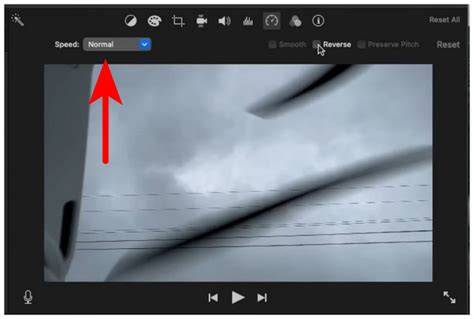
You can adjust clip speed to slow down or speed up parts of your video. The Speed control lets you drag the slider to the left for slower motion (down to one-eighth of the original speed) or to the right for faster motion (up to twice the original speed). You’ll see a yellow-highlighted area indicating the portion affected by speed changes.
Cinematic mode adjustments
If you captured a clip in Cinematic mode, you can adjust the focus and the level of cinematic effect. Open the clip, tap Cinematic, and use the Cinematic controls to modify the focus and the amount of effect, including locking focus if needed.
Transitions, filters, and titles
Transitions are used to move between clips. By default, iMovie uses Dissolve, but you can replace it with None, Theme, Side, Wipe, Fade, or others. To change a transition, tap the between-clips icon and choose a new style. You can also adjust transition duration from 0.5 to 2 seconds.
Filters provide a visual style for individual clips or the entire project. Select a clip, tap the filters icon (three circles), and choose your filter. If you want a consistent look, apply the same filter to each clip.
Titles add a professional touch. Tap the T icon while editing a clip to pick a title style, then type your text and decide whether it appears across the middle or in a corner of the frame.
Audio: adding, detaching, and mixing sound
iMovie offers built-in music and sound effects, or you can import your own audio. To add music, tap the + button, choose Audio, then select Theme music, Sound Effects, or music from your library. You can detach audio from a clip to edit sound separately, allowing overlays or narration. Detach, then adjust volume, apply fades, or replace with new audio as needed.
Working with sound and picture together
Recording new sound directly in iMovie is possible. You can use the microphone tool to capture narration or ambient sound while a clip is playing, then synchronize it with the video. Foley effects-like footsteps or clatter-help create a more immersive scene. For best results, keep the microphone close to the action and ensure the actors project their voice for clear dialogue and effects.
Exporting and sharing
When editing is complete, tap Done to view your final movie, then use Share to export or share your project. You can export at 60fps if your device and settings permit, and you can save to your camera roll or share directly to social platforms.
Advanced tips and workflow nudges
Quick scrubbing helps you preview clips faster, and snapping the playhead to the start or end of the timeline speeds up navigation. Use 3D Touch (where available) to preview projects, and explore keyboard shortcuts if you’re using an external keyboard for faster editing. Importing from Photos via the iMovie extension lets you non-destructively edit clips within the Photos app, with an option to revert to the original if needed.
Practical workflow snapshot
Begin with a clear plan: choose Movie for flexibility or Trailer for templates, pick clips in a logical order, then trim, split, and refine. Add music and titles, adjust speeds for pacing, and apply transitions thoughtfully. Keep the camera work steady and audio clear, and test edits frequently by scrubbing and playing back sections to ensure the narrative flows smoothly.