Maxon ZBrush is an Academy Award®-winning and industry-leading tool for digital sculpting, modeling and painting. Its customizable tools and features, including more than 200 proprietary brushes, allow you to work with polygons the same way you would with actual clay. With ZBrush for iPad and native support for Windows on Arm (WoA) devices, you can sculpt, paint, and bring your creations to life in real time anywhere with touch-based capabilities.
Built for the way you sculpt, ZBrush enables production-ready characters and creatures with the detail, anatomy, and control that film, episodic, and game pipelines demand. Work at extreme polygon counts without the workflow breaking down. This makes ZBrush best for film and VFX, episodic, AAA and indie games, and for artists who want to push their sculpting skills further thanks to an intuitive interface and a supportive creative community.
Cross-platform workflow and a complete production pipeline are core to ZBrush. You can sculpt anywhere with full compatibility across desktop, iPad, and Windows on Arm (WoA). The software sits at the front of production and hands off cleanly to Cinema 4D, Redshift, Maya, 3ds Max, and game engines, ensuring studios can collaborate seamlessly across departments.
What you can do with ZBrush
Sculpting offers a dynamic brush system, base mesh creation tools, and remeshing that lets you stop thinking about topology and just sculpt. Combine, inflate, drape, and instance geometry with full sculptural freedom. ZBrush is not only for organic work; you can build precise low-poly and hard-surface models with ZModeler, Live Boolean, and polygon tools, all in the same environment.
PolyPaint lets you paint directly on the surface with no UVs or texture maps assigned in advance. UV Master, SpotLight projection, and MorphUV give you control from first color to final map. Redshift in ZBrush brings CPU-accelerated rendering into your sculpting pipeline, with BPR (Best Preview Render) adding shadows, ambient occlusion, fibers, and HD geometry, plus the LightCap system for real-time material and lighting control.
In addition to sculpting and painting, ZBrush supports a complete 3D production pipeline. GoZ sends your ZBrush sculpt straight into Cinema 4D for animation and lighting, refine details, send it back, and repeat. Cineware bridges After Effects, and you can move from sculpt to texture in one click thanks to Substance Bridge updates. ZBrush also integrates with other Maxon tools and major 3D packages to maintain a smooth workflow across applications.
Shaping for 3D printing
ZBrush is the market's leading application for working with high-resolution geometry or optimizing high-resolution 3D scans for printing. It seamlessly moves from the virtual world to the real world and back, enabling you to create print-ready models directly from your sculpting work. When preparing for 3D printing, you can fill holes, correct artifacts, and optimize geometry with Dynamesh and other tools. ZRemesher and related features convert triangles into quads required by many animation workflows, while maintaining creative control.
3D printing readiness begins with ensuring watertight meshes. The 3D Print Hub provides formats such as OBJ, STL, and VRML for export, with options to export vertex color (PolyPaint) and textures where supported. The STL format preserves scale but does not specify units, so precise size ratios are set using the Update Size Ratio tool, which lets you choose scale and units. VRML is ideal for color printing when your model includes UVs and textures; OBJ is a widely accepted format across printers and services.
Before exporting, verify that the mesh is watertight and that normals are oriented correctly. The 3D Print Hub also includes advanced import/export settings, including options for welding near-lying vertices, managing subtools, and controlling how multiple parts print together. You can export separate SubTools as separate files, and you can opt to include or exclude textures and PolyPaint depending on printing capabilities. Some printers may support color printing with VRML or other formats, while others may require monochrome outputs from STL or OBJ.
Effective production alongside 3D printing often involves splitting complex models into parts that fit within a printer’s build volume, hollowing out to save material, and adding keys or joints for assembly. The final cost can vary with material, print time, and the level of detail; planning ahead with multiple parts or hollowing can yield larger prints at similar costs. ZBrush enables you to iterate quickly, test prints, and adapt designs based on feedback from directors, studios, or customers.
Practical workflow steps for 3D printing with ZBrush
- Prepare the model: ensure watertight geometry, remove artifacts, and verify normals. Use DynaMesh to fill holes and projects to transfer surface detail.
- Decide on print strategy: whether to print as a single piece or in parts with joints; determine where to hollow for material savings.
- Set scale and units: use Update Size Ratio to align ZTool real-world measurements with the target printer’s units. Choose inches or millimeters and adjust the bounding box accordingly.
- Export formats: choose OBJ, STL, or VRML depending on color needs and printer compatibility; consider PolyPaint export where supported by the printer.
- Use 3D Print Hub: select export options, image quality, and whether to export textures; prepare for direct sending to printing software where supported.
- Import and adjust in printing software: verify watertightness, ensure consistent normals, and check for potential issues with high-resolution meshes.
- Iterate and print: create multiple iterations to refine design, test fit for joints, and optimize for production or display.
Case examples and industry context
Major studios use ZBrush to create high-quality figurines and production models, with companies like Hasbro, Gentle Giant Studios, Kotobukiya, and Mattel integrating ZBrush into their pipelines. In visual effects and film production, ZBrush supports the rapid development of detailed characters and accessories, which can then be produced as physical models for prototyping or prop fabrication. In special effects, designers have used ZBrush to sketch armor and suits that are later printed and refined, illustrating the fast transition from concept to real-world object.
For hobbyists and smaller studios, 3D printing with ZBrush opens access to sculptural art, toys, and practical objects. The combination of intuitive sculpting, a robust brush system, and flexible export options means you can move from initial concept to a print-ready model with fewer intermediate steps and more creative control.
Additional notes on platform and learning resources
ZBrush provides a cross-platform workflow across desktop, iPad, and Windows on Arm, with GoZ bridging to other applications and Cineware for After Effects workflows. There are tutorials, courses, and a global community to support learning, with a subscription offering access to ZBrush on multiple devices, Redshift rendering, and training resources. Custom hotkeys on iPad can now be saved and shared with the desktop version, aiding a unified workflow across devices.
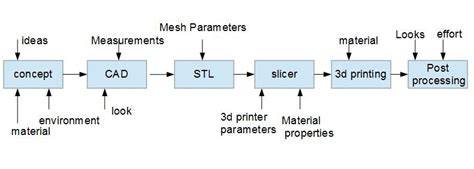
Zbrush to 3d Printing: Bring your 3d Models to Life | Promo video
Prepare your prints with care, understanding printer limitations and material choices. Some printing services require careful consideration of feature size, tolerances, and assembly methods to ensure successful fabrication. By leveraging ZBrush’s toolkit for sculpting, texturing, and production, artists can move from artistic concept to tangible model quickly and efficiently.