The Clone Stamp tool can stop working for a variety of reasons, from layer selection to sample settings, brush choices, and recent system updates. This guide compiles common causes and practical fixes so you can restore functionality quickly without losing your presets.
Common reasons the Clone Stamp tool stops working
The most frequent culprits are selecting the wrong layer, incorrect sample settings, or accidentally sampling a layer mask. If you’ve recently updated Windows or adjusted brush parameters, those can also affect performance. Here are the main issues to inspect first.
Wrong layer selected
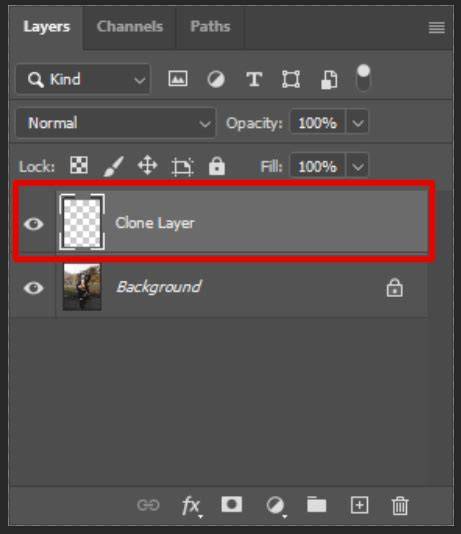
The Clone Stamp tool may appear ready but will not clone if you are on the wrong layer. Ensure you are cloning from and painting to the intended layers, not a hidden or transparent layer or a layer mask. If you’ve set a target layer, double-check that you’re sampling from the correct source layer.
Incorrect sample settings
The tool offers multiple sample options, such as Current Layer, Current & Below, and All Layers. If you work on a new transparent layer or above another image layer, keeping the sample setting on Current Layer can cause the stamp to fail. Switch to Current & Below or All Layers as appropriate for your task.
Accidentally sampling a layer mask
Sampling the layer mask yields odd results. A quick visual cue is the white boxes around the mask. To fix this, click on the image layer thumbnail to sample from the actual image rather than the mask.
Brush settings and spacing
Using a brush with excessive spacing or an incompatible brush tip can create the appearance that the Clone Stamp tool isn’t working. Use a round brush with softer pigmentation and moderate spacing. Access brush presets by pressing S and selecting the brush options in the upper settings bar.
Opacity, flow, and blending mode
Clone Stamp behaves similarly to other painting tools, with opacity and flow affecting how the clone blends. If the blending mode is not Normal, resetting it is straightforward: press S to activate the Clone Stamp tool, then change the blending mode in the upper settings bar back to Normal.
Sample area and sampling a transparent area
If you have defined a sample area over a transparent region, the clone operation may fail. Re-define the sample point by Alt/Option-clicking a non-transparent area on the source image to set a valid source.
Clone Source settings and overlays
Sometimes the Clone Preview isn’t visible due to Clone Source settings. Open Clone Stamp > Window > Clone Source and adjust overlays, blending mode, and clipping as needed. Ensure Show Overlay is enabled and that Invert and Auto Hide are unchecked if they interfere with your workflow.
Recent software updates or environment changes
A recent Windows update or a shift in Photoshop Elements 9’s behavior after an upgrade to Windows 10 Ver 2004 can influence the tool’s performance. If nothing else fixes the issue, investigate compatibility or rollback options, keeping in mind that you may lose custom Clone Stamp presets when resetting tools.
Step-by-step fixes to try
- Confirm the correct layer is selected for both source and destination. Ensure the target layer isn’t hidden or a mask layer.
- Verify the sample setting is appropriate for your task (start with Current & Below for working above content on another layer).
- Click the image thumbnail (not the mask) to sample from the image, avoiding the white box around a mask.
- Choose a brush with normal spacing and a round tip; adjust size and hardness to fit the area you’re cloning.
- Reset blending mode to Normal if it has been changed; access the setting in the upper toolbar after pressing S to activate Clone Stamp.
- If you suspect sampling a transparent area, Alt/Option-click a non-transparent region to redefine the source point.
- Open Clone Source (Window > Clone Source) and review overlays (Show Overlay, Clipped) while ensuring Invert and Auto Hide are not conflicting with your view.
- If all else fails, reset the Clone Stamp tool, understanding you may lose custom presets. Recreate necessary presets afterward.
Practical troubleshooting notes drawn from common scenarios
Several users report the symptom of “not working” despite the icon appearing active. In many cases, this stems from layering and sampling issues rather than tool malfunction. The fix sequence below reflects practical diagnosis steps:
- First, ensure you are painting on a visible, non-masked layer and sampling from the correct image layer.
- Second, verify that the sample origin is well-defined on a non-transparent region.
- Third, adjust the brush and sampling mode to align with the content you intend to clone.
- Fourth, check for any conflicts introduced by recent software or OS updates that might affect how the tool operates.
These steps can resolve most common cases where the Clone Stamp tool seems non-functional, often within seconds, without requiring deep system changes.
For users who have experimented with new brush settings or have multiple layers, it’s useful to retrace the process: sample from a concrete point, choose a compatible brush, and apply with Normal blending over the correct target layer. If you encountered an error message like “Could not use the clone stamp because the area to be cloned could not be defined,” re-define the sample point and ensure the source is correctly selected.
Visual cues such as the highlighted sample area and the presence of the crosshair are helpful when diagnosing sampling problems. When the clone preview is not showing, re-check Clone Source overlays and ensure they are configured to display the intended source.
Photoshop - Fix Clone Stamp Error Quickly
The process of resetting can be described as a last resort when all standard fixes fail. It will reset all custom settings for the Clone Stamp tool and revert it to default state, which may remove any presets you created. If you proceed, be prepared to recreate essential presets afterward.
Table of quick reference settings
| Setting | What to look for | Recommended action |
|---|---|---|
| Layer | Target layer visible and not a mask | Select correct layer |
| Sample | Current Layer, Current & Below, All Layers | Choose appropriate according to task |
| Source | Source point defined on non-transparent area | Alt/Option-click to define |
| Brush | Spacing and tip | Use round brush, moderate spacing |
| Blending | Mode | Set to Normal |
Applying these steps in order often resolves the issue without professional intervention. If the problem persists after all these checks, consider more in-depth system compatibility checks or consulting Photoshop Elements support resources for version-specific quirks observed with Windows 10 Ver 2004.