Adobe InDesign is a desktop publishing software that can be used to create works such as posters, flyers, brochures, magazines, newspapers, and books. InDesign can also publish content suitable for tablet devices in conjunction with Adobe Digital Publishing Suite.
Hardware foundations for optimal InDesign performance
Processor: Selecting the right processor for InDesign is critical as it uses both the number of processing cores and operating frequency of the processor for overall system performance. InDesign takes advantage of multiple processor cores, but there is a diminishing performance increase per core after 8 cores. We recommend a 8 core processor for optimal performance. Processors have base and turbo clock speeds. An example is a CPU model with 6 processing cores with a 3.8GHz base frequency and a 4.6GHz turbo frequency. If the system tasks are utilizing all 6 cores, the CPU will function at 3.8GHz. If the system is utilizing 1 core, the CPU will function at the 4.6GHz turbo. The CPU will function between 3.8GHz and 4.6GHz depending on the number of processing cores utilized. We recommend a 4GHz+ turbo frequency. Intel offers the Core i7/i9 processors as the consumer series and the Xeon processors as the professional series. In the past, Xeon CPUs were more powerful than their Core-series counterparts. Today, however, there is little functional difference between the two Intel product families for workstations. Core-series processors, especially with the 'K' designation (e.g. the Core i7-14700K) have the highest clock speeds, while the Xeon models maximize the number of cores. Since InDesign will effectively take advantage of limited cores, a Core-series CPU is perfectly fine. You can opt for a Xeon if you prefer to stick with enterprise-class components developed for 24/7 operation and intensive workloads.
Memory: The amount of RAM needed depends on the size and number of images you will be working with. If your images are smaller, the minimum should be 16GB, but ideally 32GB RAM. If your images are moderate size, 32GB RAM is most common. If your images are larger and you have massive amounts of images, 64GB is recommended. It's better to have ample memory than for your system to run out of memory causing bottleneck and lag; especially, if you have multiple projects or applications opened at the same time.
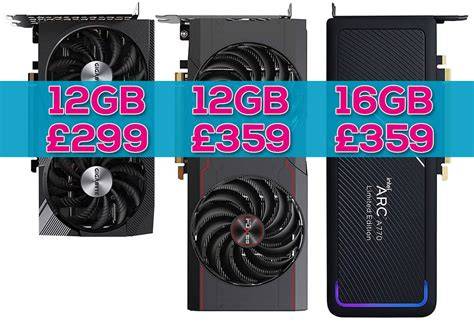
Graphics: As technology advances, applications progressively increase graphics card acceleration. InDesign achieves the largest boost in performance from the processor and the demand on the graphics card is relatively light, so even a mid-range graphics card will be adequate. We recommend at least 8GB VRAM for signifcant raw performance and powering multiple 4K monitors.
Storage: We recommend an NVMe SSD for the operating system, applications and project files. 1TB is the most common capacity for InDesign workstations. A 500GB is fine if your projects are moderately sized and the workstation is utilized for basic function work purposes.
Software and platform considerations
Release Date and support: Release Date: The initial release of InDesign was in 1999. Major updates are typically released annually. GPU: GPU with DirectX 12 support (Feature Level 12_0) for Windows; Apple M1/M2/M3 or Intel GPU with Metal support for macOS. End of Support Date: Adobe typically supports the current version and the two previous major versions. Older versions receive critical bug fixes but no new features. End of Life Date: Adobe does not typically announce specific "end of life" dates for individual InDesign versions in the same way hardware products do. License Type: Subscription-based (Creative Cloud).
Processor and storage requirements (summary): A multi-core Intel or AMD processor with 64-bit support and a clock speed of 2 GHz or faster is essential. Storage: At least 4 GB of available hard-disk space for installation. System requirements emphasize 64-bit architecture, multi-core processors, and sufficient RAM to handle demanding tasks. SSD storage and higher resolution displays indicate a focus on user experience and efficiency.
Operating system, drivers, and ecosystem readiness
Operating System compatibility is one of the first things to verify before installing InDesign. Creative Cloud access matters because InDesign is rarely a standalone app inside a production environment. Do not upgrade an operating system on a production machine without checking Adobe’s support matrix first. Document complexity is often more important than page count. InDesign must manage linked assets, style definitions, page objects, and export settings all at once. Practical planning helps more than most people realize.
Available drivers: InDesign relies on system-level graphics drivers. InDesign works by assembling text, images, styles, and layout rules into a document model that must constantly update on screen and during export. The process is fast on a well-equipped machine, but it becomes sluggish when the project size grows or the system is short on memory and storage.
Real-world guidance for choosing a workstation
Best investment: For most design teams, an SSD is not optional. Solid-state storage reduces the penalty of constant file access, which helps when InDesign is reading linked assets, writing cache data, or generating PDFs. If you are choosing a workstation for professional design work, the best investment is usually balanced hardware rather than one flashy component. Display quality is not cosmetic. When aligning text frames, checking image edges, or reviewing print exports, a clearer screen reduces the chance of missing a problem. If your budget is tight, spend first on RAM and SSD space. If you are outfitting a team workstation, prioritize a desktop with room to grow.
Practical optimization: Upgrading makes sense when the hardware is the consistent bottleneck. Optimizing workflow makes sense when the machine is adequate but the document setup is sloppy. If you close background apps, reduce preview quality, clean up oversized links, and keep disk space under control, you may solve a surprising number of slowdowns without spending money. Start by closing browser tabs, cloud sync tools, and other Adobe apps that are not required for the current job.
Complexity and production reality: Document complexity is often more important than page count. InDesign must manage linked assets, style definitions, page objects, and export settings all at once. Practical planning helps more than most people realize. A machine that “runs InDesign” is not automatically fit for production. A slow workstation can turn a one-hour layout task into a half-day delay, and that compounds quickly when multiple revisions are required.
Security, compatibility, and ongoing maintenance
Security features: InDesign benefits from Adobe's secure development lifecycle, including sandboxing, secure update mechanisms via the Creative Cloud desktop app, and regular security patches. Known vulnerabilities: Adobe regularly releases security bulletins for its products, addressing any identified vulnerabilities. Users are advised to keep their software updated to the latest version to mitigate risks. Certifications: Adobe as a company holds various certifications for its cloud services and enterprise offerings, such as ISO 27001, SOC 2, and FedRAMP, which underpin the security of its ecosystem. Encryption Support: InDesign files (INDD) can be password-protected when exported to PDF. Authentication Methods: Users authenticate via an Adobe ID, which supports strong password policies and multi-factor authentication (MFA).
Overall security stance: Overall, InDesign maintains a strong security posture with regular updates, robust authentication options, and integration with Adobe's secure cloud infrastructure. While no software is entirely immune to vulnerabilities, Adobe's proactive approach to security and transparent patching process ensures that InDesign remains a secure tool for professional use.
Performance and ecosystem positioning
Benchmark and performance notes: Formal, standardized benchmark scores for InDesign are not commonly published by third-party benchmarking sites in the same way hardware is. Export Speed and Power Consumption: Exporting to PDF or other formats is CPU and RAM intensive. Carbon Footprint: The carbon footprint is tied to the energy consumption of the hardware running the software and the energy used by Adobe's cloud infrastructure. Comparisons: InDesign generally offers a more modern interface and tighter integration with other Adobe Creative Cloud applications. Affinity Publisher is known for its perpetual license model and often boasts impressive performance, particularly in terms of speed and resource efficiency on certain tasks.
Usage guidance: For production environments, consider the entire Creative Cloud pipeline as one workflow rather than a collection of unrelated apps. InDesign workflow depends on smooth cooperation with Photoshop, Illustrator, Acrobat, and other Creative Cloud tools. Before installing, verify the operating system, memory, processor, free disk space, GPU compatibility, and Creative Cloud access. Use this checklist before launch day or before a hardware refresh.
Bottom line for practical readers: The safest approach is simple: verify operating system support, prioritize RAM and SSD storage, and match the workstation to the heaviest file you expect to produce. If your current machine is close but not ideal, optimize the workflow first. The information provided is based on publicly available data and may vary depending on specific device configurations.
| Category | Recommendation |
|---|---|
| Processor | 8-core with 4GHz+ turbo preferred; Core i7/i9 or Xeon |
| RAM | 16-32GB minimum; 64GB for large image libraries |
| Graphics | 8GB VRAM minimum; mid-range GPU acceptable |
| Storage | NVMe SSD; 1TB common, 500GB acceptable for smaller setups |
| Display | High-quality display for accurate layout and color |
| OS | Check Adobe support matrix; ensure compatibility with Creative Cloud |
Notes: InDesign is not supported on case-sensitive file systems, removable storage devices, and network drives. Internet connection, Adobe ID, and acceptance of the license agreement are required to activate and use this product. Certain virtualization environments may be unsupported. Adobe services availability varies by country and language, and features may change over time.
Operational checklist for before you upgrade
- Verify the operating system support and driver compatibility against Adobe’s official system requirements.
- Prioritize RAM and SSD storage to handle large, image-heavy documents and long exports.
- Consider a balanced hardware upgrade rather than a single flashy component for sustained performance.
- Close unnecessary background apps and manage linked assets effectively to minimize slowdowns.
- Keep InDesign and Creative Cloud up to date and enable MFA for Adobe IDs.
Adobe InDesign System Requirements | Adobe Indesign PC Requirements
tags: #adobe #indesign #system #requirements